How Can We Help?
At SinParty, we use first-click cookies for tracking purposes. This means we attribute activity (like sign-ups or purchases) to the first referral link or source a user clicked before arriving on our platform.
The data collected through these cookies is stored for 90 days. This helps us understand where our traffic comes from and reward our affiliates fairly, without affecting your privacy or experience on the site.
Note that other users may also spy on this session (if the creator has activated that feature) but they cannot communicate directly with the creator.
No spying from other users is allowed in Exclusive Private shows.
Users with a token balance can peek for free for the first 15 seconds. If you wish to continue spying beyond this, you must pay the per minute fee set by the creator.
Please note: When spying you can only observe and cannot engage with the creator at all.
Here you will find the "report room" option which, once clicked, will open a pop up listing various issues.
If you can not find your related issue then you will have the option to explain your issue in more detail.
Once your report is submitted, our Support Team will investigate.
Please note: The mute state will automatically be disabled after 24 hours.
- Credit/Debit/Prepaid Cards
- Cryptocurrencies
We would recommend trying again using another payment method as some banks may block online transactions for security reasons.
You may need to contact your bank for clarification if the problem persists.
Please wait for a short while for the tokens to reflect in your account, and if the problem persists, please contact billing support.
If the problem persists you can report the issue by clicking on the gear icon, in the bottom right corner of the live stream, and selecting ‘Report video issue’.
A pop-up will appear with a list of potential issues to choose from. Once the report is submitted, our Support Team will do their best to resolve it soonest.
This enables our creators to rank the users in their room and give attention/focus on users who have the propensity to spend.
- Gold names have spent more than 5000 tokens
- Purple names have spent between 1000 - 5000 tokens
- Green names have spent less than 1000 tokens
- Grey names have never spent tokens
At SinParty, we use first-click cookies for tracking purposes. This means we attribute activity (like sign-ups or purchases) to the first referral link or source a user clicked before arriving on our platform.
The data collected through these cookies is stored for 90 days. This helps us understand where our traffic comes from and reward our affiliates fairly, without affecting your privacy or experience on the site.
Remember to keep your balance topped up so the renewal payment will be successful.
If you are still having issues please feel free to reach out to our support team at any time using the Contact Us section.
Here you will find all of your active subscriptions.
Simply find the creator you would like to cancel and then click on the 3 dots next to their name and hit the Leave Fan Club option.
Webmaster Affiliate: 5% revenue share will be paid on all affiliate earnings from referred webmasters.
Broadcaster Affiliate: Earn a one-time payout for each referred broadcaster, based on a tiered system.
(Track: Used for bucketing traffic by a handful of traffic sources from your side, e.g. "websiteA", "websiteB".)
At SinParty, we use first-click cookies for tracking purposes. This means we attribute activity (like sign-ups or purchases) to the first referral link or source a user clicked before arriving on our platform.
The data collected through these cookies is stored for 90 days. This helps us understand where our traffic comes from and reward our affiliates fairly, without affecting your privacy or experience on the site.
Once completed, your payout method will be activated and you’ll be included in the regular payment cycle (see: “How often do I get paid as an Affiliate?”).
Try testing different promo tools and placements on your site. Need help? We’re here to support you.
General Links:
- Homepage – The main landing page of SinParty, perfect for broad traffic.
Featured Live Rooms:
- Featured Girls Live Rooms – Popular female streamers currently live.
- Featured Top 7 Live Rooms
- Featured Top 14 Live Rooms
- Featured Top 21 Live Rooms
Gay Live Rooms:
- Gay Top 7 Live Rooms
- Gay Top 14 Live Rooms
- Gay Top 21 Live Rooms
Trans Live Rooms:
- Trans Top 7 Live Rooms
- Trans Top 14 Live Rooms
- Trans Top 21 Live Rooms
Paxum
Cosmo
Direct Deposit (USA only)
Cryptocurrency
Moneibox (LATAM only)
Wire Transfer
All creators were at least 18 years old when they were photographed or recorded.
SinParty’s designated custodian of records, whose particulars appears below, is the repository of all original records as laid out in 18 U.S.C. § 2257 and 28 C.F.R. § 75. SinParty’s §2257 recordkeeping obligations are limited to: (a) promotional “visual depictions” produced for or by SinParty containing simulated or “actual sexually explicit conduct”; and (b) “visual depictions” produced by creators containing simulated or “actual sexually explicit conduct” allowing applicable creators to receive tokens or similar remuneration via the SinParty Platform. For the latter, age and identification verification records are collected and reviewed before permitting a creator to receive tokens or similar remuneration.
The Custodian of Records of this website is:
Orbit Internet, LLC
E Broward Blvd, Suite 700
Ft. Lauderdale, FL 33301
Exempted content:
1. Covered content produced by Creators
SinParty’s activities, with respect to any “visual depictions” of any simulated or “actual sexually explicit conduct” located on this website are limited to the transmission, storage, retrieval, hosting and/or formatting of depictions posted by third party creators, on areas of the website under the creator’s control. Please direct any request you may have regarding §2257 records in relation to any content found on SinParty, directly to the respective creator of the content. For further assistance in communicating with the creator, or any questions regarding this notice, please contact SinParty’s compliance department at support@sinparty.com. In accordance with 18 U.S.C. § 2257(h)(2)(B)(v) and 47 U.S.C. § 230(c), SinParty reserves the right to delete any content which SinParty believes violates applicable law and/or the Terms of Use.
2. Non-covered content produced by SinParty
To the extent that any other visual depictions appearing on this website are deemed to be “produced” by SinParty, such depictions fall under one of the following stated exemptions listed under either 18 U.S.C. § 2257 and 28 C.F.R. § 75:
(a) the visual depictions do not contain any sexually explicit conduct;
(b) the visual depictions do not contain portrayals of any genitals or pubic areas created after 27 July 2006;
(c) the visual depictions do not contain sexually explicit conduct occurring after 3 July 1995;
(d) the visual depictions were produced prior to 3 July 1995.
Planning a duo show or want others to stream with you? Each guest must complete age verification before joining. You can add up to 5 verified guests to your profile.
Steps:
- Go to My Profile from the left-hand menu.
- Click on the Add Guest section.
- Click Add Guest to begin the verification process, or share the verification link with the person you'd like to invite.
Tags help people discover your profile and content more easily. Choosing the right tags ensures you’re reaching the right audience and growing your fanbase.
Steps:
- Go to My Profile and find the Describe Content section.
- Add or update up to 5 tags that best represent your content.
- Scroll down and click Save to confirm your changes
If you manage a studio account on SinParty, you can easily add new or existing models to your dashboard. Follow these simple steps to get started:
Steps to Add a Creator:
- Go to sinparty.com and log in to your Studio Account.
- From the left-hand menu, click Studio Management.
- Select Creators, then click Add Creator.
- Choose one of the two options:
- Add New Creator – Fill in the model’s personal details and complete the verification process.
- Add Existing Creator – Enter the model’s username. She’ll receive an email with a confirmation request. Once she confirms, she’ll automatically appear under your studio dashboard.
- Repeat the process for each model you’d like to add.
Tip: Make sure each model completes verification to be fully active on the platform.
If you need help or support related to anti-slavery issues, please visit:
Pineapple Support - A non-profit organization providing 24/7 support, professional therapy, and counseling services to adult industry professionals.
Pineapple Support offers confidential, stigma-free mental health care and resources specifically designed for those working in the adult entertainment industry.
If someone is harassing you, spamming, or behaving inappropriately, you can easily block or report them. Blocking helps you stay focused on your show without giving attention to disruptive users, while reporting alerts our moderation team to review their behavior.
How to Block or Report a Member:
- Click the three dots next to the message from the member you want to take action on.
- Select Report or Block Member.
- Report: Use this option if the user is sending fake tips, harassing you, or violating platform rules.
- Block: When you block a user, they'll still see and hear your stream and can send messages in free chat — but no one, including you or other members, will see their messages. They'll believe they're being ignored, which often discourages further disruption.
Pro Tip: Blocking silently removes attention from the troll without feeding into their behavior. Clean and simple!
If your camera feed is not clear or not showing at all, it's usually caused by internet speed, hardware limitations, or browser conflicts. Follow the steps below to fix it:
1. Check Internet Connection
- Minimum upload speed: 5 Mbps (10 Mbps or higher recommended).
- Restart your router or connect directly with an Ethernet cable (faster & more stable than Wi-Fi).
- Close other devices/apps using bandwidth (Netflix, downloads, etc.).
2. Adjust OBS or Browser Streaming Settings
If using OBS:
- Bitrate: 2500–3500 kbps for 720p, 4500–6000 kbps for 1080p.
- FPS: 30 (higher FPS = more lag if the internet is weak).
- Encoder: Use Hardware (NVENC / Apple VT H264) if possible.
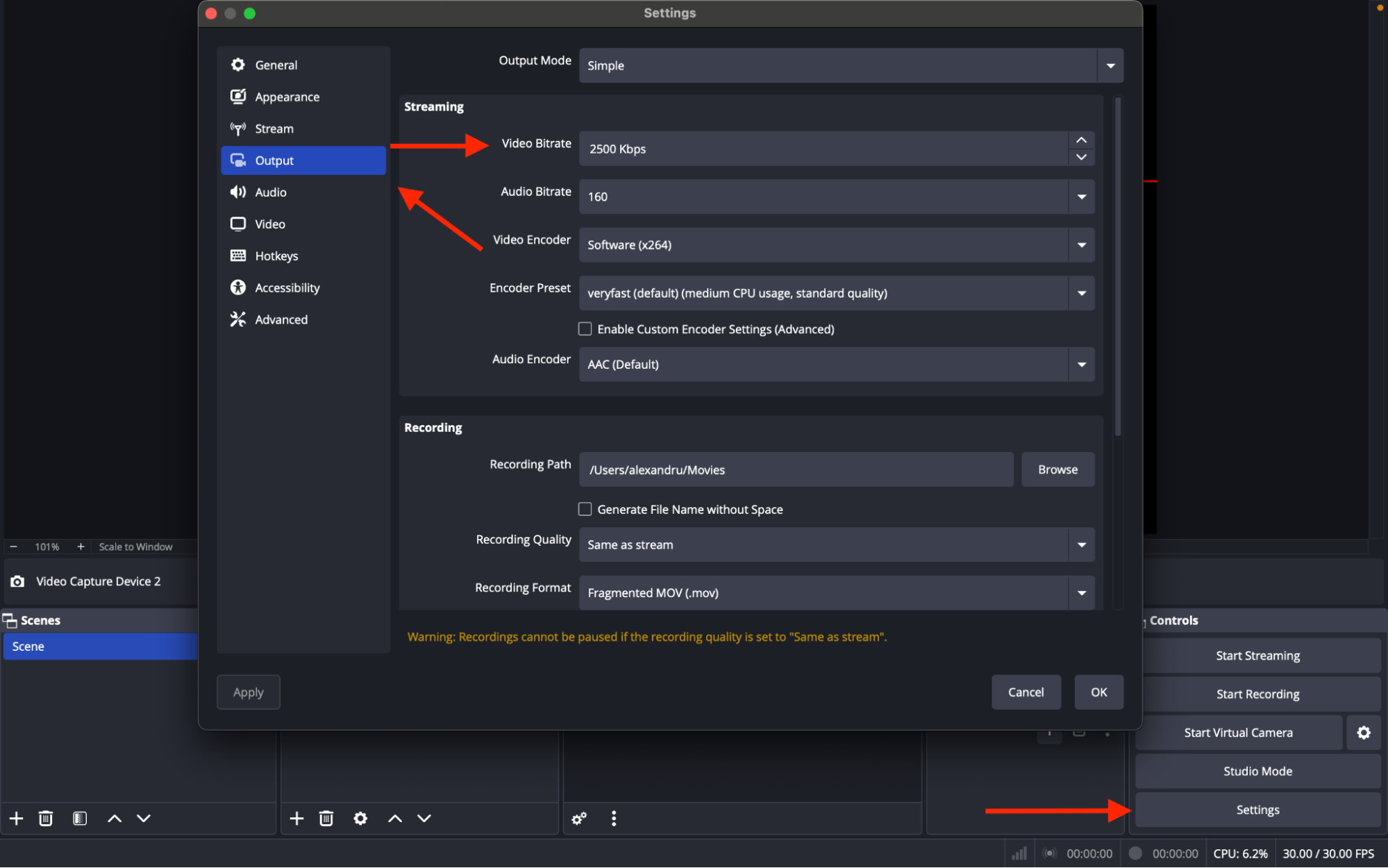
- If using browser streaming:
- Switch to Chrome (most stable).
- Lower resolution in camera settings before going live.
3. Camera Troubleshooting
- Ensure your webcam is HD (720p or 1080p recommended).
- Clean your webcam lens for a sharper image.
- If camera is pixelated or blurry:
- Check lighting — dark rooms force webcams to drop quality.
- Use a ring light or LED panel for better results.
4. Black or Blank Camfeed
- Close other apps that might be using the camera (Zoom, Teams, Skype).
- Refresh the page and re-select your Camera & Microphone in the dropdown.
- Check browser permissions (Settings → Privacy → Camera → Allow for sinparty.com).
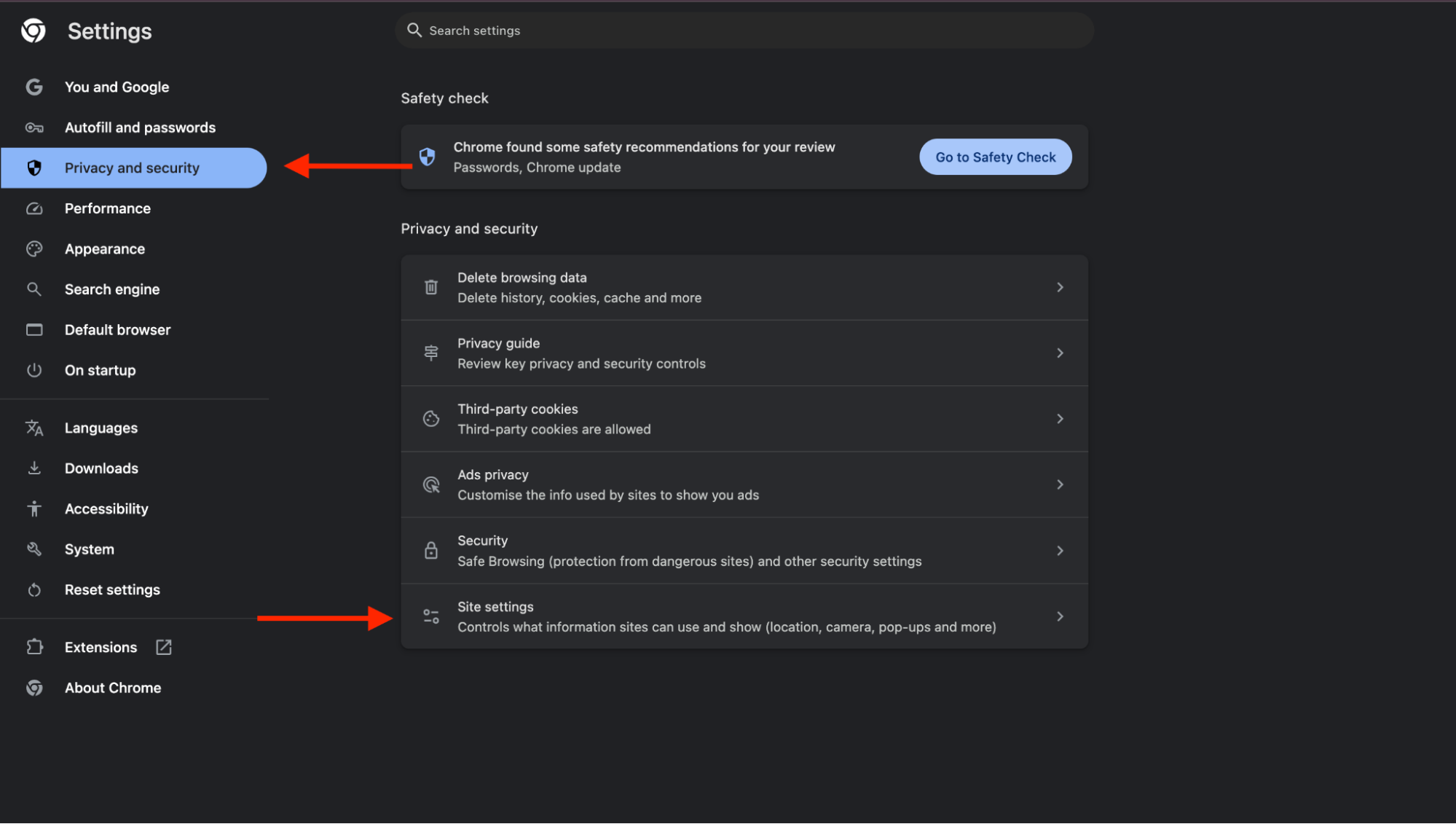
- If using OBS:
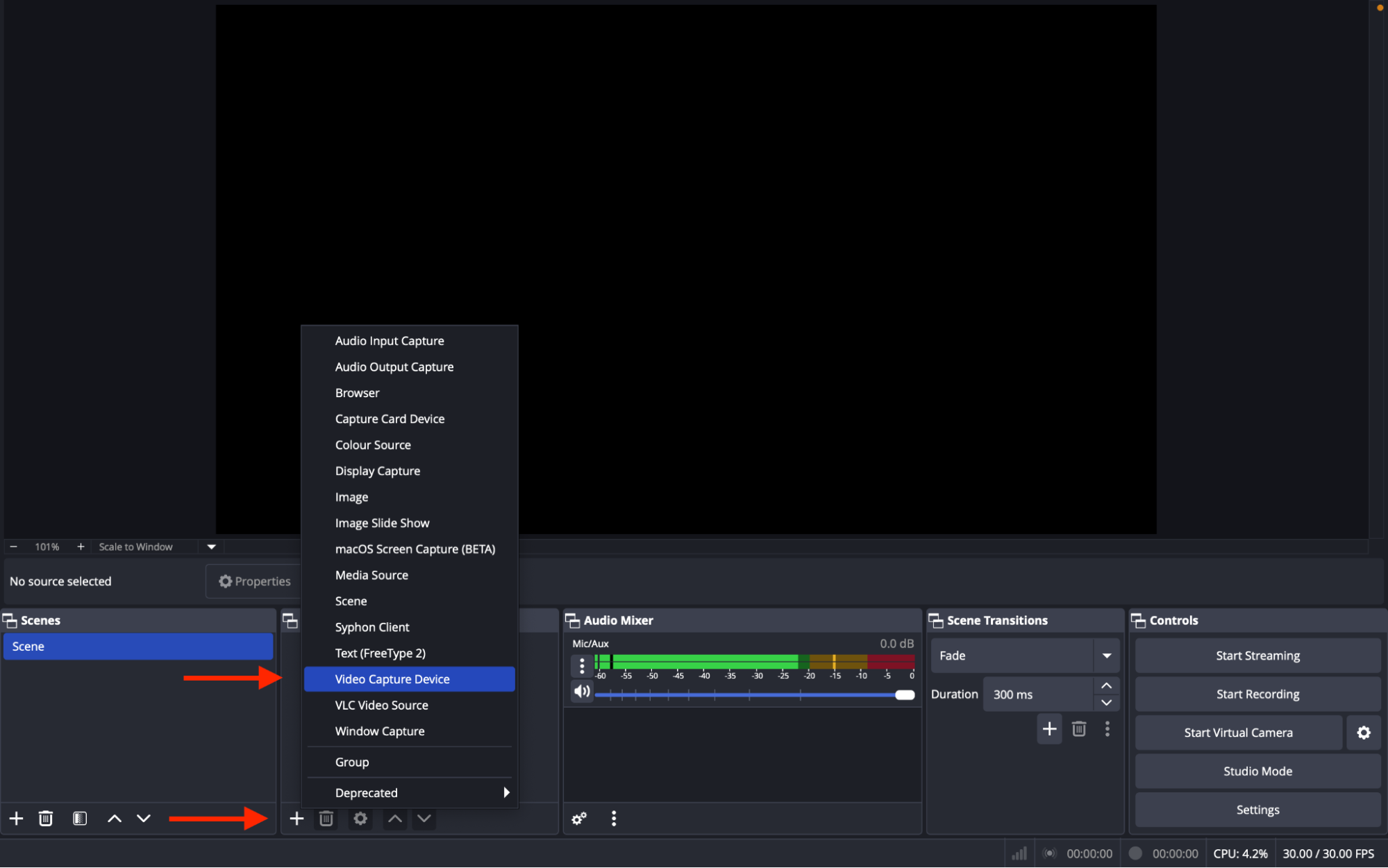
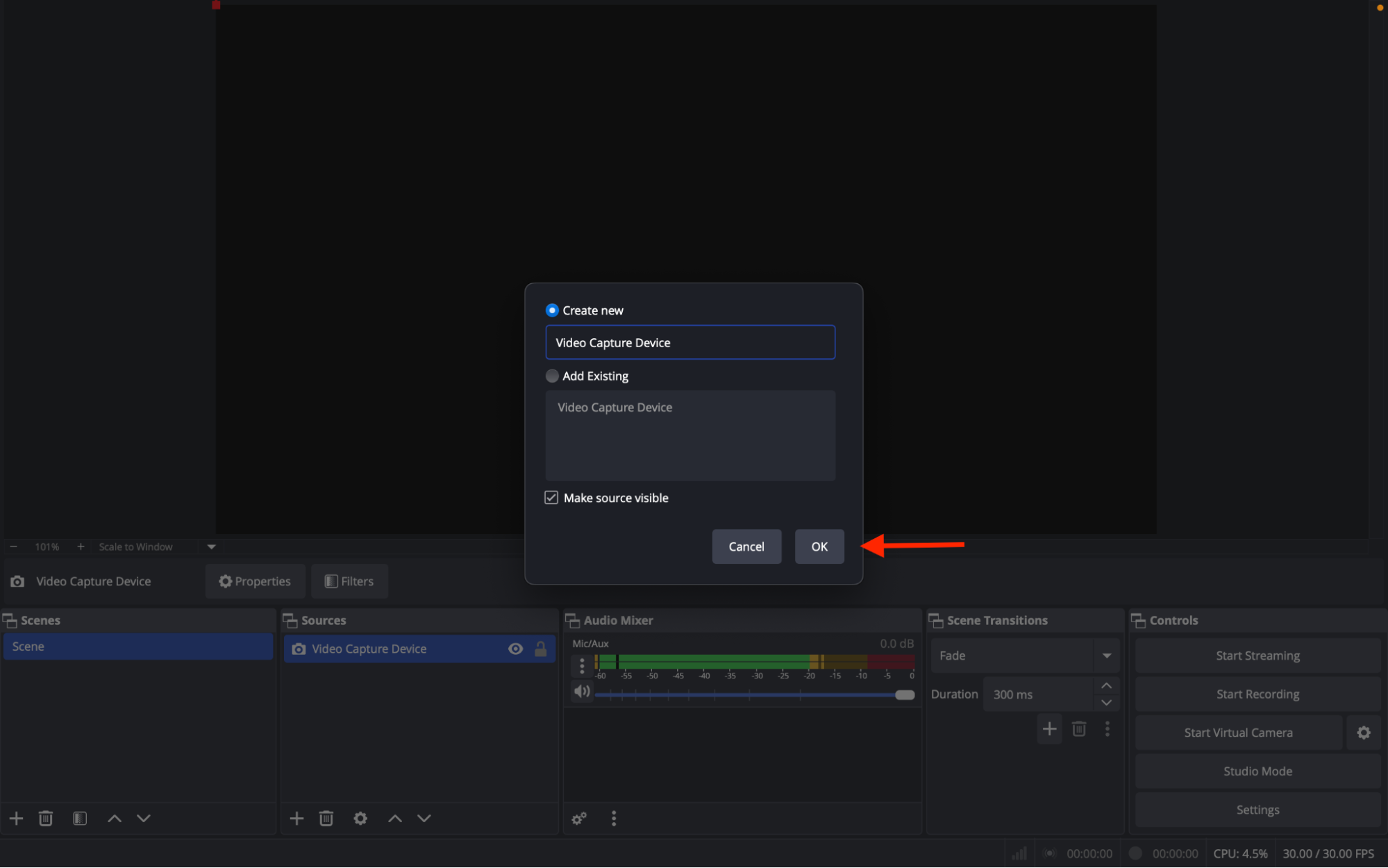
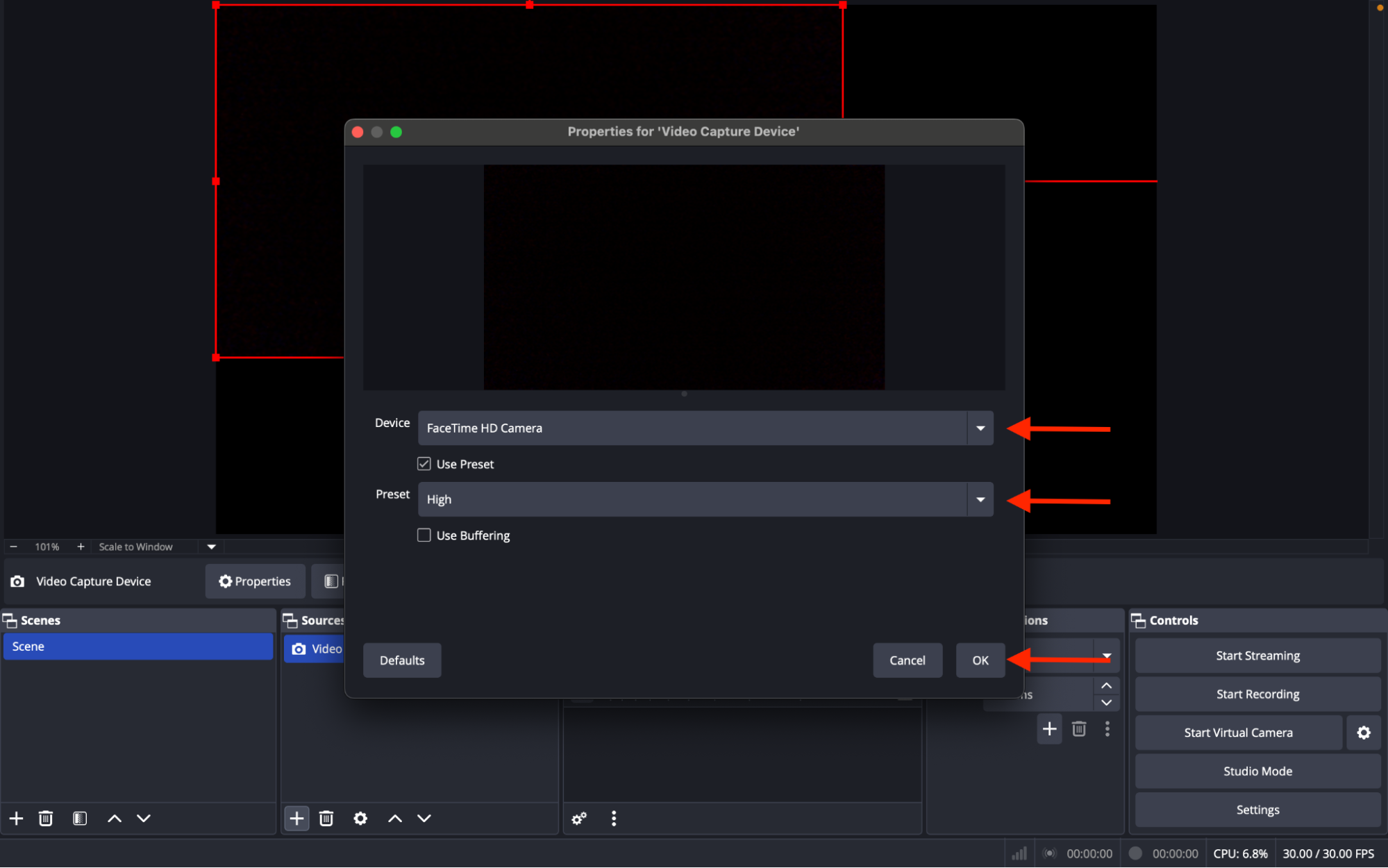
- Add Video Capture Device → Select the correct webcam
- Make sure the source is not hidden/disabled.
5. Device Performance
- Close background apps to free CPU/RAM.
- Check Task Manager (Windows) or Activity Monitor (Mac) to see if system resources are maxed out.
- If using an external camera:
- Plug it directly into a USB 3.0 port (avoid hubs).
- Update camera drivers.
6. Quick Fix Checklist
- Restart browser/OBS.
- Restart computer.
- Test stream in another browser (Chrome recommended).
- Test camera in another app (like Camera app/Photo Booth) to confirm it works.
Pro Tip: Good lighting + stable internet + updated drivers are the holy trinity for crystal clear streams.
If your camera or microphone is blocked, your stream won't start. This usually happens because your browser or operating system denied permissions. Here's how to fix it:
1. Google Chrome
- Open Chrome.
- Go to the SinParty, Go Live page.
- In the address bar, look for a camera icon 🔒.
- Click it → Select Allow camera and Allow microphone.
- If you don't see it, go to:
- Menu (⋮) → Settings → Privacy and Security → Site Settings.
- Under Permissions, select Camera and Microphone.
- Find sinparty.com and set both to Allow.
- Refresh the page and try again.
2. Mozilla Firefox
- Open Firefox.
- Go to the SinParty Go Live page.
- Look for a camera/mic icon next to the address bar.
- Click it → Select Allow camera and Allow microphone.
- If blocked permanently:
- Go to Settings → Privacy & Security → Permissions.
- Next to Camera and Microphone, click Settings….
- Find sinparty.com → Set to Allow.
- Reload SinParty.
3. Microsoft Edge
- Open Edge.
- Go to the SinParty Go Live page.
- In the address bar, click the camera icon → Set to Allow camera/mic.
- Or: Menu (⋮) → Settings → Cookies and site permissions → Camera/Microphone.
- Find sinparty.com → Change to Allow.
- Refresh the page.
4. Safari (Mac)
- Open Safari.
- Go to the SinParty Go Live page.
- In the top menu → Safari → Settings for This Website.
- Under Camera and Microphone, set both to Allow.
- Refresh SinParty.
5. Operating System Permissions
Sometimes your browser is allowed, but the system itself blocks devices:
MacOS:
- Go to System Settings → Privacy & Security → Camera / Microphone.
- Ensure your browser (Chrome, Safari, etc.) is toggled ON.
Windows 10/11:
- Open Settings → Privacy → Camera / Microphone.
- Toggle Allow apps to access camera/microphone → ON.
- Scroll down and allow access for your browser.
Quick Fixes
- Restart your browser after changing permissions.
- Try another browser (Chrome recommended).
- Make sure no other app (Zoom, Teams, Skype) is using the camera/mic at the same time.
Your profile photo is one of the first things users see — make sure it reflects your style and personality. You can update it anytime to keep your profile fresh and engaging.
- Go to My Profile from the left-hand menu.
- Click on the Overview section
- Click the pencil icon located in the top-right corner of your current profile picture, under "Profile Banner Preview."
- Upload a square image (1:1 ratio) to set it as your new profile picture.
This policy document sets out the SinParty complaint procedures and is applicable to all Creators, Participants and Users of the SinParty Platform.
DEFINITIONS
- "Business Day" means any day which is not a Friday, Saturday, Sunday or public holiday in the United States;
- "Company", "we", "us", "our" means Orbit Internet LLC, a company duly incorporated in accordance with the laws of the state of Delaware with company number: 93-4395146 and registered address at: 1 E Broward Blvd, Suite 700 Ft. Lauderdale, FL 33301, being the operator of the SinParty Platform;
- "Content" means all material uploaded to the SinParty Platform by any Creator, including photos, videos, audio (for example, dialogue, music and other sounds), livestream material, data, text (such as comments and hashtags), metadata, images, interactive features, emojis, GIFs, memes, and any other uploaded material whatsoever;
- "Creator" also described as creator, performer or broadcaster means a User who has formally contracted with SinParty to set up their own personal SinParty account as a Creator account to post Content on the SinParty Platform to be viewed by other Users and includes all parties, participants and/or performers in any content whatsoever uploaded onto the SinParty Platform;
- "Participants" means all Creators, performers or broadcasters, who, in conjunction with the Creator, participate in any Content uploaded on the SinParty Platform by a Creator and from whom the Creator is lawfully obliged to obtain and hold duly signed consent forms and to provide such duly signed consent forms to the Company on request;
- "SinParty" means SinParty.com, a social media platform, website and application service wholly owned and operated by the Company which allows Creators to upload photographs and videos to their profile, setting a Subscription Fee and therefore earning revenue from paying Users via the Company merchant processing systems;
- "SinParty Platform" means the SinParty Platform, and interactive social media platform, website and application service wholly owned and operated by the Company which allows Creators to upload photographs and videos to their profile, setting a fee to earn revenue from paying Users via the Company merchant processing payments;
- "User" means any user of SinParty, whether subscribed or unsubscribed, that views content uploaded to the SinParty Platform, whether a Creator or a User or both;
APPLICABILITY
This SinParty Complaints Policy can be used by all Participants, Creators and Users, including individuals who do not use or access the SinParty Platform, to lodge any complaint with the Company where the complaint relates to the SinParty Platform, Content and/or conduct of Users and/or Participants.
LODGING A COMPLAINT
- If you have a complaint about the SinParty Platform, Content or the conduct of a Participant, Creator and/or User, please send your complaint to complaints@sinparty.com, with the subject as "Complaint".
- If you are unable to contact the Company via email, please write to the Company at the following address: Office 1 E Broward Blvd, Suite 700 Ft. Lauderdale, FL 33301.
Your email should include:
- Your full name;
- Your contact details;
- A detailed description of your complaint; and
- the URL for the Content to which your complaint relates (if your complaint relates to Content).
ILLEGAL OR NON-CONSENSUAL CONTENT
- Should your complaint concern illegal or non-consensual Content, the Company shall take such steps it deems necessary, to investigate your complaint within 7 business days. Should the Company require additional time to investigate your complaint, the Company shall electronically inform you of such additional time required dependent on the nature of your complaint.
- If the Company requires further information or supporting documentation, the Company shall contact you and inform you of the information or documentation needed in support of your complaint, which shall be made available to the Company within 2 (two) days of receipt of the Company's request for such information or documentation.
- If the Company is satisfied that the Content is unlawful or non-consensual, the Company shall immediately remove such Content, and notify you of its decision and reasons by email or other electronic message.
- If the Company is satisfied that the Content is not unlawful or non-consensual, the Company shall notify you of its decision and reasons by email or other electronic message.
COPYRIGHT INFRINGEMENT
Complaints relating to copyright infringement must be submitted to the Company in accordance with Clause 28 of the SinParty General Terms and Conditions and the Company shall respond to copyright infringement complaints as set out therein.
OTHER COMPLAINTS
- Following receipt of other complaints (including complaints relating to breaches of the SinParty Prohibited Use Policy), the Company shall take steps it considers necessary to investigate your complaint within 5 business days. Should the Company require additional time to investigate your complaint, the Company shall electronically inform you of such additional time required dependent on the nature of your complaint.
- If the Company requires further information or supporting documentation from you, the Company shall contact you and inform you of the information or documentation required to investigate the complaint, which shall be made available to the Company within 2 (two) days of receipt of the Company's request for such information or documentation.
- The Company shall, in good faith, take such actions as the Company considers necessary to address your complaint. If you have complained about Content and the Company is satisfied that the Content otherwise breaches the SinParty Prohibited Use Policy, the Company shall remove such Content immediately. The Company is not obligated to inform you of the outcome of your complaint.
- If the Company is satisfied that the Content does not breach the SinParty Prohibited Use Policy, the Company shall not remove the Content.
- Any dispute regarding the Company's determination that Content does not breach the SinParty Prohibited Use Policy shall be submitted to the United States Arbitration and Mediation Centre in accordance with Clause 30 of the SinParty General Terms and Conditions.
UNFOUNDED, BASELESS OR ABUSIVE COMPLAINTS
If you are a User, you warrant that you will not lodge a complaint under this SinParty Complaints Policy which is unjustified, abusive, or made in bad faith. If the Company determines that you have breached this warranty, the Company may suspend or terminate your Creator and/or User account immediately.
APPEALS PROCESS
- Filing an Appeal
- Immediate Removal
- Arbitration and Review
- Resolution and Re-Publishing
Any appeal to the Company's denial of a complaint based upon a lack of consent from a Creator must be filed within 30 days of Complaint denial notice. Otherwise you will need to file a new Complaint.
Appeals must be submitted in writing to support@sinparty.com with all relevant documentation and evidence supporting the claim of lack of consent.
Upon filing an appeal, the Content in question shall be removed immediately from SinParty.
The Content will remain removed until the appeal is arbitrated, reviewed, and finally resolved.
The appeal will be reviewed by an independent arbitration panel, pursuant to Section 20 of the Terms of Use, within 30 days of the appeal being filed.
Both the Company and the Content Creator will have the opportunity to present their case and provide any additional evidence during this period.
The panel will review all submitted materials and make a determination based on the evidence provided.
The final decision will be communicated to both parties within 7 days of the arbitration panel's review.
If the arbitration panel rules in favor of the Creator, the Content will remain permanently removed from SinParty.
If the panel rules in favor of the Company, the Content may only be republished if the Creator's consent can be confirmed.
In the absence of a final arbitration decision, appealed Content will only be republished to SinParty if the Creator's consent can be confirmed.
POLICY AMENDMENTS
This Complaints policy may be amended at any time by the company. Any changes to the policy will be communicated to all Users and Creators in accordance with the Terms of Use.
Connecting your Lovense toy adds an interactive element to your live shows, making the experience more fun and engaging for your viewers.
- Install the Lovense Extension on your browser.
- Turn on your Lovense toy (a blinking light indicates it's ready to connect).
- Open the Lovense Connect app on your phone.
- Connect your toy to the app, then link it to SinParty via the browser extension.
Visibility options:
- Public – Anyone (even non-followers) can see it. Great for getting exposure.
- Followers – Only visible to your followers.
- Subscribers – Only visible to paying fans. Best for premium content.
To adjust visibility:
- Scroll to Visibility Settings while posting.
- Select your preferred option.
Step 1: Sign Up
- Go to sinparty.com
- On the left-side menu, click Studio Sign Up
- Enter your username, email address, and password
- Agree to the Terms and Conditions, then click Sign Up
Step 2: Complete Studio Information & Verification
- Fill out your Studio Information (name, contact details, etc.)
- Complete the age and identity verification via Yoti
Tip: Once you start the Yoti process, you can exit the popup and wait for approval. No need to stay on the page.
- Don’t forget to confirm your email address (check your Spam folder if you don’t see it)
If you didn’t do your age verification, don’t worry, you can do it later by simply clicking on Studio Management from the left menu.
Step 3: Account Approval
- Once approved (you’ll receive an email confirmation), go back to sinparty.com and log in with your studio credentials
- Access your Studio Dashboard by selecting Studio Management from the left-side menu
You’re now ready to onboard models and manage your studio!
To get started, go to dashboard.sinparty.com. Enter your email address and password, accept the Terms and Conditions, and click Sign Up.
Next, complete your personal information:
- First Name
- Last Name
- Date of Birth
- Gender
- Country of Residence
Then choose your Creator Name, write a short bio, describe your audience, and select up to 5 tags that best describe your content. Upload a profile photo — and your profile is ready!
Identity Verification & Email Confirmation
Before you can start streaming, you need to complete two important steps:
- Verify Your IdentityFrom the left menu, go to My Profile and complete the Age and Personal Details Verification.Upload a clear scan of a valid government-issued ID to confirm your age and identity.
- Confirm Your Email AddressCheck your inbox and click the confirmation link in the email sent by SinParty. Your account won’t be fully activated until you confirm your email.
You’re Ready to Go Live!Once your age is verified and your email is confirmed, you can start broadcasting and earning money.
For the first 14 days, your chat room will show a “New” badge, which helps attract more viewers. We recommend going live frequently during this period to build your fanbase fast.
- All models must be at least 18 years of age.
- The mode’s identity should match the one on the ID document provided to the site.
Broadcasting and content rules
- Models can only broadcast from one account at a time.
- All broadcasts must be live. Video recordings and static photos are not allowed to be broadcast and/or advertised as live streaming. Violators will be banned and have all outstanding earnings withheld and all past earnings deducted from the studio (if one is involved).
- When online, it’s highly advisable that the model has the microphone turned on and communicates with its visitors.
- The tags you select for “In public shows I do” and “In private shows I also do” must also match the content of the broadcast. Failure to select the appropriate attributes may result in warnings or even termination of the broadcast. You don’t need to choose a flag
- Using screens such as “BRB” (be right back), “Streaming will start soon”, etc., instead of live streaming is not allowed.
- Only approved models registered under the same account can be in a broadcast. No unapproved persons can be in a broadcast.
- All broadcasts, photos, and videos must not contain watermarks, messages or logos (unless copyright protects such elements and you are the legal and actual owner of those rights).
- All broadcasts need to represent only those performers who are registered in the broadcasting account.
- Models are not allowed to record users during Cam2Cam shows without direct user consent.
- If we can’t recognize the model registered in the broadcasting account, we’ll ask them to pass face verification right there and then. If you ignore face verification, the broadcast will stop until you pass it.
- Cover and the Profile/Avatar photo should represent the actual performer or a performer’s body part only.
- As a model, you must ensure that broadcasting from a specific place doesn’t breach any rules or regulations.
- Streaming in public places is allowed only if there is no risk of anyone who is not a model appearing on camera.
Strictly prohibited actions (we have ZERO tolerance for any of these)
- Using fake IDs for account registration on the site.
- Involvement of non-approved/registered persons in broadcasting or video recordings on the site.
- Involvement of minors or unauthorized (not registered) individuals. Also, models posing as minors.
- Discussion in a sexual manner in relation to minors, incest, bestiality, and any other illegal subjects. Models should report such activity to us immediately.
- Involvement and/or portrayal of any sort of animal or pet in a sexual or provocative manner. Animals or pets are allowed to be visible during broadcasts if the model is not naked and not in an erotic show.
- Any form of insinuation, chat, or actual display of violence, blood, torture, pain, asphyxiation, etc., or any unsafe and extreme activity involving such things
- Alluding to, writing about, or showing feces, urine, vomit, blood, or menstrual fluid.
- Exploiting any humans against their will. We are against sexual slavery, so all studio or model accounts involved in such activity will be blocked immediately, and local authorities will be informed.
To keep the site safe, we also prohibit
- Alluding to, mentioning, showing, or making use of illegal drugs. And for your own protection, we prohibit broadcasting while heavily intoxicated.
- Discussing or arranging prostitution or escort services.
- Making any arrangements for personal meetings or shows outside the site.
- Requesting users to share their personal information.
To keep the site clean and fair, we also prohibit
- Having a username of a hateful, racist, defamatory, ethnically offensive nature or any username related to children, incest, terrorist organizations, and/or any other sites.
- Deliberate/planned scamming, harassing, or insulting of users or other models in any way.
- Not honoring your agreements with the users when you receive the agreed number of tokens.
- Asking users to cover your personal expenses like utility bills, medical treatment, loans, or any other expense that would lead users to believe that you are beseeching.
- Accepting and/or asking for funds off-site by any method whatsoever (including PayPal, CashApp, Western Union, gift cards, or any other 3rd-party payment method). We take no responsibility in case of violation of our payment rules.
- Cooperating with fraudulent users or agreeing to split earnings outside of the website. Models are expected to report any suspicious activity that goes on in their rooms or private messages immediately to our support team. Violation or failure to report such incidents can lead to being permanently banned and any tokens earned being withheld.
- Advertising the following:
- Other streaming platforms (adult webcam sites, streaming sites with a donation system).
- Websites that offer alternative means of payment—personal bank or any payment links/apps.
- Fundraising websites with links. Personal fundraisers are not allowed, but sharing links for non-commercial fundraising companies is fine (medical charities, etc.).
- Wearing T-shirts or any other branded clothes promoting porn video hosting sites with paid subscriptions, porn agencies, or other cam sites besides this platform.
- Uploading content containing QR codes.
- Using fake traffic/bots in an attempt to improve your ranking.
- Posting your referral link in your room chat or profile and urging existing users to register again with it.
- Not informing us when prohibited activity is happening.
- Engaging in any activity that imitates, replicates, or in any way affects the functionality of the website or attempting to interfere with or imitate any of our website’s special icons or badges.
We also do not allow to
- Portray or hint at incest (sexual relations between family members) or pose as family members (siblings, parents and children, etc.).
- Show sleeping individuals (or mention in the goal, topic, or elsewhere that the model is asleep or in an altered state of consciousness).
- Sell your personal belongings and other physical items through our platform.
- Show passed-out individuals.
- Depict real or like-real weapons.
- Do anything against your will. You are here to decide on your own what is acceptable for you and what is not. Respect yourself, and if someone harasses you, let us know!
Fines and penalties
- Multiple complaints from users may result in the termination of our collaboration with the model.
- Failure to comply with the aforementioned rules can lead to disconnection from the broadcast, temporary suspension or permanent ban, and any tokens earned being withheld.
- We reserve the right to reject the documents of persons who don’t create any content and/or don’t systematically broadcast.
We take no responsibility in case of violations or scam activities that may result.
If Users encourage you to partake in any prohibited activities, report it immediately to support@sinparty.com.
Our platform is made for joyful hours of adult entertainment, so let us give users what they pay for, as well as a positive aftertaste of interacting with you and willingness to come back.
SinParty terms and conditions for creators
These SinParty Terms and Conditions are applicable to Creators. Please read these SinParty Terms and Conditions carefully, as your access to and use of the SinParty Platform comprises your having read and understanding of all the terms contained herein. These Creator Terms of Use, along with the general Terms of Use, form part of your agreement with the Company.
You agree that you shall keep copies of all VAT invoices and Tax and VAT returns in connection with your Creator Earnings from the Company, and you shall provide the Company with copies of such documents within 14 (fourteen) days of written request by the Company that you do so. For the avoidance of doubt, it is your obligation to comply with all provisions of VAT legislation and make, give, obtain, maintain and keep accurate, complete and up-to-date records, invoices, accounts and other documents required for the purposes of VAT legislation.
1.1 “Company”, “we”, “us”, “our” means 1 E Broward Blvd, Suite 700 Ft. Lauderdale, FL 33301, a company duly formed in accordance with the laws of the state of Delaware with company number: 93-4395146 and registered address at: 1 E Broward Blvd, Suite 700 Ft. Lauderdale, FL 33301, being the operator of the SinParty Platform;
1.2 “Content” means all material uploaded to the SinParty Platform by any Creator, including photos, videos, audio (for example, dialogue, music and other sounds), livestream material, data, text (such as comments and hashtags), metadata, images, interactive features, emojis, GIFs, memes, and any other uploaded material whatsoever;
1.3 “Creator”, “you”, “your” also described as creator, performer or broadcaster means a User who has formally contracted with SinParty to set up their own personal SinParty account as a Creator account to post Content on the SinParty Platform to be viewed by other Users and includes all parties, participants and/or performers in any content whatsoever uploaded onto the SinParty Platform;
1.4 “Creator Earnings” refers to 80% (eighty percent) of the Subscription Fee, excluding any VAT, payable by the Company to the Creator;
1.5 “Creator Fee” refers to 20% (twenty percent), which the Company deducts from the Subscription Fees, excluding any VAT, payable to the Company;
“Creator/User Transaction” means any transaction between Creators and Users via the SinParty Platform pertaining to access of Creator Content including any of the following: (i) a Subscription, or; (ii) payments made by a User to view Creator pay-per-view Content (pay-per-view media and pay-per-view live stream), or; (iii) use by the User of the SinParty Platform interaction function on a Creator account;
“General Terms and Conditions” the SinParty General Terms and Conditions policy document governing access to and use of the SinParty Platform applicable to all Creators and Users;
“Participants” means all Creators, creators, performers or broadcasters who, in conjunction with the Creator, participate in any Content uploaded on the SinParty Platform by a Creator and from whom the Creator is lawfully obliged to obtain and hold duly signed consent forms and to provide such duly signed consent forms to SinParty on request;
“Prohibited Use Policy” means the SinParty Prohibited Use Policy applicable to Creators and Users regarding the Content Creators are prohibited from uploading onto the SinParty Platform;
“Services” means the SinParty Platform and Content made available on the SinParty Platform;
“SinParty” means SinParty.com, a social media platform, website and application service wholly owned and operated by the Company which allows Creators to upload photographs and videos to their profile, setting a Subscription Fee and therefore earning revenue from paying Users via the Company merchant processing systems;
“SinParty Platform” means the SinParty Platform, an interactive social media platform, website and application service wholly owned and operated by the Company which allows Creators to upload photographs and videos to their profile, setting a fee to earn revenue from paying Users via the Company merchant processing systems;
“Subscribing User” means any User who has subscribed to your Creator account;
“Subscription Fee/s” means payment or recurring payment, including Fiat and/or Crypto Currency, made by a User to view Creator Content posted on the SinParty Platform, payable as prescribed from time to time, whether daily, weekly, monthly, annually, in alternative daily, weekly, monthly or annual increments or paid on any other agreed terms, which fee may include any applicable sales, telecommunication, excise, value-added or similar taxes;
“Subscription Service” means the access, use and service afforded to a User via the SinParty Platform commensurate with the agreed User Subscription Fee;
“Tax” includes all forms of tax and statutory, governmental, state, federal, provincial, local government or municipal charges, duties, imposts, contributions, levies, withholdings or liabilities wherever chargeable and whether of the United States or any other jurisdiction;
“Terms of Service” means the legally binding agreement between the Company and any User and/or Creator and/or parties, participants and/or performers in any content whatsoever uploaded onto the Company Platform, including but not limited to, General Terms and Conditions, Terms and Conditions for Creators, Privacy Policy, Compliance Policy and Complaints Policy;
“User” means any user of SinParty, whether subscribed or unsubscribed, that views content uploaded to the SinParty Platform, whether a Creator or a User or both;
CREATING A CREATOR ACCOUNT
To set up your Creator account, you will be required to:
On your Creator Dashboard, complete age verification using facial recognition, proving you are over the age of 18.
You will need to upload a valid form of ID.
Add a bank account, payment details of your bank account or a payment method.
You may also need to submit additional information depending on the country where you live.
Select 1 (one) of the available methods provided as to how your Creator Earnings will be transferred to you (“Payout Options”).
Once you have set-up your Creator account, you will be required to set your prices for Users on the SinParty Platform.
Once your Creator account has been set-up, you will be able to start uploading Content and Users will be able to subscribe to your Creator account or make payment/s for access to your Creator account.
If you lose access to your account, you can reset your password, utilising the email address used to set-up your Creator account. If you do not recall the email address utilised to set-up your Creator account, the Company may require you to provide identification documents, photographs and any additional evidence the Company may reasonably require to prove your identity.
The Company may request additional age or identity verification information at any time. The Company may reject your application to set up a Creator account for any reason.
CREATOR FEE AND CREATOR EARNINGS
The Company charges a Creator Fee, being 20% (twenty percent) deducted from the Subscription Fees. The Creator Fee is a fee payable to the Company by Creators for the costs incurred by the Company for providing, maintaining and operating the SinParty Platform and storing Creator Content.
After the Creator Fee is deducted from the Subscription Fees, the remaining balance of the Subscription Fee constitutes the Creator Earnings which is payable to Creators by the Company or one of the Company’s payment processors.
All Subscription Fees will be received by a third-party payment provider approved by the Company. The third-party payment provider will pay the Subscription Fees to the Company whereafter the Company will pay the Creator Earnings to the Creators.
If a Subscribing User successfully seeks a refund or chargeback from their credit or debit card provider in respect of a Subscription Fee payment, the Company may investigate and may decide to deduct from your account an amount equal to the Creator Earnings earned by a Creator on the charged-back or refunded amount.
In the event of a Breach by the Creator, the Company may withhold all or any part of Creator Earnings due to the Creator but not yet paid out. “Breach” is defined as:
the Company is of the view that the Creator has or may have seriously or repeatedly breached any part of the Terms of Service:
if you attempt or threaten to breach any part of the Terms of Service in a way the Company deems has or could have serious consequences for the Company or another User (including actual or possible loss caused to the Company or another User), or;
if the Company suspects that all or any part of the Creator Earnings result from unlawful or fraudulent activity, either by you or by the Subscribing User.
The Creator Earnings may be withheld for as long as necessary to investigate the actual, threatened or suspected Breach. If following the Company’s investigation, the Company concludes that you are liable for Breach, the Company may notify you that you have forfeited your Creator Earnings.
The Company may also withhold all or any part of the Creator Earnings due to you but not yet paid out if the Company receives notice that you have secured, encumbered, pledged, assigned, or otherwise allowed a lien to be placed on Creator Earnings. The Company is under no obligation to pay Creator Earnings to third-party lienholders and may withhold payment of Creator Earnings until any such lien has been removed.
The Company shall not have any liability or responsibility to you if the Company withholds or forfeits any of your Creator Earnings where the Company has a right to do so under these Terms of Use for Creators.
If the Company is withholding all or any part of the Creator Earnings owed to you due to a suspected or actual Breach, and the Company determines that part of the Creator Earnings withheld are unrelated to any Breach by you, the Company may arrange for you to be paid that portion of the Creator Earnings which the Company determines to be unrelated to any such Breach. You agree that, should the Company consider your Breach to cause a potential or actual Company loss, the Company may withhold all Creator Earnings due to you and may set-off such amounts against any losses suffered by the Company.
CREATOR’S LEGAL OBLIGATIONS AND RESPONSIBILITY
Only individuals can be Creators. As a Creator you are personally bound to the SinParty Terms of Use. The assistance of third parties in the management and operating of your account will not affect your personal legal obligations in respect of your agreement with the Company. When you use and/or access the SinParty Platform, you agree to be bound by all applicable terms between you and the Company, and not with any third party or Participant/s, and you will be solely responsible for ensuring that all Content posted by you and all use of your account complies with the SinParty Terms of Use.
TRANSACTIONS BETWEEN YOU AND SUBSCRIBING USERS
All Subscriber/Creator Transactions are contracts between Subscribing Users and Creators on the terms of the Standard Agreement between Subscribing User and Creator, and available here.
Although the Company facilitates the transactions between you and your subscribers by providing use of the SinParty Platform and storing Creator Content, the Company is not a party to the agreement which exists between you and your subscribers, and the Company is not responsible for any transaction between you and your subscribers.
The Company shall confirm when a Subscribing User has subscribed to view your Content. This confirmation shall be sent to you by email. Upon receipt of the confirmation, you are required to perform your part of such Creator/User Transaction (for example by allowing the Subscribing User to view the Content on your Creator account).
CREATOR CONTENT
In addition to the SinParty General Terms and Conditions and the SinParty Prohibited Use Policy, the following terms apply to the Content posted, displayed, uploaded or published by you:
your Content is publicly available and is therefore not confidential. You authorise Users to access and view your Content for their own lawful and personal use, and in accordance with any licenses granted to them;
you warrant that for each item of Content:
- the Content complies with the SinParty Terms of Use, particularly the SinParty Prohibited Use Policy;
- you consent to allow public distribution of your Content, including uploading of your Content to the SinParty Platform;
- you consent, as applicable, to allow the downloading of your Content by Users, if downloading capabilities are available or relevant to the Services;
- you hold all rights necessary to license and deal in your Content on the SinParty Platform, including in each territory where you have subscribers;
- you are the proprietor of your Content, including all intellectual property rights in it, or have a valid license to offer and supply your Content on the SinParty Platform and where you are not the owner of the Content, that you have obtained all Participant/s consents, rights, licenses, written consents and releases that are necessary for the use of such third-party property, and;
- the Content is of satisfactory quality;
- you are responsible as custodian of records for the Content you upload to the SinParty Platform;
- The content does not violate any card association standards
INDEMNIFICATION
You agree to indemnify the Company from liability against any claims arising as a result of your failure to fulfill the warranties listed in clause 6.1.2 above. You will be solely responsible for any indirect, consequential, or actual loss or damage, including but not limited to, loss of profit, the Company suffers as a result of any failure to fulfil the warranties.
You agree to indemnify the Company for any breach by you of your obligations to the Subscribing Users, which inculdes responsibility for any loss or damage the Company suffers as a result of your failure to comply with your obligations to Subscribing Users. You agree to indemnify the Company against any claims arising from Featured Content.
You agree that all claims arising from Featured Content shall be made against the Creator/s who posted the Content or the Participant/s who appeared in the Content.
ADVERTISING USING YOUR CONTENT
For any content uploaded to your account which promotes, directly or indirectly, third party goods, services or images in return for payment, or other valuable consideration, or self-promotional purposes, including advertising, sponsorship, and product placement (“Advertising Content”), you are required to comply with the following requirements and ensure any such Advertising Content does not:
Violate Human Dignity;
- include or promote discrimination based on sex, racial or ethnic origin, nationality, religion or belief, disability, age or sexual orientation;
- encourage behaviour prejudicial to health or safety;
- encourage behaviour grossly prejudicial to the protection of the environment;
- cause physical, mental or moral detriment to any person;
- urge persons to purchase or rent goods or services in a manner which exploits their inexperience or credulity;
- encourage persons to persuade others to purchase or rent goods or services;
- exploit the trust of persons in others;
- unreasonably show persons in dangerous situations;
- advertise cigarettes and other tobacco products, electronic cigarettes and electronic cigarette refill containers, illegal drugs, or any prescription-only medicine;
- advertise, promote, or facilitate illegal gambling, or;
- in respect of any Advertising Content for alcoholic drinks, be aimed at minors and encourage immoderate consumption of alcohol.
You are required to clearly specify that your Content contains Advertising Content by including the signifier “#ad” in the caption of your Content.
CONTENT FEATURING OTHER INDIVIDUALS
If you upload Content to your account which features Participants other than, or in addition to, you (“Featured Content”), even if the Participant is unidentifiable in your Content, you warrant that:
- each Participant shown in the Featured Content is (i) a Creator; or (ii) a consenting adult, and that you have verified the identity and age of each such Participant and shall provide supporting documents as the Company may request in its discretion;
- you have obtained and keep on record the Participant Consent Form (located here) which captures the written consent from each Participant shown in the Featured Content that such Participant:
- has given his or her express, prior and fully informed consent to his or her appearance therein; and
- has consented to the Featured Content being posted on the SinParty Platform.
- If the Participants in the Featured Content are Creators, you agree to tag their accounts.
- If the Featured Content is a work of joint authorship, you are solely responsible for obtaining any required licenses or consents from any joint authors for the Featured Content to be made available on the SinParty Platform.
In respect of Featured Content, you agree that Creator Earnings shall be paid to the account of the Creator who uploaded the Content. The Creator who uploaded the Featured Content is solely responsible for dividing and distributing any revenue generated from such Content. Any such revenue-sharing agreement shall be an independent private agreement between you and such Participants, and the Company is not responsible for providing or enforcing such agreements. If you post Featured Content, the Company may require you to provide valid and complete legal information for all Participants which appear in the Featured Content. Failure to provide such information may result in the Company deleting the Featured Content, restricting your rights and permissions to post as a Creator, terminate your account, and/or withhold all or any portion of Creator Earnings earned but not yet paid to you.
PROMOTING TAX AND VAT COMPLIANCE
SinParty recommends you seek professional advice to ensure compliance with your local Tax and VAT rules, based on your individual circumstances.
By using the SinParty Platform, you warrant that you have reported and shall report receipt of all payments made to you in connection with your use of the SinParty Platform, to the relevant Tax authority in your jurisdiction, as required by law. You further warrant that you shall at all times comply with all laws and regulations relating to Tax which apply to you. If at any point while you have a Creator account, any Tax non-compliance occurs in relation to you, including failure to report earnings or the imposition on you of any penalty or interest relating to Tax, or if any litigation, enquiry, or investigation is commenced against you, that is in connection with, or which may lead to, any occurrence of Tax non-compliance, you agree that you shall:
- notify the Company by email to info@sinparty.com within 7 (seven) days of the occurrence of the Tax non-compliance or the commencement of the litigation, enquiry or investigation (as applicable), and;
- promptly provide the Company, via email, with:
- details of the steps which you are taking to address the occurrence of the Tax non-compliance and to prevent same from happening again, together with any mitigating factors that you consider relevant, and;
- such other information in relation to the occurrence of the Tax non-compliance as the Company may reasonably require.
The Company is not responsible for advising you on your Tax affairs and shall not be liable in respect of any general information provided on the SinParty Platform or by email in respect of Tax, and the Company shall not be liable for non-payment of Tax by Creators.
The Company reserves the right to close your Creator account if the Company becomes aware of your Tax non-compliance.
It is our policy to respond to notices of alleged infringement that comply with the Digital Millennium Copyright Act (the text of which can be found at the U.S. Copyright Office Website (http://www.copyright.gov) and other applicable intellectual property laws. Responses may include removing or disabling access to material claimed to be the subject of infringing activity and/or terminating subscribers. If we remove or disable access in response to such a notice, we will make a good-faith attempt to contact the owner or administrator of the affected site or content so that they may make a counter notification pursuant to §§ 512(g)(2) and (3) of that Act. It is our policy to document all notices of alleged infringement on which we act. As with all legal notices, a copy of the notice may be sent to one or more third parties who may make it available to the public.
If you want us to remove content which you believe to violate applicable copyrights in the USA specifically, please complete the DMCA/Content Removal form
Abuse Notification: Abusing the DMCA Notice procedures set forth above, or misrepresenting facts in a DMCA Notice or Counter-notification, can result in legal liability for damages, court costs and attorneys’ fees under U.S. federal law. See; 17 U.S.C. § 512(f). These Notice and Takedown Procedures only apply to claims of copyright infringement by copyright holders and their agents – not to any other kind of abuse, infringement or legal claim. We will investigate and take action against anyone abusing the DMCA notification or counter-notification procedure. Please ensure that you meet all of the legal qualifications before submitting a DMCA Notice to our Designated Agent.
Take Down Procedure
- This website implements the following “notification and takedown” procedure upon receipt of any notification of claimed copyright infringement. This website reserves the right at any time to disable access to any Materials claimed to be infringing or based on facts or circumstances from which infringing activity is apparent. As an information location tool service provider, “disabling of access” to material identified in a DMCA Notice shall typically mean that We remove the link to the allegedly infringing content found on a third party’s website, along with any affiliated linking or referential materials. It is the firm policy of this website to terminate the account of repeat copyright infringers, when appropriate, and this website will act expeditiously to disable access to all material that infringes on another’s copyright, according to the procedure set forth in 17 U.S.C. §512. This website’s DMCA Notice Procedures are set forth in the preceding paragraph. If the notice does not comply with §512 of the DMCA, but does comply with three requirements for identifying sites that are infringing according to §512 of the DMCA, this website shall attempt to contact or take other reasonable steps to contact the complaining party to help that party comply with the notice requirements. When the Designated Agent receives a valid notice, this website will expeditiously disable access to the infringing material and shall attempt to notify the user responsible for providing the content. Then, the affected user may submit a counter-notification to the Designated Agent containing a statement made under penalty of perjury that the user has a good faith belief that the material was removed because of misidentification of the material. After the Designated Agent receives the counter-notification, it will re-enable access to the material at issue within 10-14 days after receipt of the counter-notification unless the Designated Agent receives notice that a court action has been filed by the complaining party seeking an injunction against the infringing activity. NOTE: Given that this website merely links to third-party websites, it may not be possible for this website to successfully locate and notify the specific third-party user responsible for the allegedly infringing content. If this website is unable to notify the user apparently responsible for generating the content, this website may instead notify the responsible user care of the operator of the third party website, as the user’s agent. This website reserves the right to modify, alter or add to this policy, and all users should regularly check back to these Terms and Conditions to stay current on any such changes.
- DMCA Counter-Notification Procedure:
- If the Recipient of a Notice of Claimed Infringement ("Notice") believes that the Notice is erroneous or false, and/or that allegedly infringing material has been wrongly removed, or access has been wrongly disabled, in accordance with the procedures outlined above, the Recipient is permitted to submit a counter-notification pursuant to Section 512(g)(2)&(3) of the DMCA. A counter-notification is the proper method for the Recipient to dispute the removal or disabling of material pursuant to a Notice. The information that a Recipient provides in a counter-notification must be accurate and truthful, and the Recipient will be liable for any misrepresentations which may cause any claims to be brought against this website relating to the actions taken in response to the counter-notification.To submit a counter-notification, please provide Our Designated Copyright agent the following information:
a specific description of the material that was removed or disabled pursuant to the Notice;
a description of where the material was located within this website before such material was removed and/or disabled (preferably including specific url’s associated with the material); a statement reflecting the Recipient’s belief that the removal or disabling of access to the material was done so erroneously. For convenience, the following format may be used: “I swear, under penalty of perjury, that I have a good faith belief that the referenced material was removed or disabled by the service provider as a result of mistake or misidentification of the material to be removed or disabled.”
the Recipient’s physical address, telephone number, and email address; and,
a statement that the Recipient consents to the jurisdiction of the Federal District Court in and for the judicial district where the Recipient is located, or if the Recipient is outside of the United States, for any judicial district in which the service provider may be found, and that the Recipient will accept service of process from the person who provided the Notice, or that person’s agent.
Written notification containing the above information must be signed and sent to sp@dmcaforce.com
Welcome to SinParty! If you just signed up, here are the first steps to get you started:
- Complete Your Profile – Upload your profile photo, bio, tags, and set your creator name.
- Verify Your Identity – Go to My Profile → Age & Personal Details Verification.
- Confirm Your Email Address – After verification, check your inbox and click the confirmation link.
- Choose Your Payout Method – Go to Payout Info and add your preferred payment option.
- Set Your Privacy & Notification Preferences – Customize who sees your profile and what alerts you receive.
- You're ready! Head to Go Live to start broadcasting or explore other tools like content uploads, DM, and referrals.
- Recommended Equipment
- Minimum Streaming Requirements
- Recommended Browser
- OBS Settings (Advanced Output Mode)
- How to Broadcast from Mobile (recommended devices)
- How to Broadcast from Blocked Countries
- Setting up Lovense for SinParty Streaming
- Lovense Troubleshooting Guide
- Kiiroo/Feel Interactive Toy Integration with SinParty: Creator Setup Guide
Going live on SinParty is simple whether you use a webcam or streaming software like OBS. Going live allows you to interact with fans in real time and start earning.
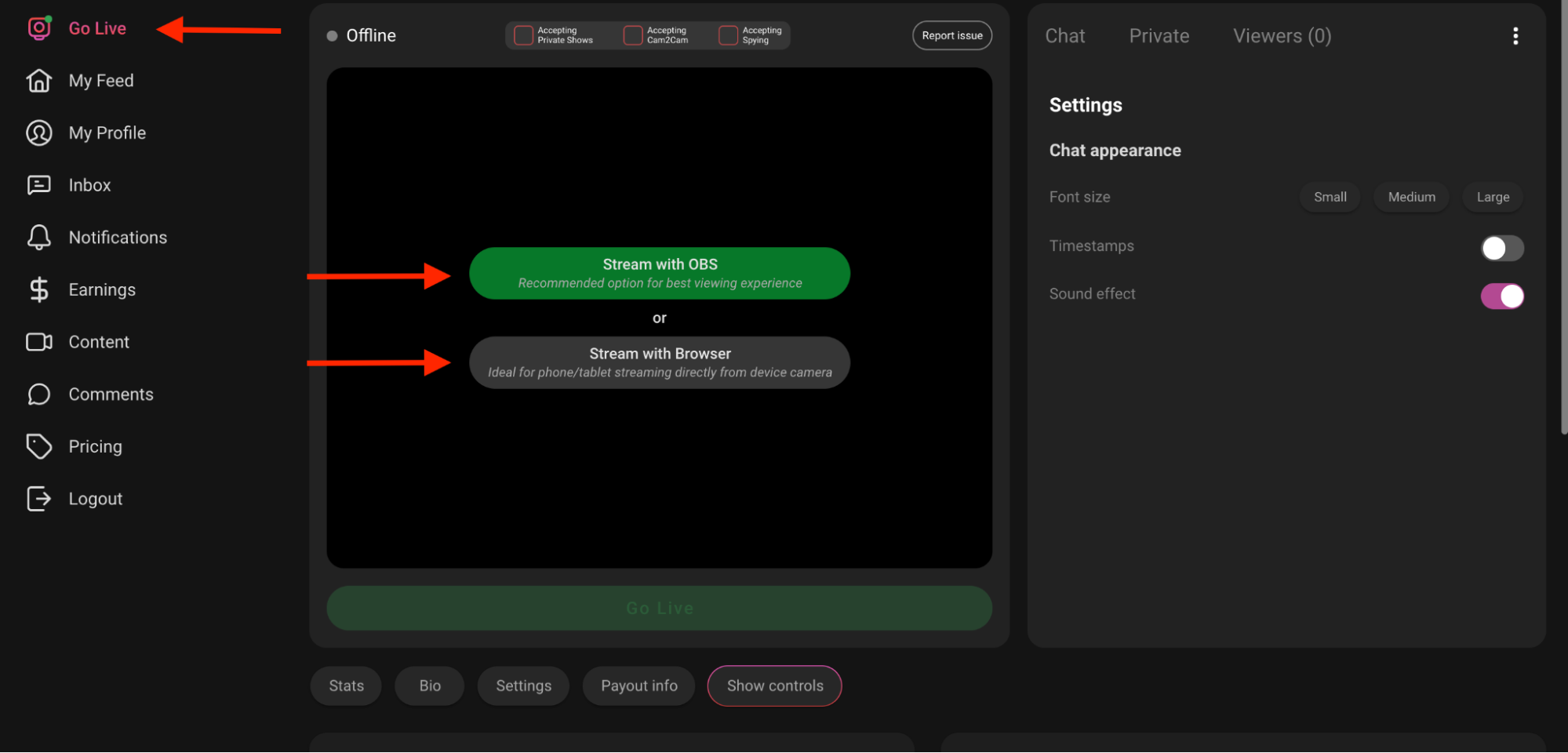
- Click Go Live from the left menu.
- If you're using OBS, click "Stream with OBS" to get your Server URL and Stream Key — use these to set up your streaming software.
- If you're using a webcam, simply click "Stream with Browser" when you're ready to go live.
- When you're ready, click the Go Live button beneath your streaming area.
- A pop-up will appear asking you to agree to the Creator Terms and Terms of Use before starting your stream. From this pop-up, you can also set your goals and choose a stream topic.
- Once everything is set, click the Go Live button below your streaming area — and start making money!
Before you hit that "Go Live" button, make sure you're fully prepared with this quick checklist:
- Profile photo, tags, and bio are filled in
- Identity is verified and email confirmed
- Lovense toy (if using) is connected
- Room topic and tip menu are set
- Private show prices and goals are ready
- Good lighting and stable internet
- You’re ready to shine ✨ – Go Live!
Some countries restrict access to adult platforms, including SinParty. If you are located in a blocked region, you can still broadcast by using our alternative domains or a secure VPN.
For Russia
Use our dedicated domain: ru1.sinparty.com
This bypasses local restrictions and allows you to log in, manage your account, and go live.
For Other Blocked Countries
At the moment, we provide region-specific alternative domains similar to Russia's setup.
If no local mirror is available, you can use a trusted VPN service that supports:
- No bandwidth limits
- High upload speed (10 Mbps+ recommended)
- Servers close to your actual region (for stable connection)
Recommended VPN Settings
- Protocol: OpenVPN or WireGuard (better for speed and stability)
- Location: Select a country geographically close (e.g., Turkey, Poland, Finland for Russia).
Avoid free VPNs — they are often unstable and unsafe.
Tips for Stable Streaming in Blocked Regions
- Always test your stream for 1–2 minutes before going live.
- If you experience lag or disconnects, try another VPN server or mirror domain.
- Keep your VPN software updated to avoid connection drops.
- On mobile, use VPN apps that allow split tunneling so only SinParty traffic goes through VPN (saves speed and battery).
Important: Using VPNs or mirror domains should always comply with your local laws. SinParty is not responsible for legal issues caused by bypassing government restrictions.
You can go live on dashboard.sinparty.com directly from your smartphone using your browser. This is a great option if you don't have access to a desktop setup or want to stream on the go.
Step 1: Prepare Your Mobile Device
- Use a modern smartphone with a strong camera and microphone.
Recommended:
- iPhone 12 or newer
- Samsung Galaxy S21 or newer
- Google Pixel 6 or newer
- Any phone with 8 MP+ front camera and at least 4 GB RAM
- Ensure your phone has at least 30% free storage for smooth operation.
- Plug in your phone or keep a power bank ready — live streaming drains battery quickly.
Step 2: Internet Connection
- Use Wi-Fi with at least 10 Mbps upload speed.
- Avoid mobile data unless it's 4G LTE+ or 5G with a stable signal.
- For best stability, stay close to your Wi-Fi router.
Step 3: Browser Settings
- Open the latest version of Chrome (Android) or Safari (iOS).
- Go to your SinParty dashboard.
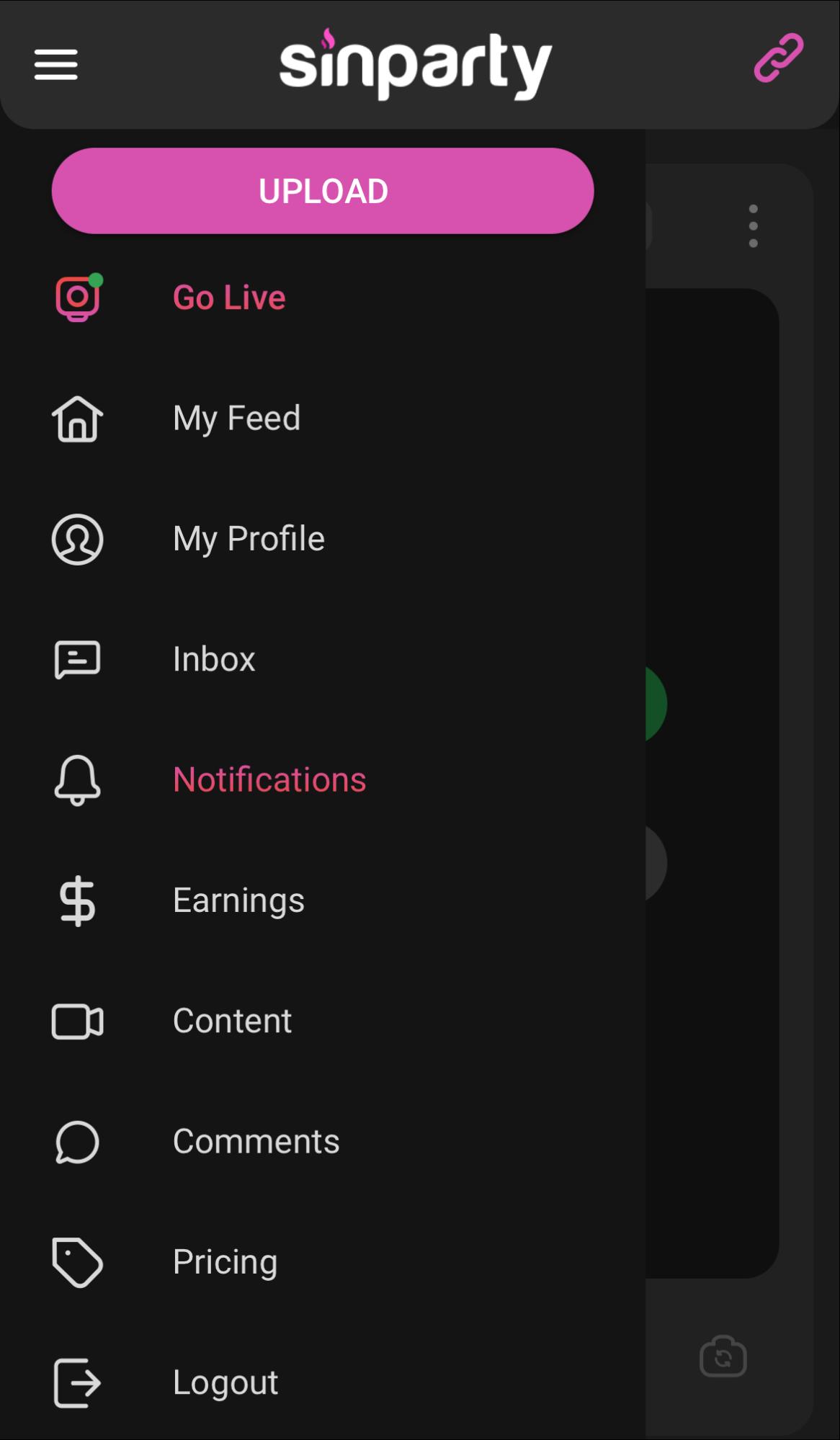
- Tap Go Live.
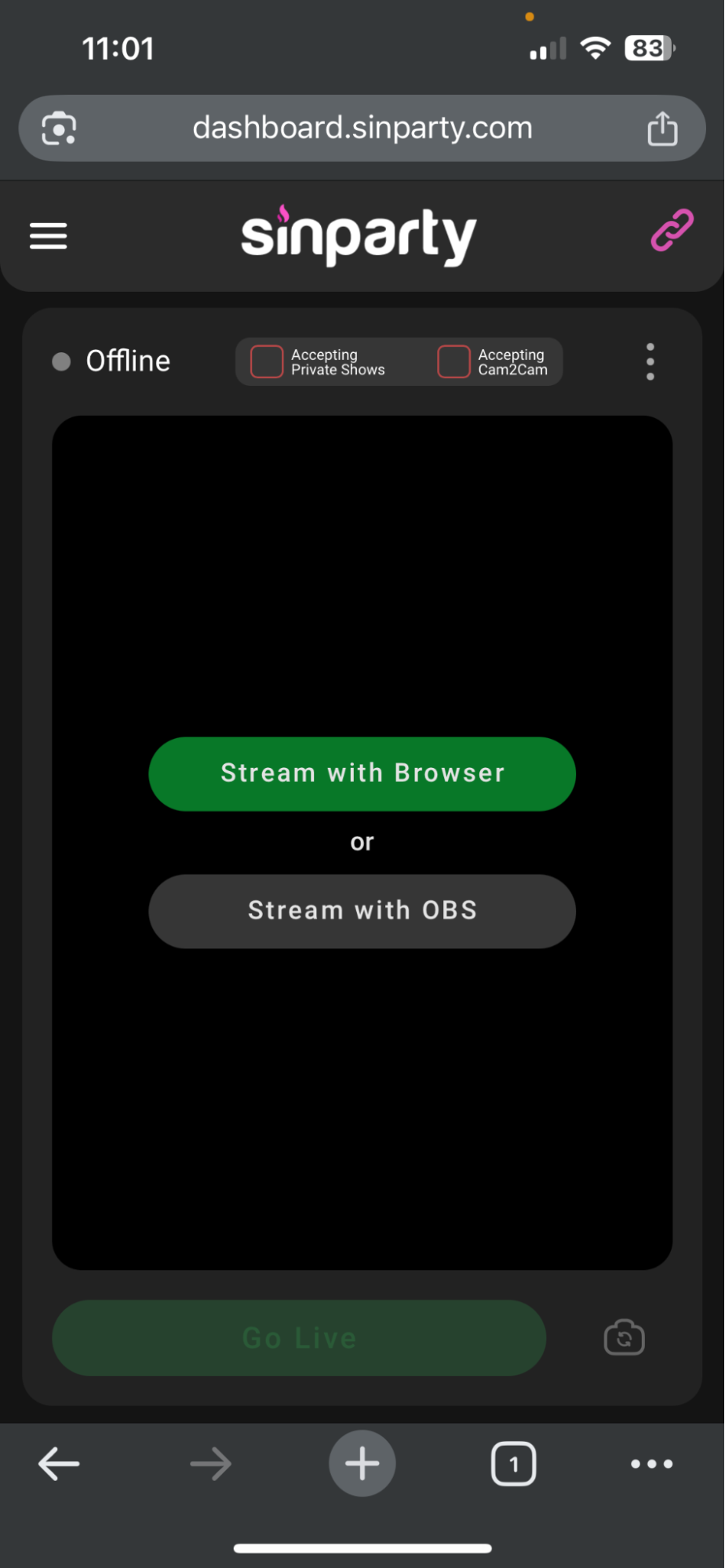
- Allow Camera and Microphone access when prompted.
Step 4: Optimize Your Stream
- Rotate your phone horizontally for a full-screen experience.
- Place your device on a tripod or stable surface to avoid shaky video.
- Use good lighting — natural light or a ring light improves image quality.
- Wear wired or Bluetooth earphones for clearer audio.
Step 5: Start Broadcasting
- Set your room topic and tip menu.
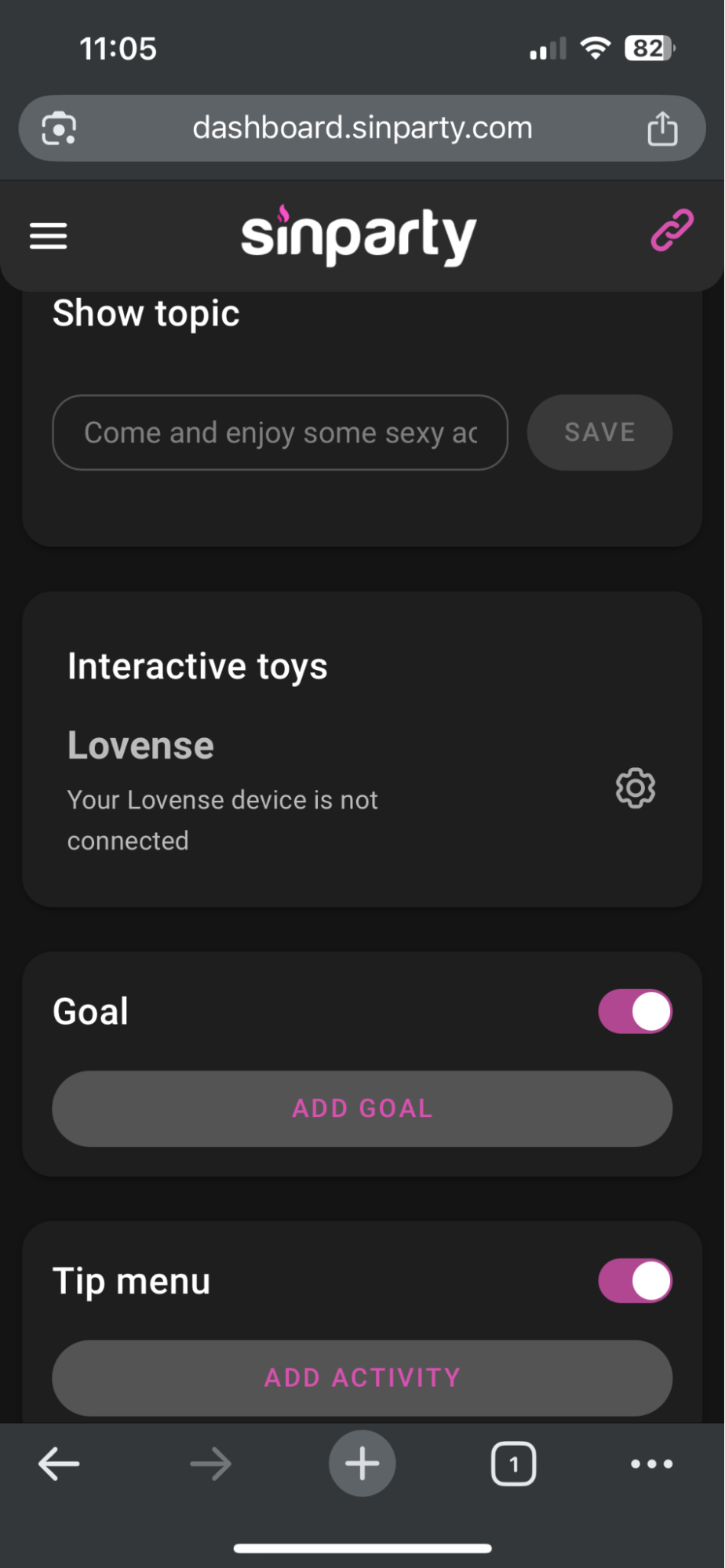
- Adjust private show prices if needed.
- Select between Browser or OBS streaming.
- Tap Go Live — your stream will start immediately.
Pro Tip: While streaming from mobile is convenient, for longer and higher-quality shows we recommend using a desktop setup with OBS.
Steps:
- When creating or editing a post, scroll to the Tags section.
- Add up to 5 tags that describe the content (e.g., fitness, cosplay, fetish).
- Choose a category that fits your post.
- Save or publish the post.
Tracking your income is easy on SinParty. Whether you're live or reviewing past sessions, you have full access to detailed stats about your earnings.
Option 1: While You're Live
- Click Go Live from the left-hand menu.
- Under the streaming section, click Stats.
- Here you’ll see a breakdown of your earnings by member—how much each user tipped or spent in private shows, their name, the time, and the amount.
Option 2: From the Earnings Page
- Click Earnings from the left-hand menu.
- You’ll see:
- Any pending amounts (e.g., for custom video requests)
- Your available balance for withdrawal
- Your total withdrawn
Scroll down to view a detailed report including:
- Type of income (tips, private, exclusive private, spy)
- Date and time of the transaction
- Amount spent by the member (in USD)
- Your earnings (your share in USD)
This helps you keep track of your performance and understand which activities generate the most income.
Sometimes issues like videos not playing, cam not loading, or errors in your stream can be fixed by simply clearing your browser's cache and cookies. This forces your browser to load a fresh version of SinParty.
1. Google Chrome
- Open Chrome.
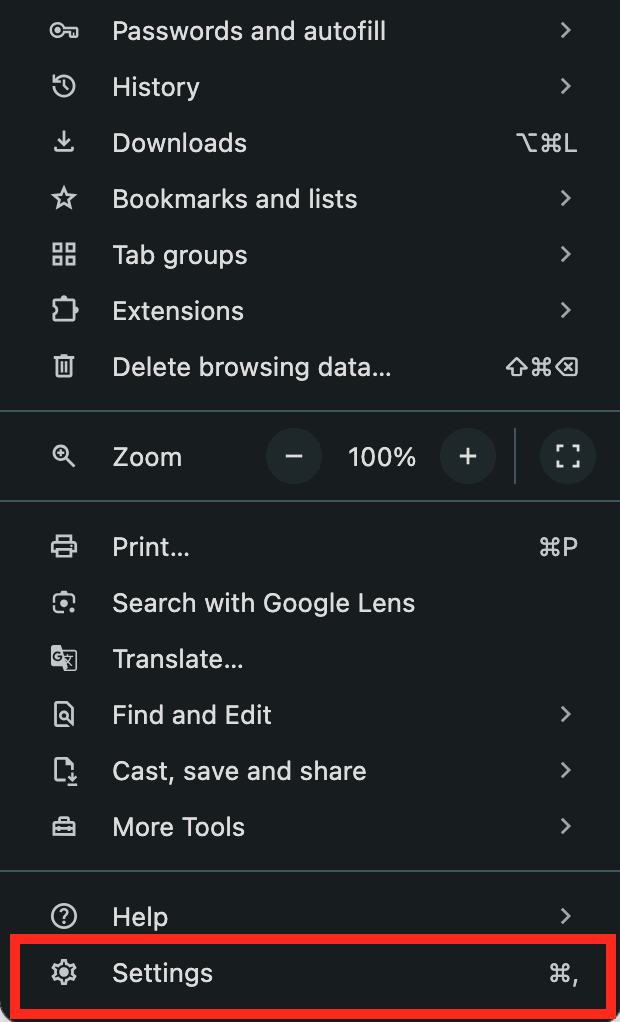
- Click the three dots in the top-right corner.
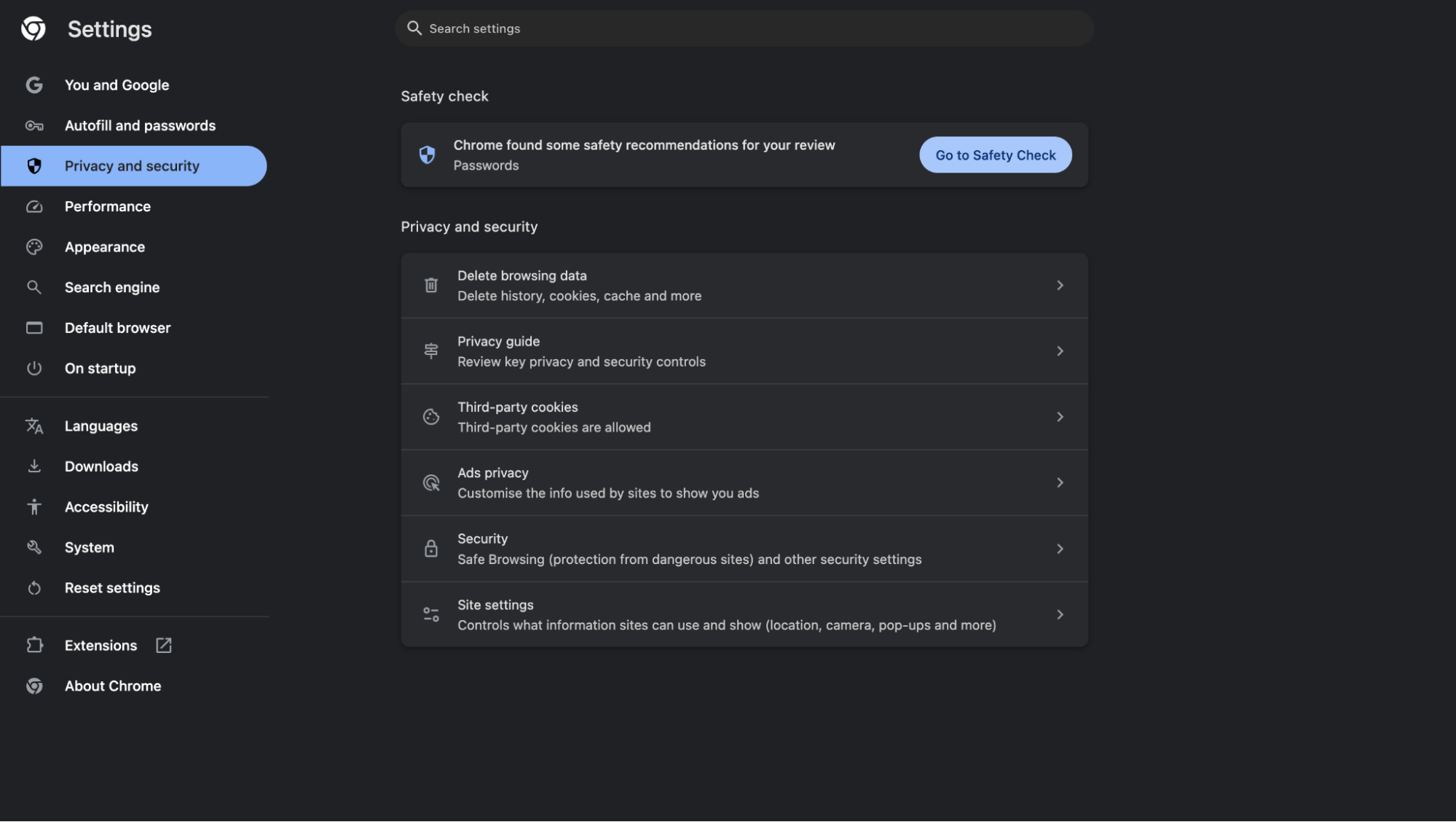
- Select Settings → Privacy and Security.
- Click Delete Browsing Data.
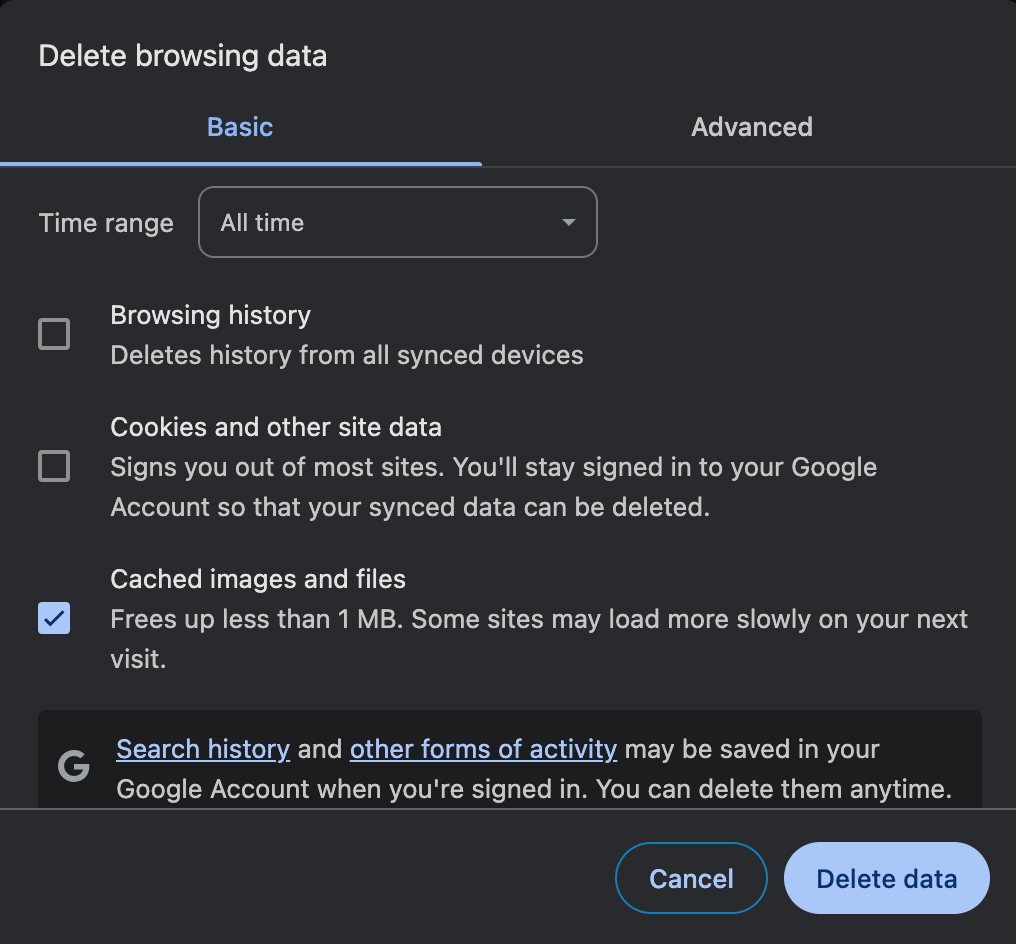
- In the pop-up, select:
- Time range: "All time"
- Check Cookies and other site data
- Check Cached images and files
- Click Delete data.
- Restart your browser and log back into SinParty.
2. Mozilla Firefox
- Open Firefox.
- Click the three lines in the top-right corner.
- Go to Settings → Privacy & Security.
- Scroll to Cookies and Site Data.
- Click Clear Data….
- Check both:
- Cookies and Site Data
- Cached Web Content
- Click Clear and restart Firefox.
3. Microsoft Edge
- Open Edge.
- Click the three dots in the top-right corner.
- Select Settings → Privacy, Search, and Services.
- Under Clear Browsing Data, click Choose what to clear.
- Select:
- Cookies and other site data
- Cached images and files
- Set Time range to "All time".
- Click Clear now.
- Restart Edge and reopen SinParty.
4. Safari (Mac)
- Open Safari.
- In the top menu, click Safari → Preferences.
- Go to the Privacy tab.
- Click Manage Website Data.
- Select Remove All → Remove Now.
- Close Safari and reopen.
Quick Tip: Always log back in to SinParty after clearing cookies — it may sign you out. If issues persist, also try opening SinParty in Incognito/Private mode to test.
You can update your content, change who sees it, or manage how it’s shown at any time.
Steps:
- From the left menu, click Content.
- Hover your mouse over the post you want to update.
- Click the pen icon to:
- Edit your caption
- Change tags
- Adjust privacy settings and audience visibility
Click the three dots for more options:
- Share your post
- Disable it (hides the post and sends it to your Vault)
- Turn off comments
- View on site
- Delete the post completely
Disabled posts: Sent to your Vault — hidden from fans but available for reposting.
Deleted posts: Removed from your page and also deleted from the Vault permanently.
If your camera or microphone doesn't work when going live, you may need to grant browser permissions for SinParty.
Follow the steps below based on your browser:
Google Chrome (Recommended)
- Open dashboard.sinparty.com
- Log in with your creator account
- In the address bar, click the 🔒 Lock icon (next to the website link).
- In the drop-down menu, set:
- Camera → Allow
- Microphone → Allow
- Refresh the page and try going live again.
Microsoft Edge
- Open dashboard.sinparty.com
- Log in with your creator account
- Click the 🔒 Lock icon in the address bar.
- Set:
- Camera → Allow
- Microphone → Allow
- Refresh the page.
Mozilla Firefox
- Open dashboard.sinparty.com
- Log in with your creator account
- When asked to use your camera and mic, click Allow.
- If you already blocked it:
- Click the Camera/Mic icon (left of the address bar).
- Select Allow for sinparty.com.
- Reload the page.
Safari (Mac)
- Open Safari → Preferences → Websites.
- In the left menu, click Camera and select Allow for sinparty.com.
- Do the same for Microphone.
- Reload the page.
Extra Tips
- If permissions don't save:
- Clear cookies/cache for: dashboard.sinparty.com
- Restart your browser.
- Always make sure no other apps (Zoom, Teams, Skype) are using your camera or microphone.
Pro Tip: For best performance, use Google Chrome with the latest update when streaming on SinParty.
Steps:
- Create your post as usual.
- Before posting, click Schedule Post.
- Choose the date and time for publishing.
- Click Schedule to confirm.
Posting content regularly is a great way to engage your audience and grow your fanbase. Whether it’s photos, videos, polls, or voice messages, you can easily share updates to keep followers and subscribers interested.
Steps:
- From the left-hand menu, click Content or My Feed.
- Click Create New Post in the top-right corner.
- Choose the type of content you want to upload:
- Photo
- Video
- GIF
- Voice Message
- Poll
- Upload your file(s) and write a short description.
- Select who can view your post (Public, Followers, or Subscribers).
- Click Post to publish.
If you send tips but don't hear any sound, the issue is usually related to the tip volume settings or muted audio.
How to Fix
Check the Tip Sound Icon
- Look under the video player for the speaker icon.
- If muted, click it to unmute.
- Adjust the pink vertical volume bar to turn up the sound.
Adjust Tip Volume in Chat Settings
- On the right side, open the Settings panel (⋮).
- Look for Tip volume.
- Slide the pink bar to increase sound.
Check Browser Permissions
- In Chrome/Edge, click the lock icon near the address bar.
- Set Sound → Allow.
Check Device Sound
- Make sure your computer/phone is not muted.
- Increase your system volume.
- If using headphones, ensure they're connected and working.
Once enabled, you'll hear a sound notification each time you (or anyone) tips.
Your Stream Key is required to connect OBS or any external software to SinParty. If you can't find it, follow this guide.
Where to Find Your Stream Key
- Log in to your dashboard.sinparty.com
- Click Go Live from the left-hand menu.
- In the stream preview window, a pop-up will display your Server URL and Stream Key.
Common Issues & Fixes
1. Stream Key Pop-up Not Appearing
- Refresh the Go Live page.
- Clear browser cache and cookies.
- Disable any ad-blockers or script-blocking extensions (they can block the pop-up).
2. Stream Key Field is Empty
- Make sure your account is verified (ID & email must be confirmed).
- If you're using a Studio Account, only approved creators will see their keys.
3. Stream Key Hidden or Obscured
- The Stream Key is always hidden for security (dots/asterisks).
- Click the eye icon 👁 to reveal it, or use the copy button to copy it to your clipboard.
4. OBS Won't Accept Stream Key
- Double-check you selected Service: Custom in OBS settings.
- Ensure you paste both:
- Don't add extra spaces or characters.
🚨 If You Still Can't See It
If none of the above works:
- Try another browser (Chrome or Edge).
- Try another device (laptop/PC).
- Contact SinParty Support with:
Tip: Never share your Stream Key with anyone. Anyone who has it can broadcast on your account.
If your stream ends unexpectedly or you get logged out of your live session, it may be caused by internet issues, browser settings, or device performance. Follow these steps to troubleshoot:
Step 1: Check Your Internet Connection
- Make sure your internet connection is stable.
- Restart your router or switch to a wired (Ethernet) connection for more reliability.
- Run a speed test to confirm at least 5 Mbps upload speed for smooth streaming.
Step 2: Re-Login to SinParty
- Refresh the page and log back in to your creator account.
- Go back to Go Live and select your streaming method (OBS or Browser).
- Re-start your stream.
Step 3: Verify OBS Settings (if using OBS)
- Double-check your Stream URL and Stream Key in OBS.
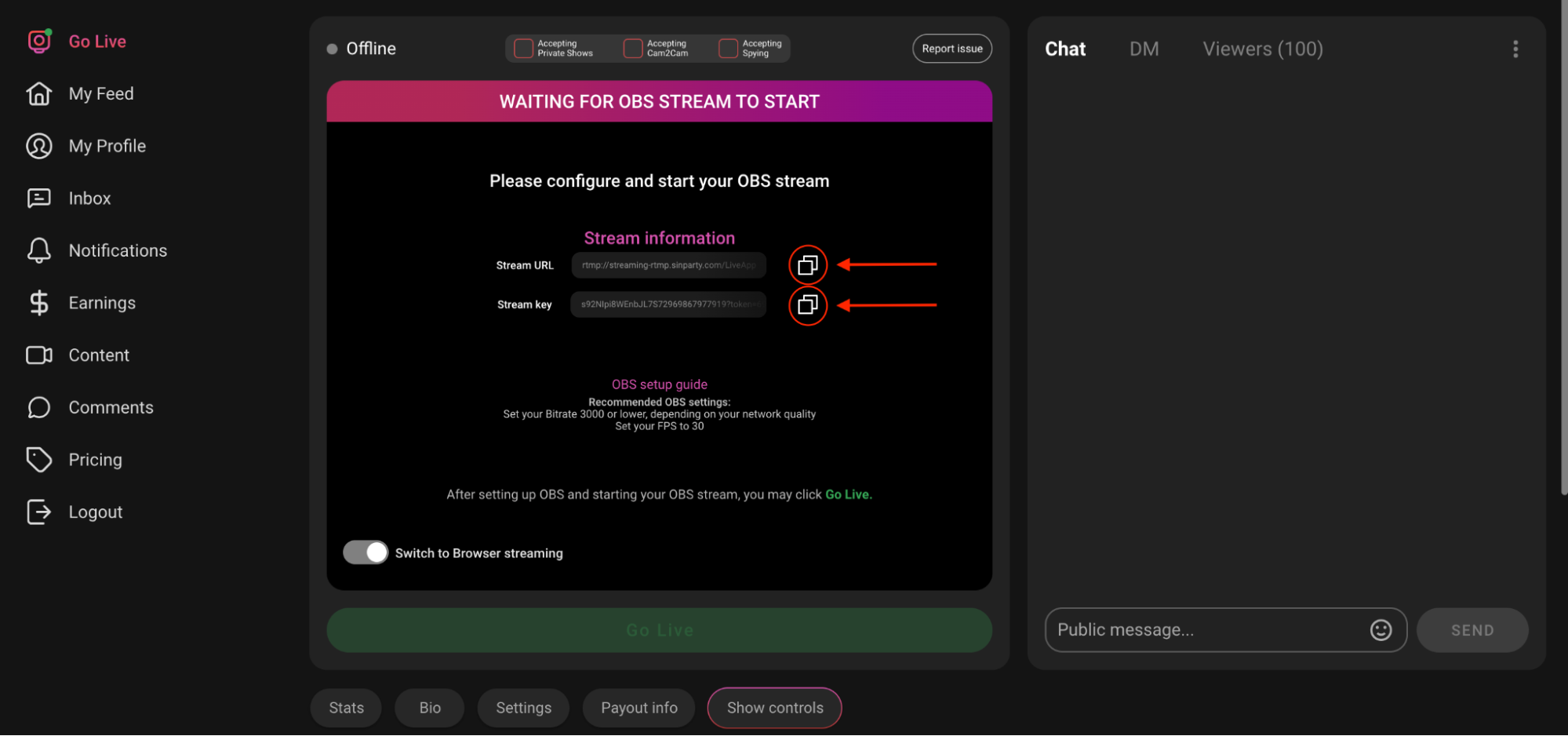
- If needed, copy a fresh Stream Key from your Go Live page and paste it into OBS → Settings → Stream.
- Ensure your bitrate and encoder match the recommended values.
Step 4: Close Background Programs
- Streaming may disconnect if your computer is overloaded.
- Close unnecessary tabs, apps, or downloads while broadcasting.
Step 5: Browser Streaming Fixes
- If using browser streaming, make sure your browser has camera & microphone permissions enabled.
- Clear cache and cookies, then refresh.
Step 6: Contact Support if it Persists
If disconnections happen repeatedly, reach out to SinParty Support with details (browser/OBS version, device, internet speed).
Pro Tip: Many sudden disconnections are caused by weak Wi-Fi. If possible, always stream on a wired Ethernet connection for maximum stability.
This comprehensive guide details the procedure for establishing a connection between your Kiiroo/Feel interactive device and your SinParty Creator account using the FeelConnect mobile application and a unique QR code.
Prerequisites for Connection
To ensure a seamless integration, verify the availability of the following components:
- Interactive Device: An official Kiiroo/Feel product (e.g., Onyx, Keon, Pearl 2).
- SinParty Account: An active Creator account with authorized streaming capabilities.
- Mobile Device: An iOS or Android smartphone or tablet with Bluetooth functionality enabled.
- FeelConnect Application: The official FeelConnect app must be installed on your mobile device.
- Network Connectivity: A stable, high-speed internet connection for both the desktop (SinParty streaming interface) and the mobile device.
1. Mobile-Based Setup: QR Code Authentication
The authorized connection protocol utilizes a QR code generated within SinParty, which is then scanned by the FeelConnect mobile application.
Step 1: Initialize Integration on SinParty
- Navigate to your dedicated SinParty Go Live page.
- Locate the Kiiro integration panel under the Interactive toys section.
- Activate the connection by toggling "Enable Feel to connect to SinParty" to the ON position.
Step 2: Generate the Authentication QR Code
Upon activation, a unique QR code should be automatically displayed. Allow a brief interval for the code to load (a "Generating QR code..." status may be visible).
Step 3: Install the FeelConnect Application
Confirm the presence of the FeelConnect app on your mobile device:
- iOS Users: Download from the official App Store.
- Android Users: Download from the Google Play Store.
Step 4: Establish Connection via FeelConnect
- Launch the FeelConnect app on your mobile device.
- Select the sync tab and then click Add Media button.
- Utilize your mobile device's camera to Scan the QR code presented on your SinParty Go Live page.
- Adhere to the in-app instructions to Pair your Feel device via Bluetooth within the FeelConnect environment.
Step 5: Final Connection Confirmation
- Return to the SinParty interface upon successful device pairing within the FeelConnect app.
- Click the "I've Scanned the QR Code" confirmation button.
- The connection status will update to "Toy Connected!" verifying the successful integration.
Step 6: Configuration Adjustment (Optional)
- Access the Settings menu (gear icon) within the Kiiro panel.
- Fine-tune operational parameters, including feel levels, vibration intensity, and reaction latency.
- Ensure the configuration is persisted by clicking the save button.
Troubleshooting
Should operational anomalies arise during setup or live streaming, consult the following resolution table:
Connection Drops / Disconnects
Cause: The FeelConnect app was minimized or closed on the mobile device after the initial setup.
Fix: Keep the FeelConnect application open on the Sync Page for the entire duration of your stream to maintain a stable connection.
Toy Not Detected
Cause: Bluetooth is disabled, toy battery is low, or another app is connected to the toy.
Fix: Ensure Bluetooth is on, the toy is fully charged, and no other app is connected to the device.
Tips Not Triggering
Cause: Kiiroo/Feel is connected but not linked to SinParty, or tip levels are not configured.
Fix: Go to SinParty Go Live page -> Interactive Toys -> Kiiroo and ensure the connection is enabled and your tip menu is configured for vibrations.
Key Operational Notes
- The QR code functions as an ephemeral authentication token with a predefined expiration window.
- In instances of connection interruption, re-scanning the QR code may be required to re-establish the link.
- The FeelConnect application must sustain an open and connected state on your mobile device to relay real-time commands to the toy during the live stream.
- Custom vibration profiles can be mapped to specific tip amounts via the Feel Settings.
- This integration process is strictly mobile-dependent; a dedicated desktop browser extension for Kiiroo/Feel devices is not currently available.
If your photos or videos take too long to upload, the problem usually comes from file size, internet speed, or browser settings. Here's how to fix it:
Step 1: Check File Size & Format
- Large videos (especially longer than 15 minutes or over 1 GB) will upload slowly.
- We recommend compressing videos to MP4 (H.264 video + AAC audio) for faster uploading.
- Photos should be in JPG or PNG format under 5 MB.
Step 2: Internet Speed
- Uploading requires strong upload speed (not just download speed).
- Recommended minimum: 10 Mbps upload for smooth video uploads.
- For best results, connect via Ethernet cable instead of Wi-Fi.
Step 3: Browser Optimization
- Use the latest version of Chrome (recommended browser).
- Disable any ad blockers or VPNs that may slow down uploads.
Step 4: System Performance
- Close heavy applications (Zoom, OBS, video editing software) while uploading.
- Keep only one upload tab open — multiple uploads at once can slow everything down.
Step 5: Server & Platform Issues
- If uploads are consistently slow at different times of day, please contact support.
- Try uploading in off-peak hours (early morning or late night) when server traffic is lower.
Pro Tip: For very large files, split the video into smaller parts before uploading — this reduces the chance of failure or timeouts.
1. Prerequisites
Before starting, make sure you have:
- A Lovense toy (e.g., Lush, Hush, Domi).
- A SinParty Creator account with streaming enabled.
- Stable internet (desktop or mobile).
- Either:
- Lovense Cam Extension (Desktop)
- Lovense Cam Kit (Mobile)
2. Desktop Setup (Lovense Cam Extension)
Download & Install the Extension
Step 1: Download the Cam Extension zip file.
Note: If the above version cannot be installed and used, please try using this old version
Step 2: Once the download is complete, navigate to your Downloads folder, where you will find the .zip file containing the Lovense Extension. Right-click the folder and then click "Extract All…".
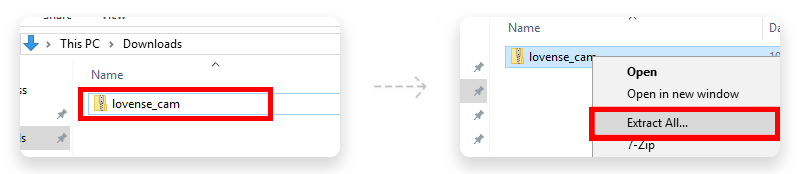
Step 3: Click on "Extract" and the file will be unzipped to the Downloads folder. Keep note of the name and location of the newly extracted folder. You will need to use it soon.
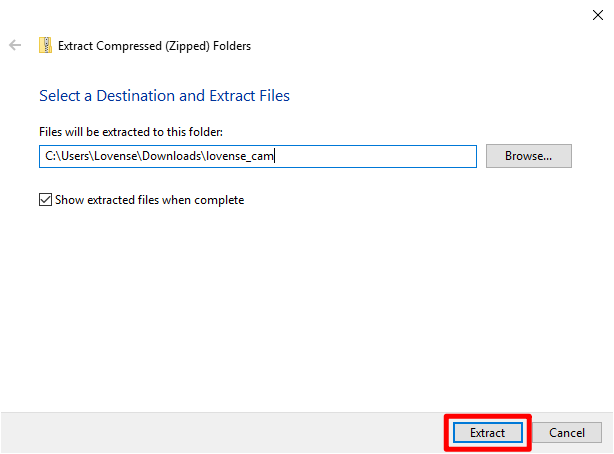
Step 4: In Chrome Browser, click on the icon near the top right. Go to "More tools">"Extensions". Alternatively, copy and paste "chrome://extensions" (without the quotes) into the URL bar and hit enter.
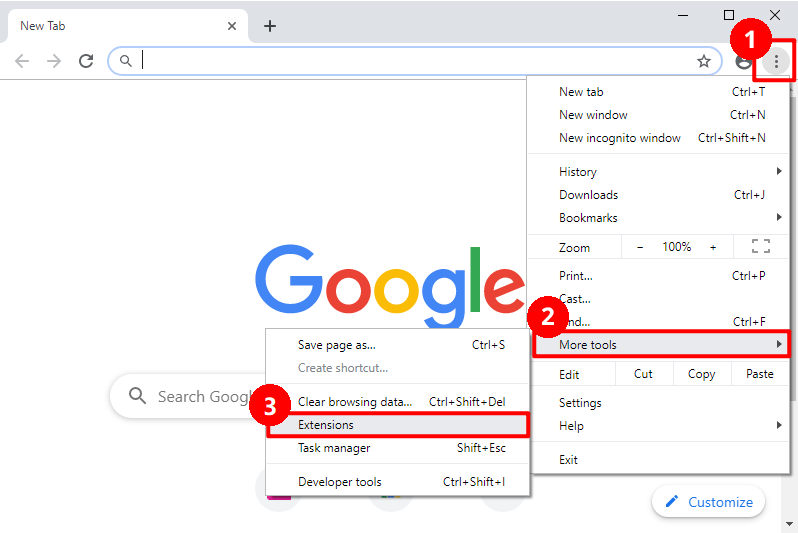
Step 5: On the Extensions page, enable "Developer mode" first and then click on "Load unpacked". Note: Please ensure that developer mode remains enabled after installation, as some functions may only work under developer mode.
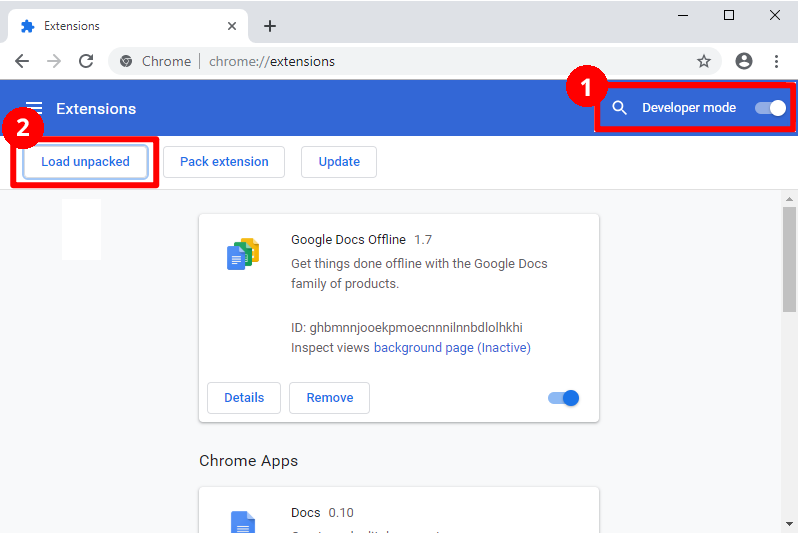
Step 6: Navigate to the newly unzipped folder which you created in Step 3. Highlight the folder by using a single click and press "Select Folder".
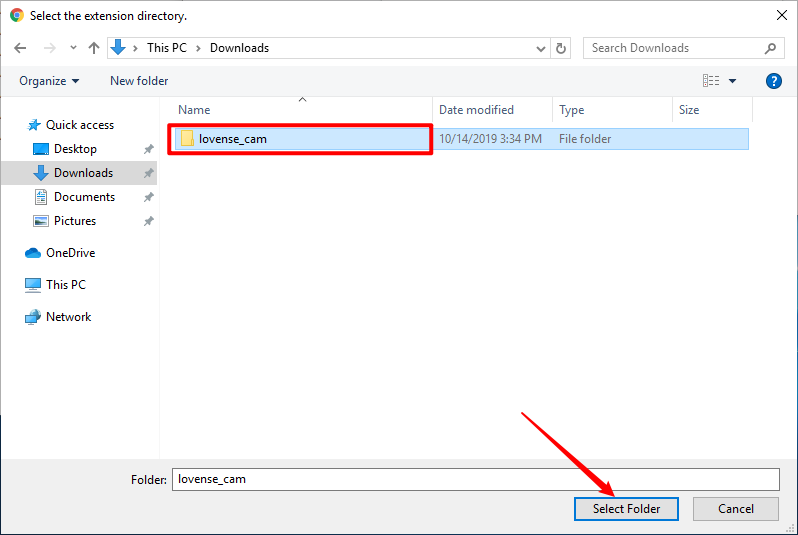
Step 7: The Lovense Extension should now be shown in Chrome's Extensions!
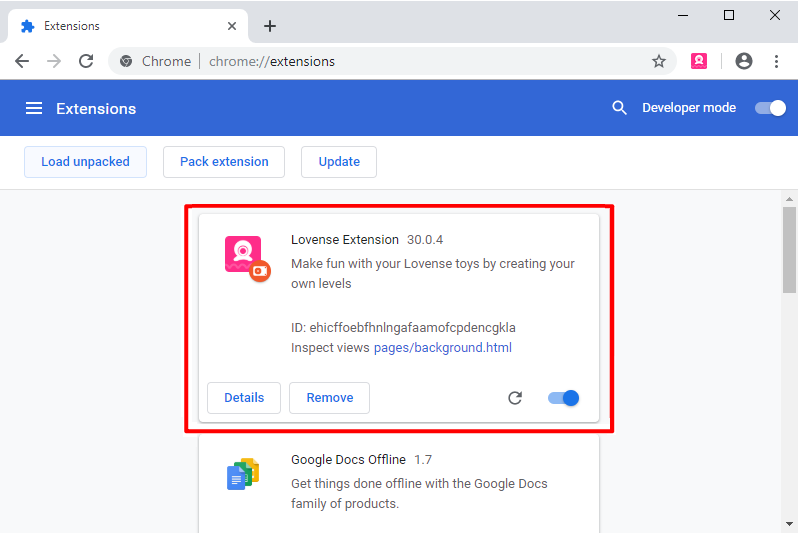
Step 8: Click on the Lovense Extension icon
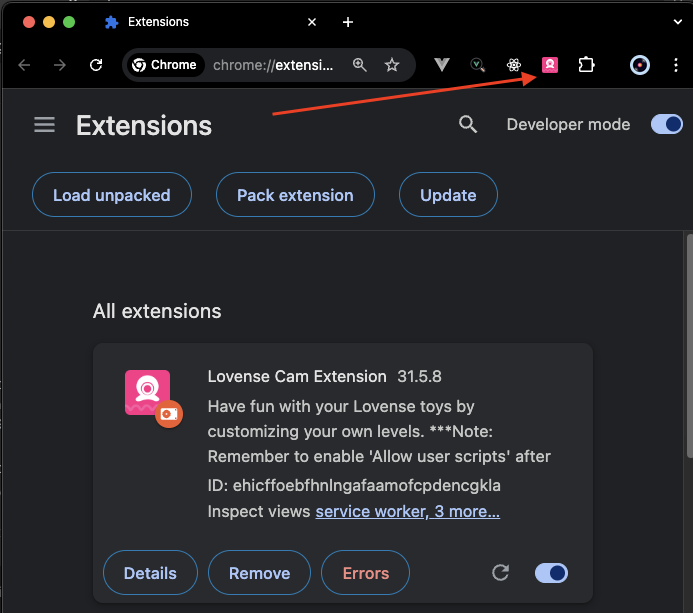
Step 9: Login to Lovense Cam Extension
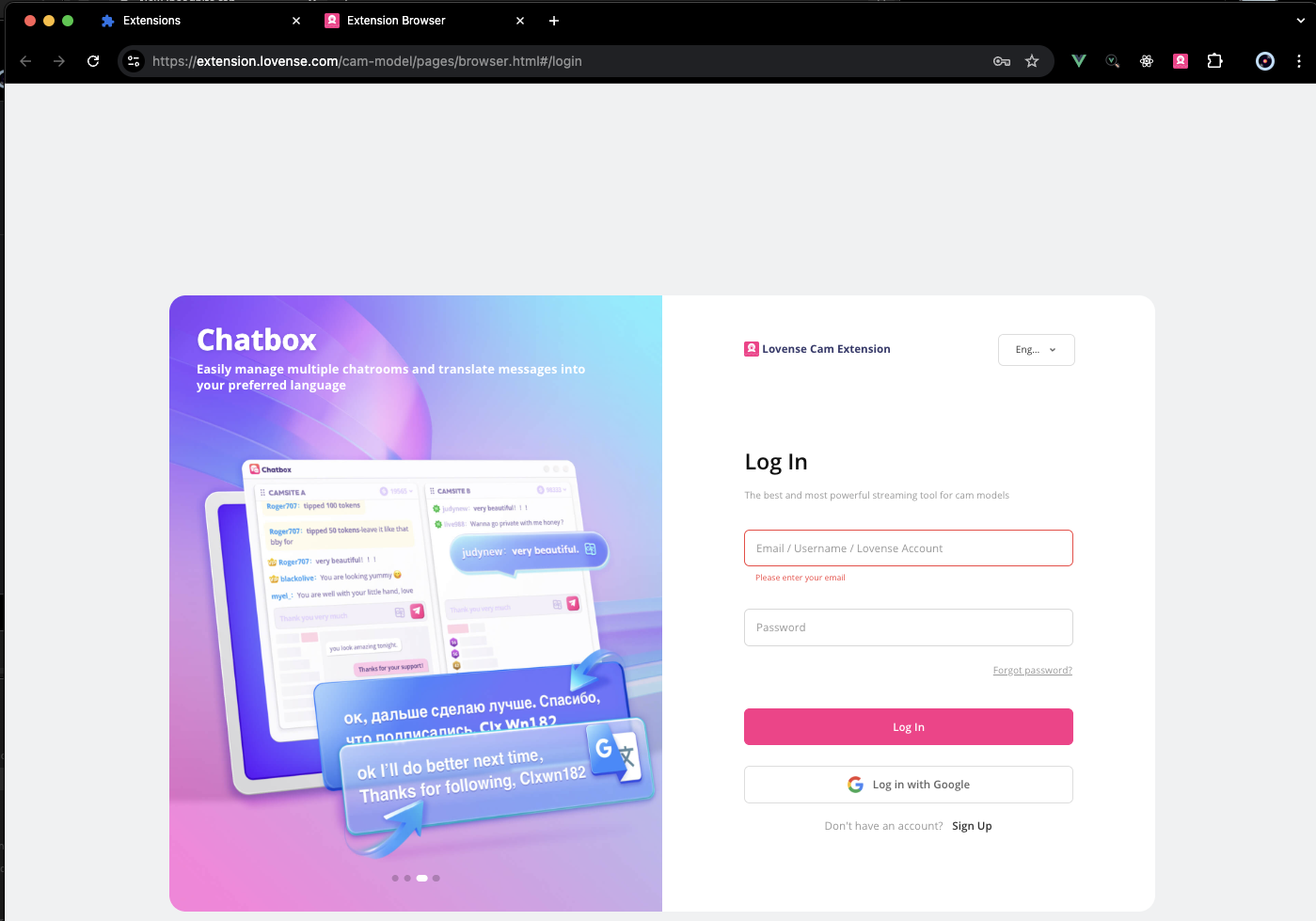
Step 10: Click "Add a cam site" button
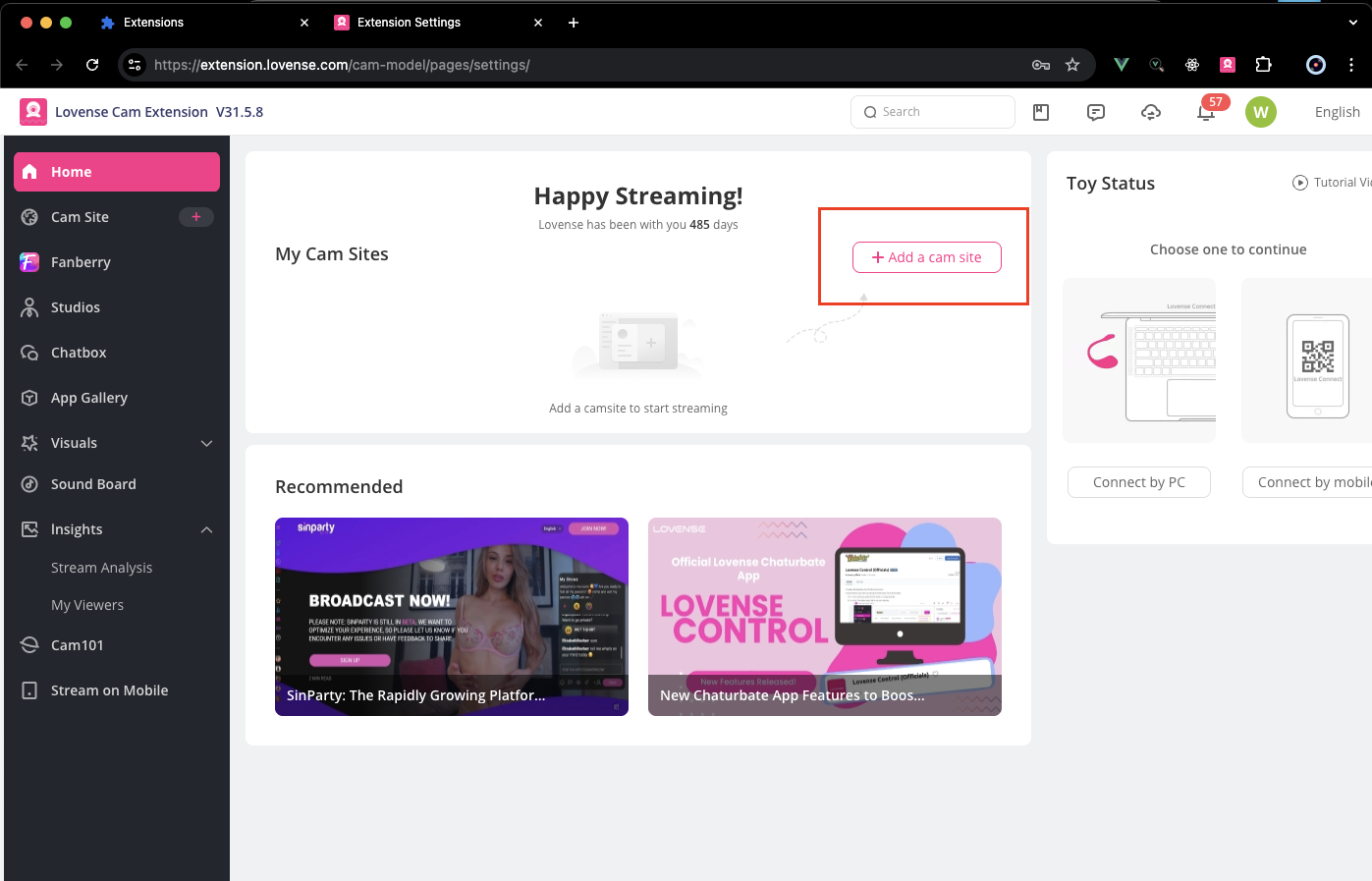
Step 11: Search Sinparty, then select it and proceed
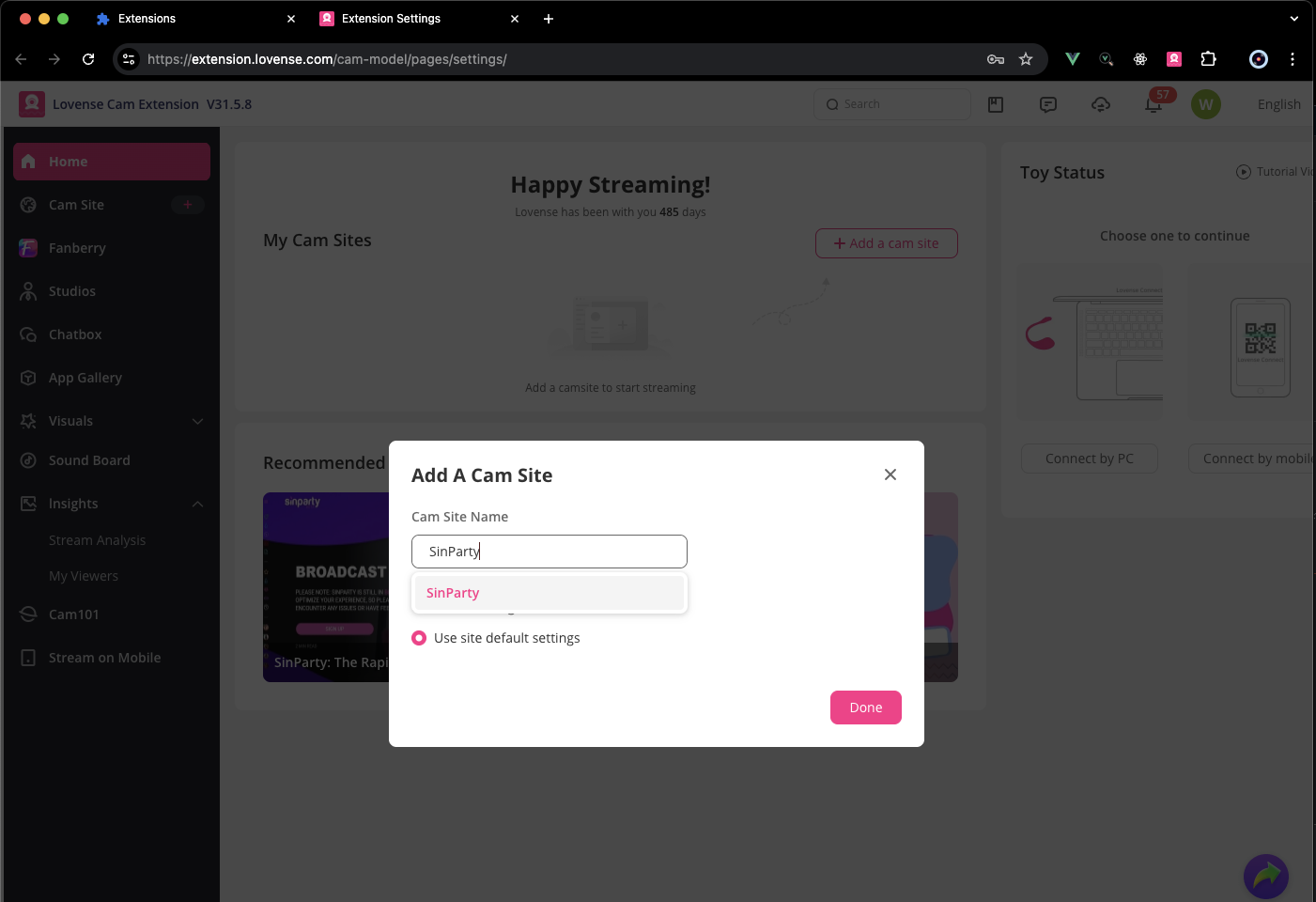
Connect Your Toy
- Plug in or turn on your Lovense device.
- In the extension, choose how to connect:
- Connect by PC → via Bluetooth dongle.
- Connect by Mobile → pair via the Lovense Connect app (QR code shown in extension).
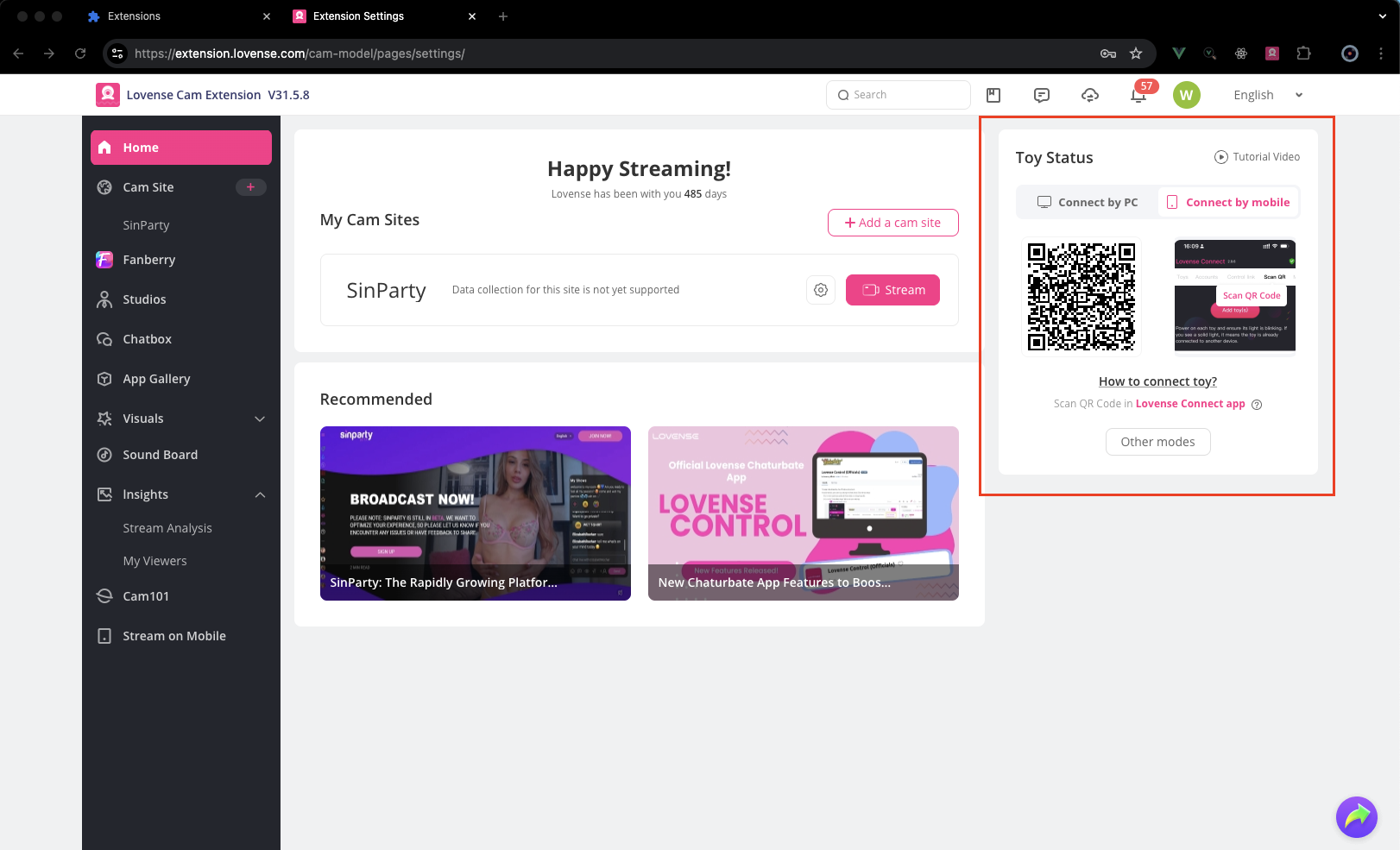
Enable SinParty Connection
- Go to your SinParty Go Live page.
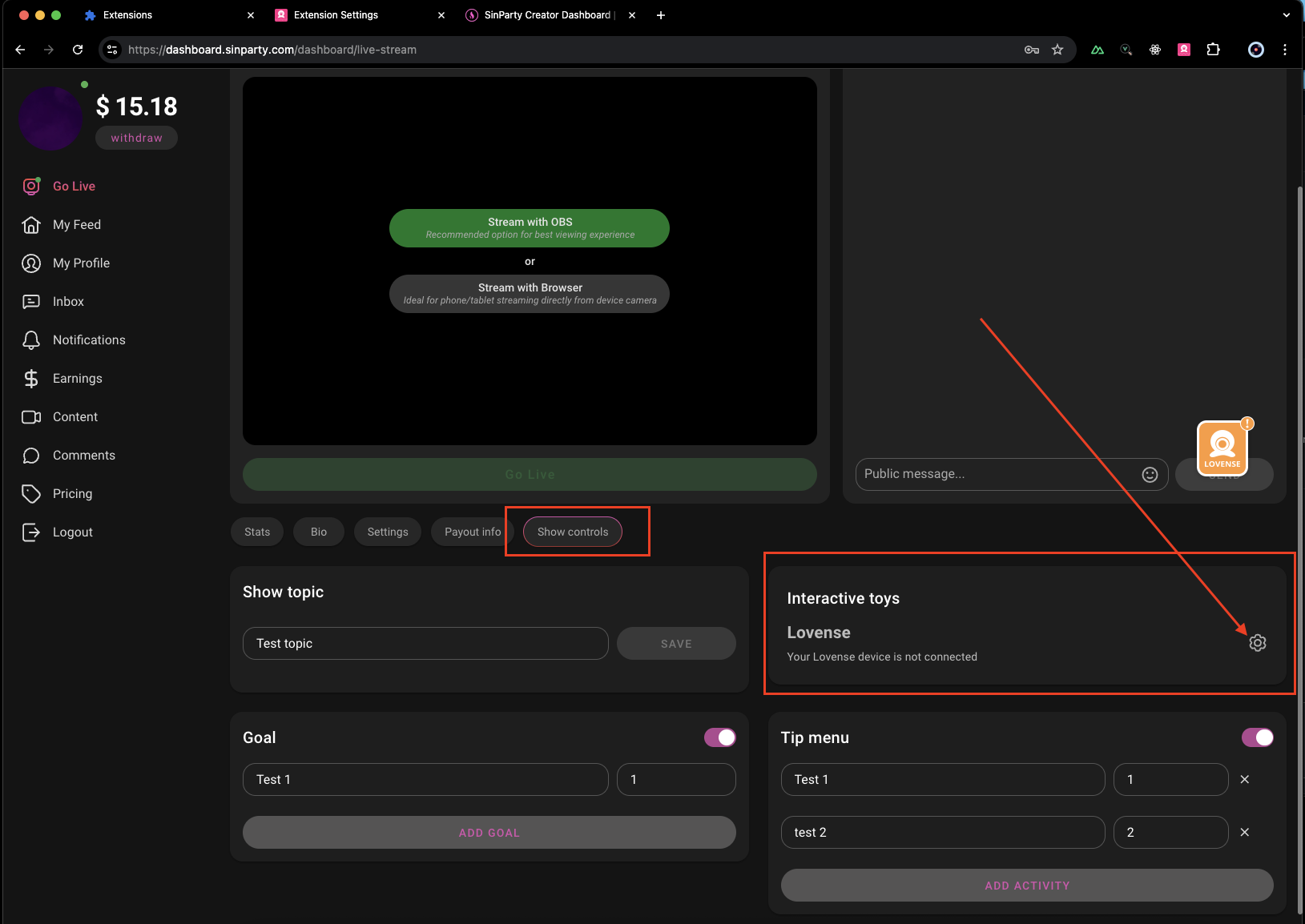
- Under Interactive toys → Lovense, toggle Enable Lovense to connect to SinParty.
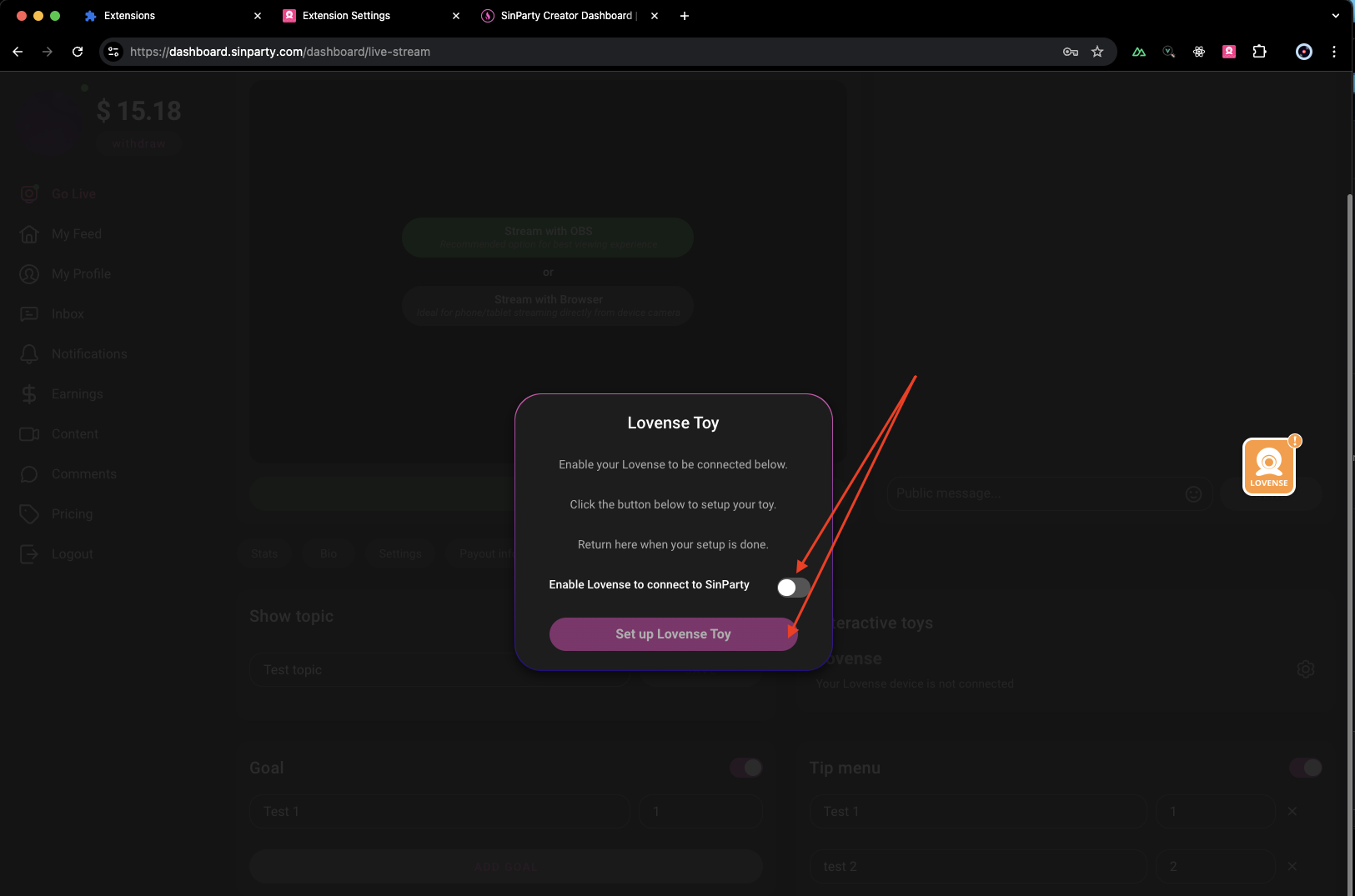
- Click Set up Lovense Toy → it should detect your extension automatically.
Confirm Status
- In the extension, you should see your toy listed as connected.
- On SinParty, the Lovense section will show Toy Connected.
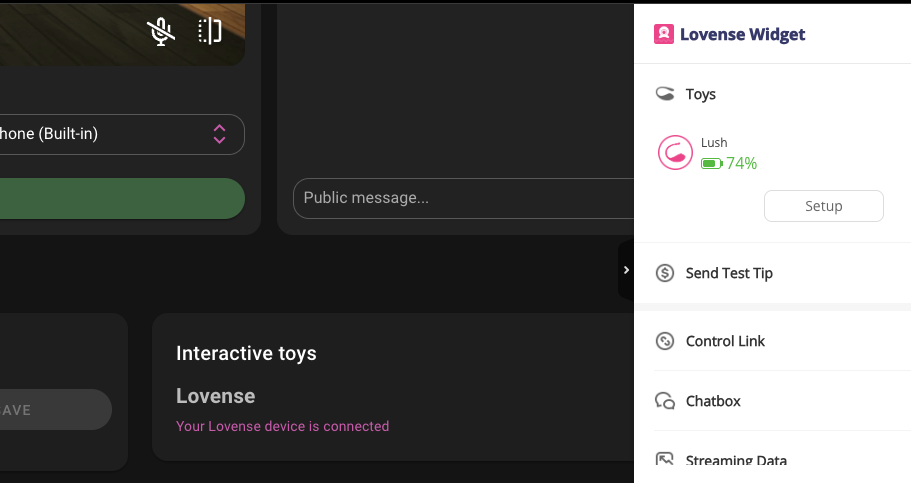
3. Mobile Setup (Lovense Connect App)
Download Lovense Connect App
Available on iOS App Store and Google Play Store.
Turn On Your Toy
Hold the power button until it flashes → ready to pair.
Pair in the App
- Open Lovense Connect.
- Follow prompts to connect your toy via Bluetooth.
Link with SinParty
- Go to SinParty, Go Live page on mobile.
- Under Interactive toys → Lovense, toggle Enable Lovense.
- A QR code or link will appear.
- Scan or paste it into your Lovense Connect app.
Test Connection
Send yourself a tip/test vibration. If the toy reacts, the setup is complete.
4. Troubleshooting
Cam Extension Stopped / Developer Mode Error
- On Mac, you may need to allow extension in System Preferences → Privacy & Security.
- On Windows, run the app as Administrator.
Toy Not Detected
- Make sure Bluetooth is on.
- Restart the Lovense app/extension.
- Ensure no other apps are already connected to the toy.
Tips Not Triggering Vibrations
- Double-check toy is linked in both SinParty Go Live settings and Lovense app/extension.
- Refresh SinParty stream page.
Sometimes your Lovense toy may not connect properly, disconnect during your stream, or fail to vibrate when members tip. Follow this guide to quickly fix the most common issues.
1. Toy Won't Connect
Possible Causes:
- Bluetooth not enabled.
- Toy battery too low.
- Device already connected to another app.
- Extension/App not properly installed.
Fixes:
- Make sure your toy is fully charged.
- Enable Bluetooth on your computer or mobile device.
- Close all other apps that might be using your Lovense (e.g., Lovense Remote, partner apps, etc.).
- Restart the Lovense Cam Extension (desktop) or Lovense Connect App (mobile).
- Re-pair your toy:
- Desktop: open Lovense Cam Extension → connect by PC or Mobile.
- Mobile: open Lovense Connect App → pair again via Bluetooth.
2. Toy Keeps Disconnecting
Possible Causes:
- Weak Bluetooth signal.
- Interference from other wireless devices.
- Running too many programs at once.
Fixes:
- Keep the toy and Bluetooth dongle/phone within 1–2 meters.
- If on desktop, use a USB Bluetooth dongle rather than built-in Bluetooth for stronger connection.
- Reduce wireless interference (avoid placing near Wi-Fi router, cordless phones, etc.).
- Restart both toy and app/extension, then reconnect.
- Make sure your internet connection is stable — a weak stream can cause sync drops.
3. Toy Doesn't Vibrate When I Get Tips
Possible Causes:
- Toy is connected but not linked to SinParty.
- Tip levels not configured in SinParty.
- Lovense extension not authorized.
Fixes:
- Go to SinParty → Go Live page → Show controls → Interactive Toys (Lovense).
- Enable Lovense to connect to SinParty and click Set up Lovense Toy.
- Open the Lovense Cam Extension / Connect App → check that SinParty is added as a cam site.
- In your SinParty controls, check the Tip Menu:
- Ensure vibrations are assigned to tips (e.g., $5 = 10s vibration).
- Refresh your stream page and do a test tip.
- If it still doesn't work: disconnect, restart both SinParty and the Lovense extension/app, and reconnect.
4. General Best Practices
- Always keep your Lovense toy fully charged before a stream.
- Use a dedicated Bluetooth dongle on the desktop for fewer disconnects.
- Test your toy with a small self-tip before going live.
- Keep your Lovense app/extension updated to the latest version.
- Avoid switching between desktop and mobile mid-stream — pick one for stability.
Quick Fix Checklist
- Fully charged toy
- Bluetooth enabled
- Connected via Lovense extension/app
- SinParty "Interactive Toys" toggle ON
- Tip Menu configured
Your privacy settings let you control how others interact with your content. From enabling comments to showing tips and adding watermarks, these options help you customize your profile’s experience and protect your work.
How to Manage Privacy Settings:
- Go to My Profile from the left-hand menu.
- Click on the Privacy section.
- Toggle on or off the following options based on your preferences:
- Enable Comments: Allow or disable comments on your posts.
- Show Post Tips Sum: Display the total tips received on your posts.
- Add Watermark: Automatically add a SinParty watermark to your content.
- Click Save to apply your changes.
Take control of your earnings by setting up subscription pricing and custom video rates. Follow these steps to update your pricing options:
- Click on Pricing from the left-hand menu.
- Set your monthly subscription price – this gives members access to your premium content and lets them send you free inbox messages even when you're offline.
- Set your custom video request rate – this allows users to request personalized videos from you, charged per minute of video length.
Optional Settings:
- Enable a 3-day free access period while fans wait for their custom videos.
- Clearly state any content you do NOT offer to avoid confusion.
Connect your social media profiles to make sharing your content easier and boost your presence across platforms. By linking your X (formerly Twitter) account, you can automate posts when users subscribe, tip, or purchase your videos — helping you engage your fans effortlessly.
How to Connect and Manage Your Social Accounts:
- Go to My Profile from the left-hand menu.
- Click on the Social Accounts section.
- Add links to your social media profiles, such as X, Instagram, Threads, Snapchat, TikTok, Facebook, Amazon Wishlist, and OnlyFans.
- To enable automated sharing on X:
- Click Connect X Account.
- Authorize SinParty to access your X account.
- Select which notifications you want to share automatically (e.g., new subscribers, tips, video purchases).
- Save your settings.
Let your fans know what to expect when you're not live by adding an offline image and a custom message. This keeps your profile looking professional even when you're away.
- Click Go Live from the left-hand menu.
- Under the streaming section, select the Bio tab.
- Scroll down to upload your Offline Image and write your Offline Status message.
- Click Save to apply your changes.
Done! Now your fans will see a clear message and image whenever you're offline.
If you need mental health support or resources, please visit:
Unseen UK (https://www.unseenuk.org/) - An organization dedicated to supporting mental health and wellbeing.
Remember, your mental health is important. If you're struggling, don't hesitate to reach out for help.
To broadcast smoothly on SinParty, your equipment and internet connection must meet certain minimum requirements. Streaming with weaker setups may result in lag, blurry video, or disconnects.
Internet Connection
- Minimum Upload Speed: 5 Mbps
- Recommended Upload Speed: 10–15 Mbps for 1080p streaming
- Connection Type: Wired Ethernet (preferred) or stable Wi-Fi 5 GHz
Avoid using mobile hotspots — they are unstable for streaming.
Computer
- Operating System: Windows 10+ / macOS 10.15+
- Processor (CPU): Intel i5 (quad-core) or AMD Ryzen 5 (or better)
- Memory (RAM): Minimum 8 GB (16 GB recommended)
- Graphics (GPU): NVIDIA GTX 1050 / AMD RX 560 or newer (for OBS hardware encoding)
Ensure your computer has proper cooling to avoid overheating during long streams.
Webcam
- Resolution: Minimum 720p (HD), Recommended 1080p (Full HD)
- Frame Rate: At least 30 fps, 60 fps recommended for smoother motion
- Examples: Logitech C920, Brio, or similar HD webcams
For professional streaming, consider DSLR or mirrorless cameras with a USB capture card.
Microphone
- Minimum: Built-in webcam microphone (not recommended for quality)
- Recommended: External USB microphone (e.g., Blue Yeti, Rode NT-USB)
- Pro Setup: XLR microphone with audio interface (e.g., Focusrite Scarlett).
Splitter (Optional)
If you are using multiple cameras, microphones, or professional audio gear, you may need a USB splitter / hub or HDMI capture card to connect all devices without lag.
Summary of Recommended Setup
- Internet: 10 Mbps+ upload, wired preferred
- Computer: Intel i5 / Ryzen 5, 16 GB RAM, dedicated GPU
- Webcam: 1080p HD (Logitech C920 or better)
- Microphone: USB mic or higher
- Splitter / Capture Card: Only if using multiple devices
Tip: Always run a short test stream before going live to check stability, audio sync, and video quality.
If you click Go Live and nothing happens, the issue is usually with permissions, OBS setup, or connection. Follow this guide to fix it.
Quick Checklist
Before troubleshooting, confirm:
- Your account is verified (ID + email confirmed).
- You're using a recommended browser (Chrome or Edge).
- Your internet upload speed is at least 5 Mbps.
- Camera & microphone are connected and not in use by another app (Zoom, Skype, etc.).
Step 1: Allow Camera & Microphone Access
- When prompted by your browser, click Allow for both camera and mic.
- If previously denied:
Step 2: For OBS Users
- Go to Go Live in your SinParty dashboard.
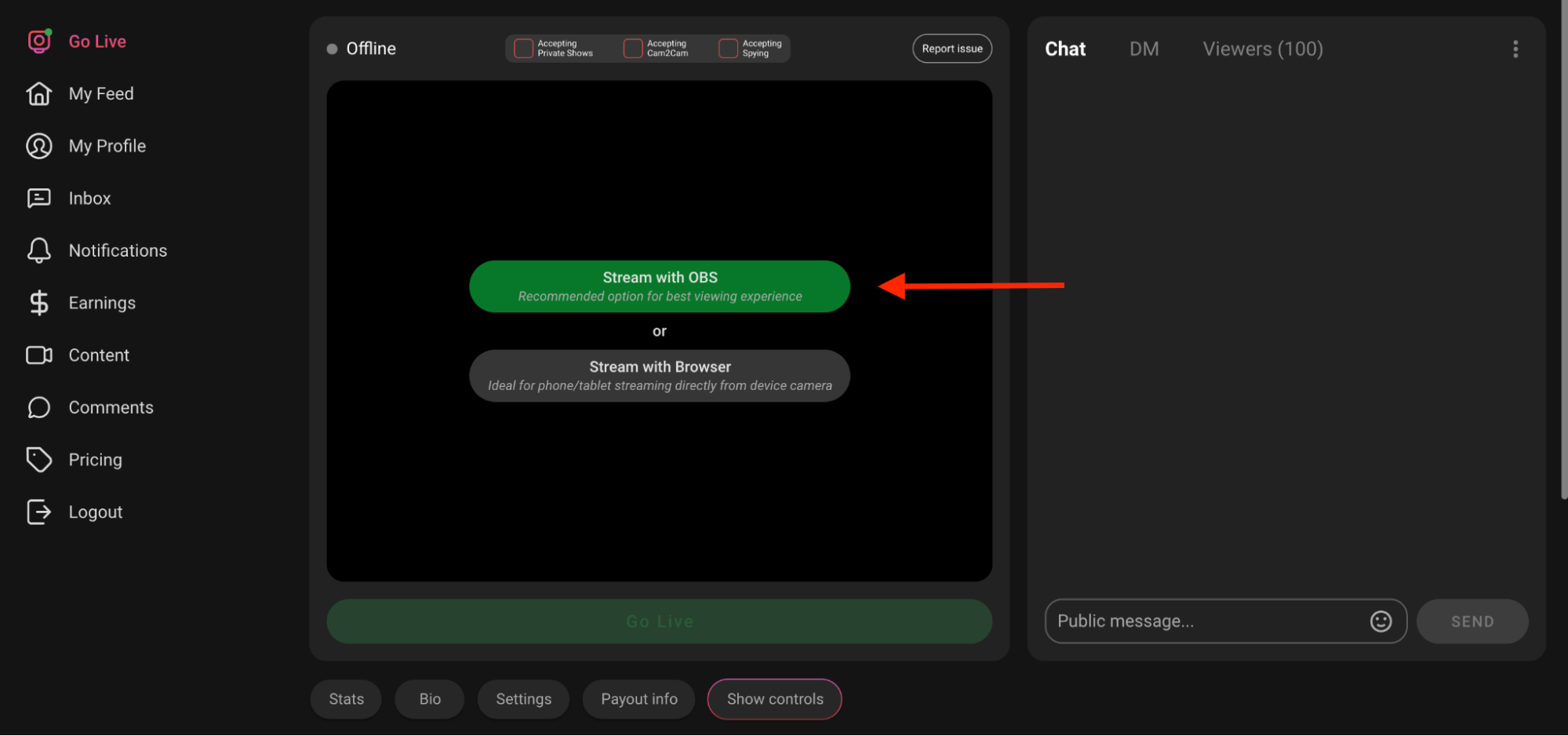
- Copy the Server URL + Stream Key.
- In OBS → Settings → Stream, paste them correctly.
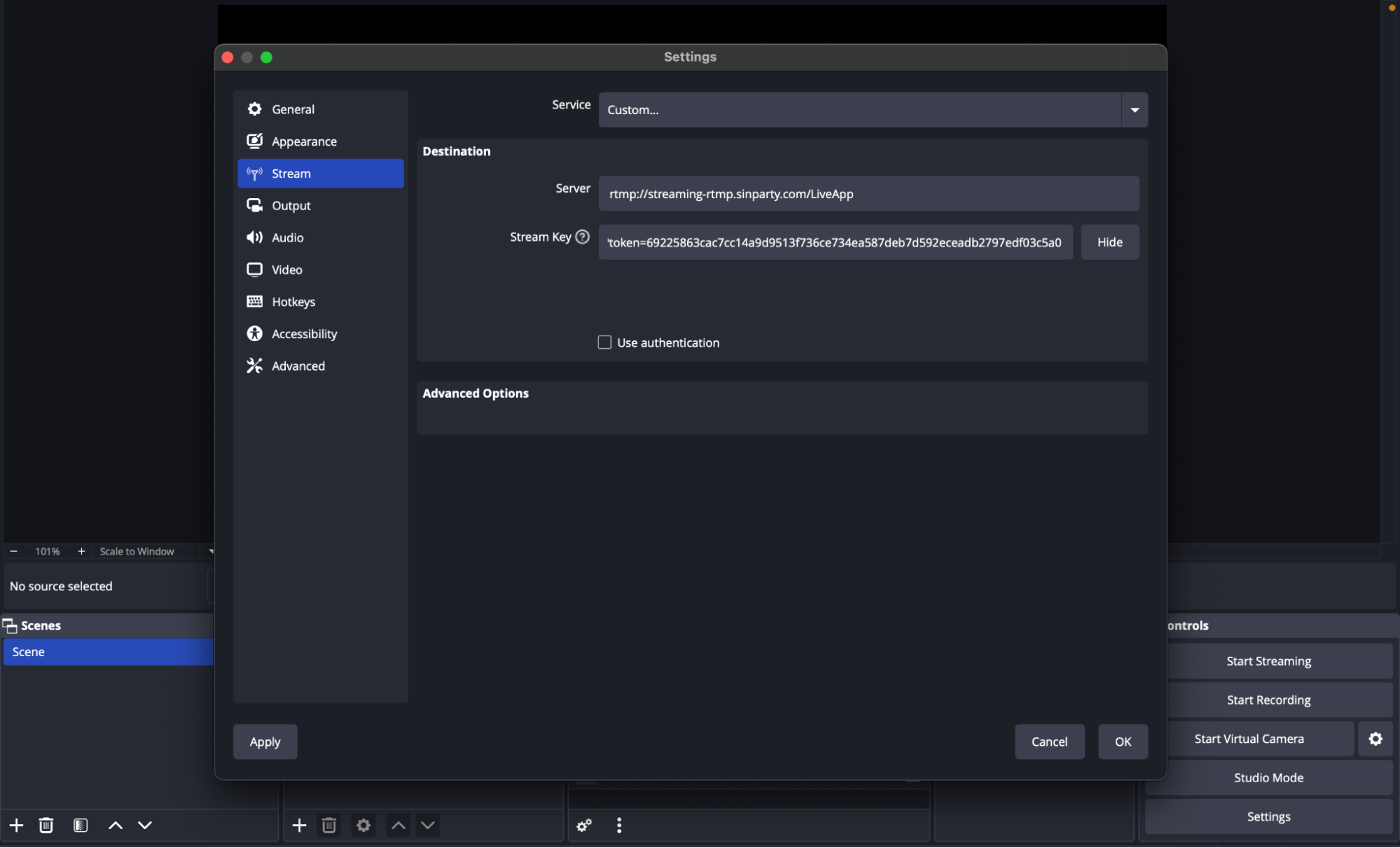
- Click Start Streaming in OBS.
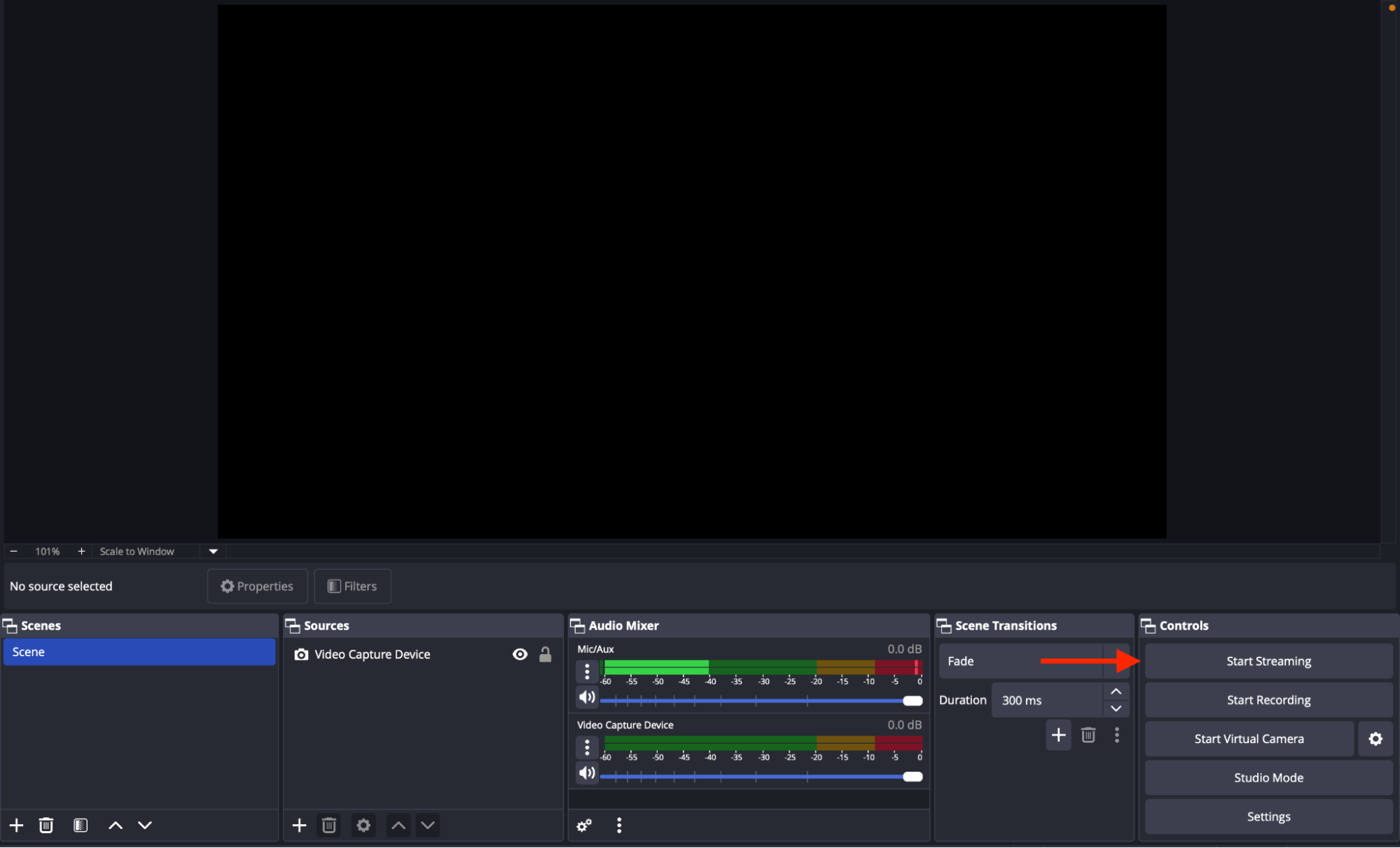
- Return to SinParty → you should see your preview.
If OBS shows green but SinParty doesn't, double-check your Stream Key and Output Settings (bitrate & encoder).
Step 3: For Browser Streaming
- Select Stream with Browser instead of OBS.
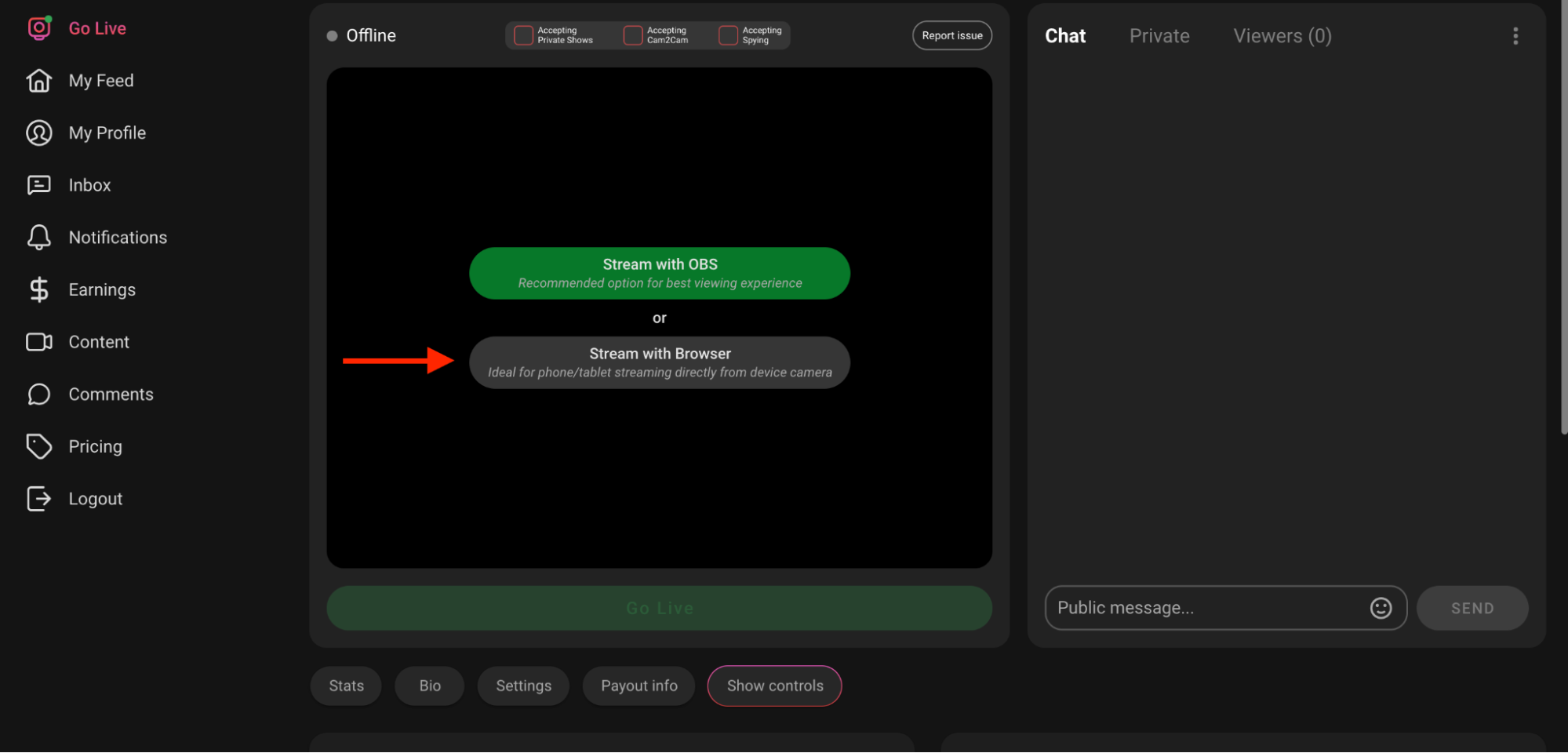
- Make sure your cam/mic are detected.
- Test in Incognito Mode to avoid cache or extension conflicts.
Step 4: Clear Cache & Restart
- Clear cache and cookies.
- Restart browser, OBS, and if needed, your PC & router.
Step 5: Connection Issues
- Switch to a wired Ethernet connection for stability.
- Close background apps (games, torrents, calls).
- Run a speed test: if upload
Still Not Working?
If your stream doesn't start after these steps:
- Try another browser (Chrome → Edge).
- Try another device if possible.
- Contact SinParty Support with:
Tip: Always do a test stream before scheduled shows to make sure everything is working.
Step 1: Open OBS and Create a Scene
- Open OBS Studio.
- In the Scenes panel, click + and create a new scene (e.g., name it SinParty).
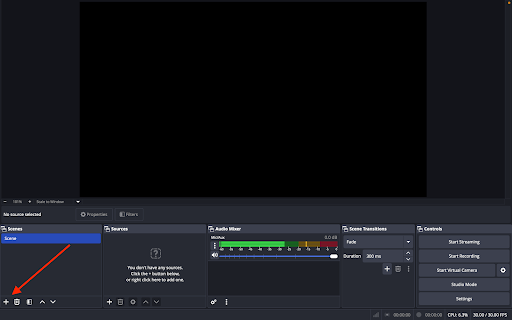
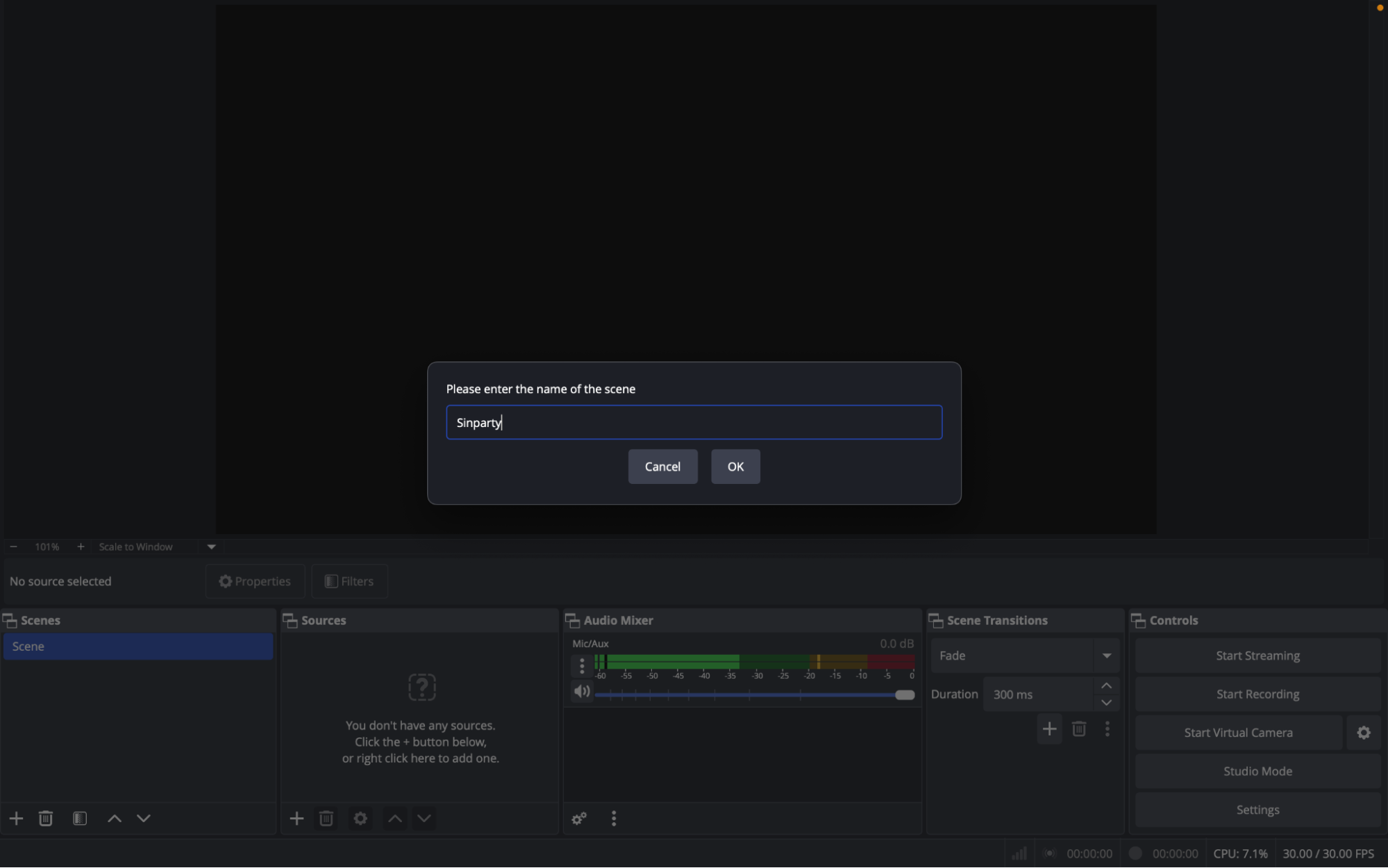
- In the Sources panel, click + and add a Video Capture Device (your webcam).
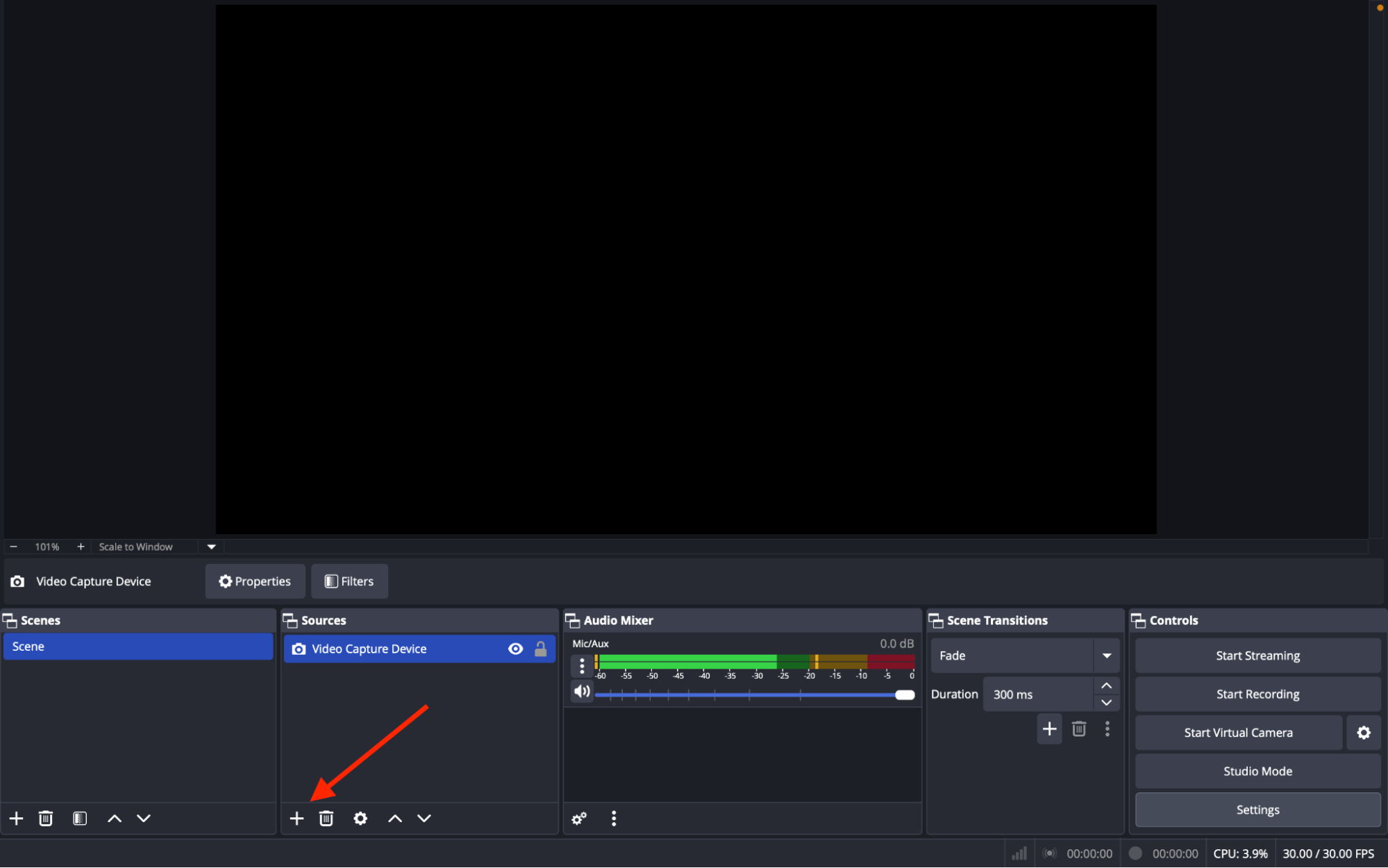
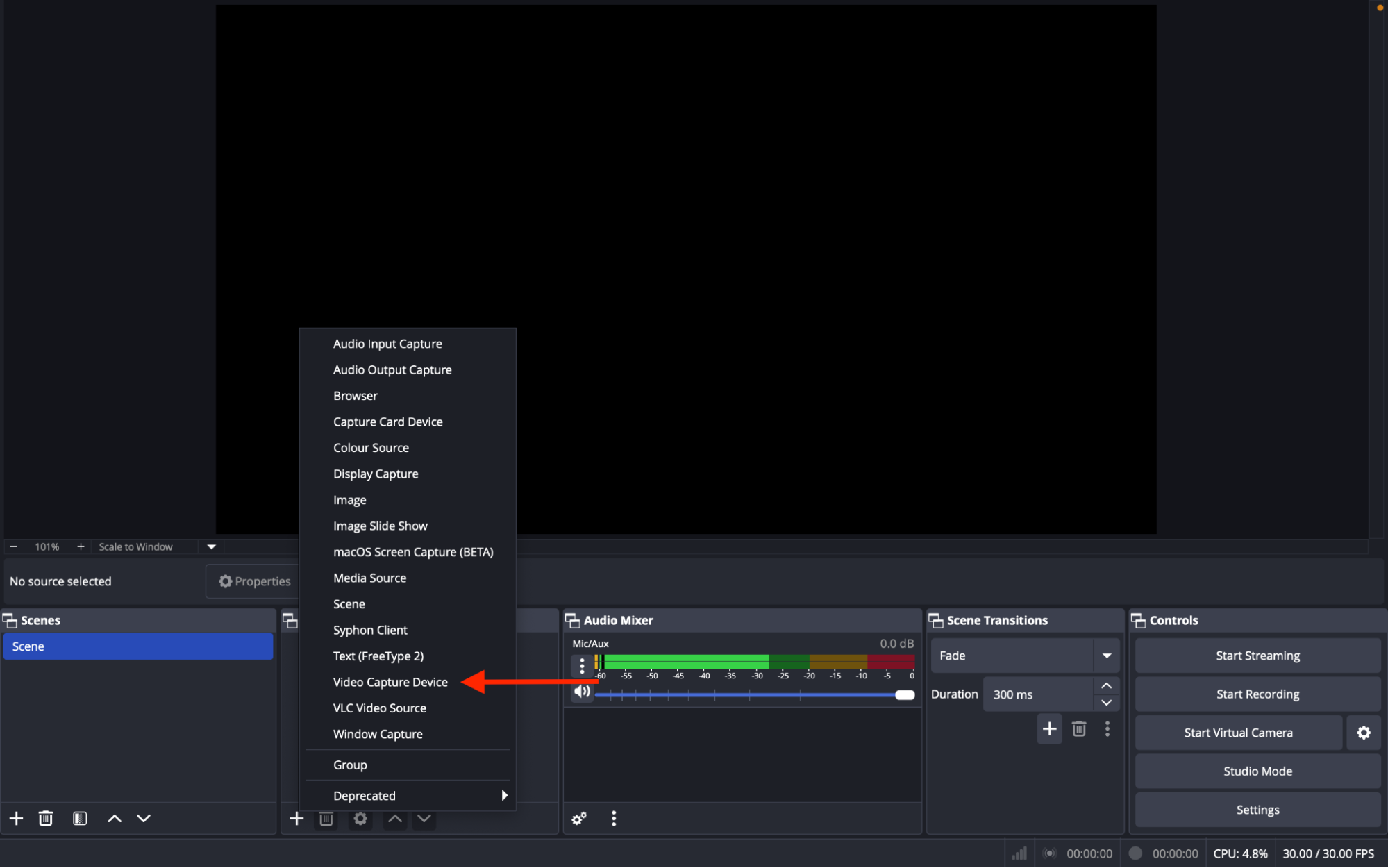
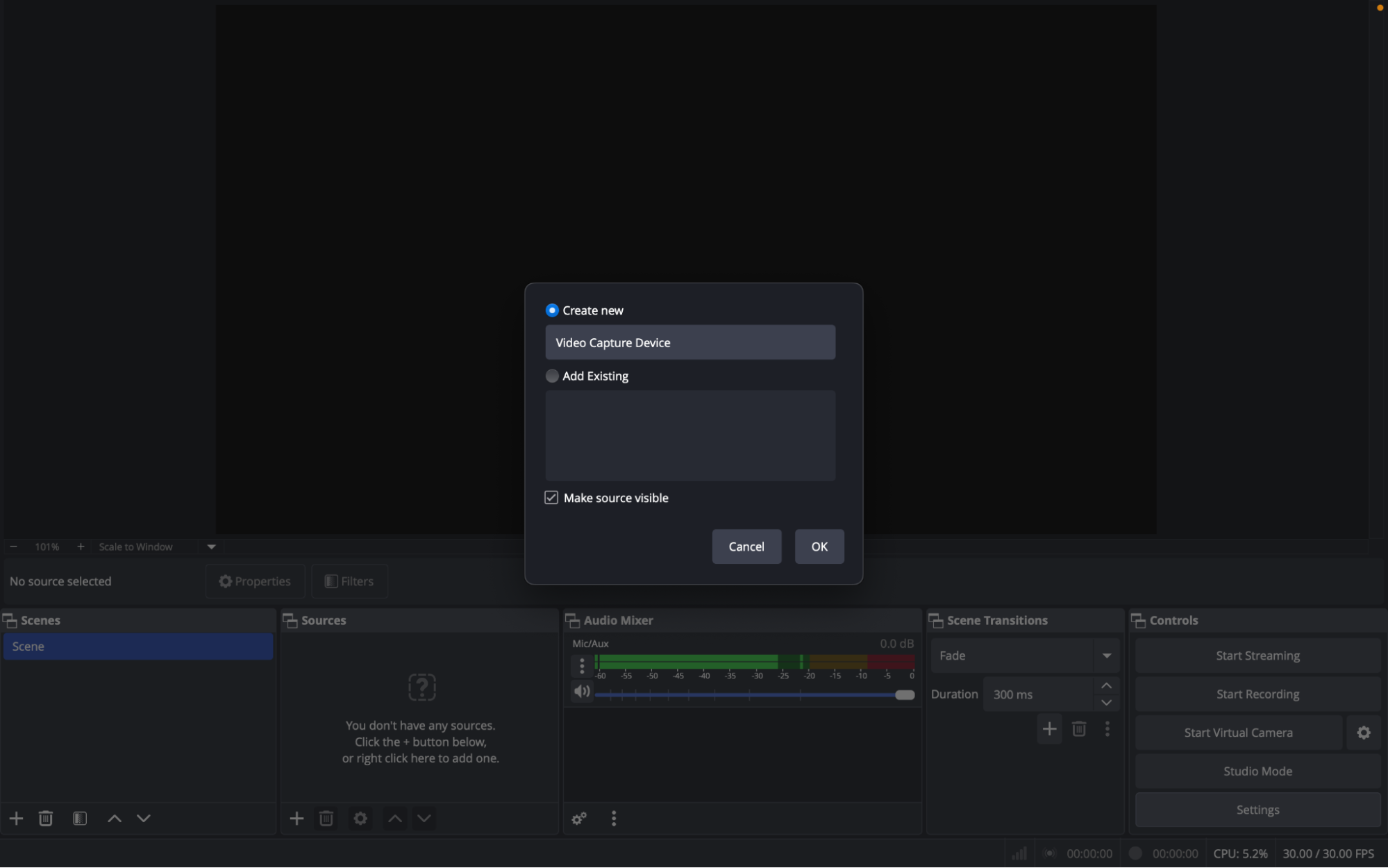
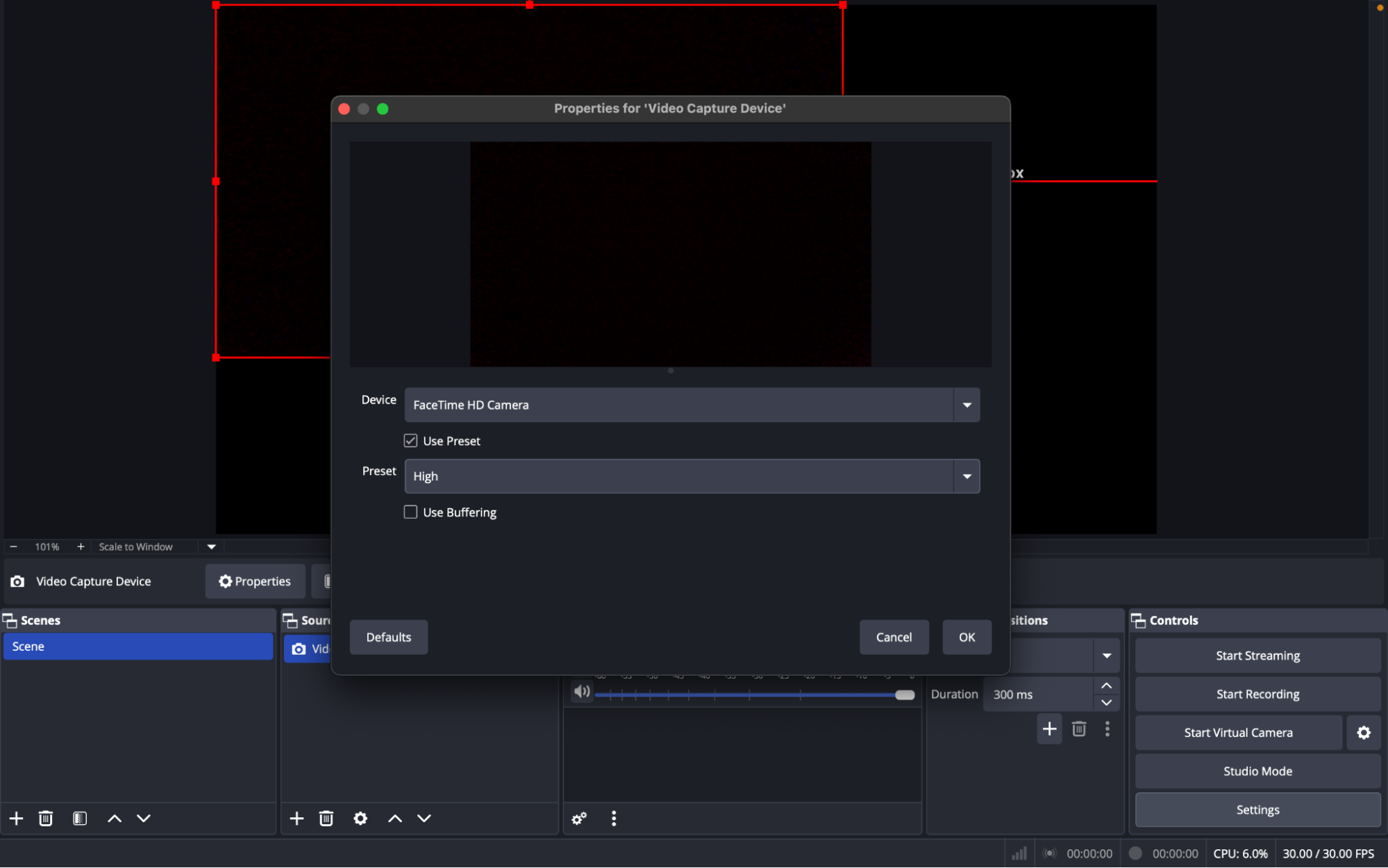
- If needed, add an Audio Input Capture (your microphone).
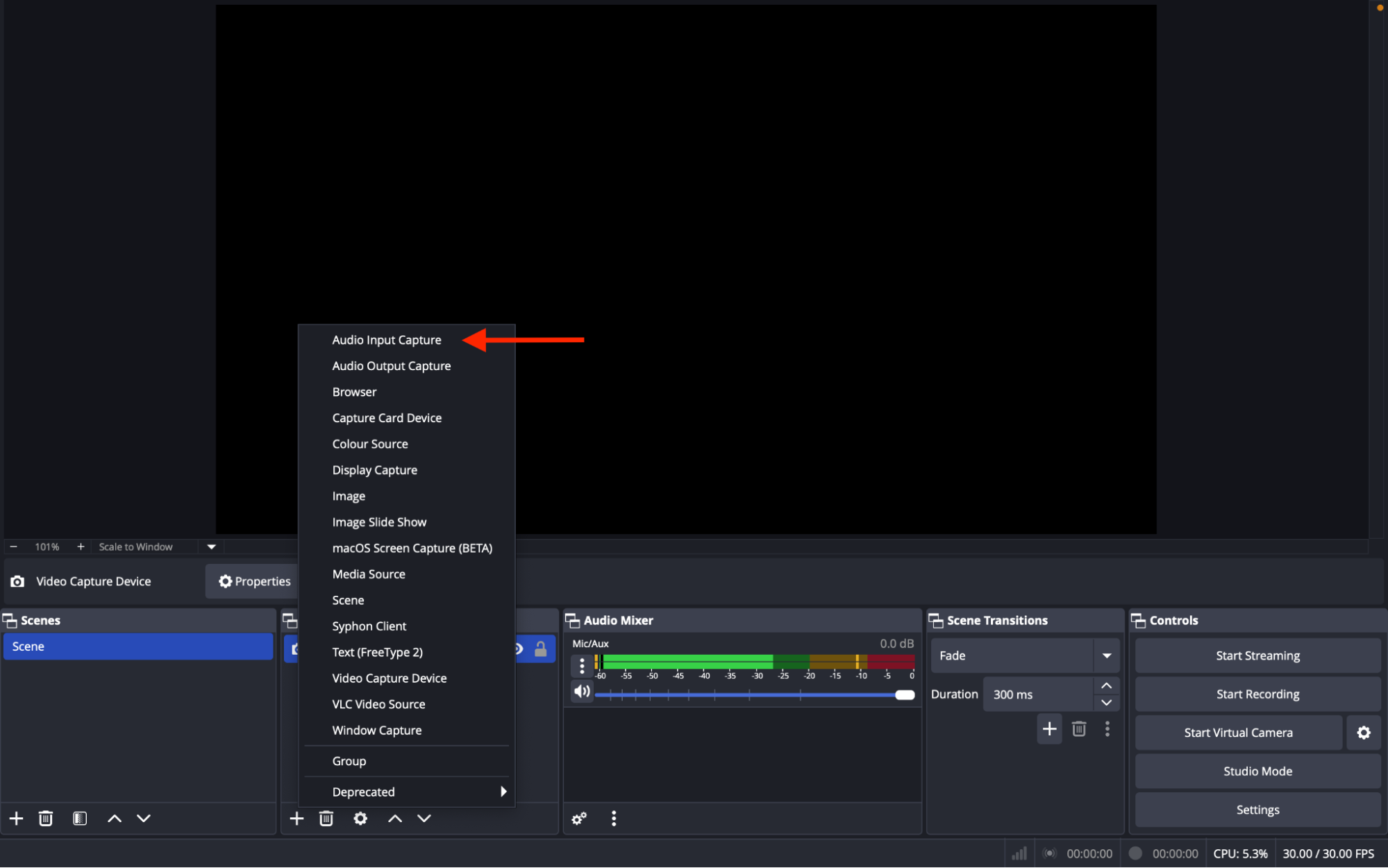
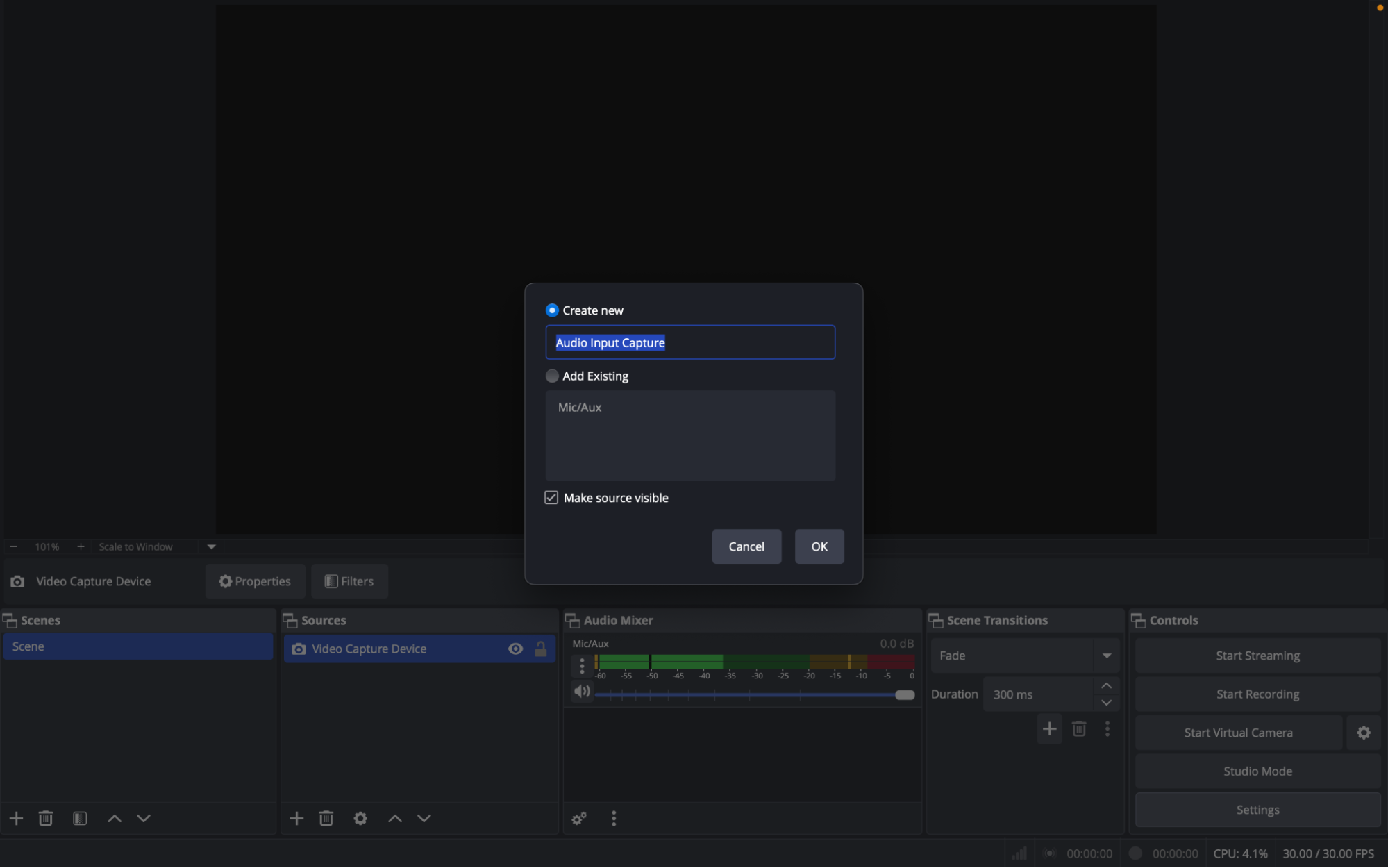
Step 2: Add Your SinParty Stream Information
- Log into your SinParty creator account: https://dashboard.sinparty.com/
- Click: Stream with OBS.
- Copy the Stream URL and Stream Key.
- In OBS, go to Controls → Settings → Stream and paste them.
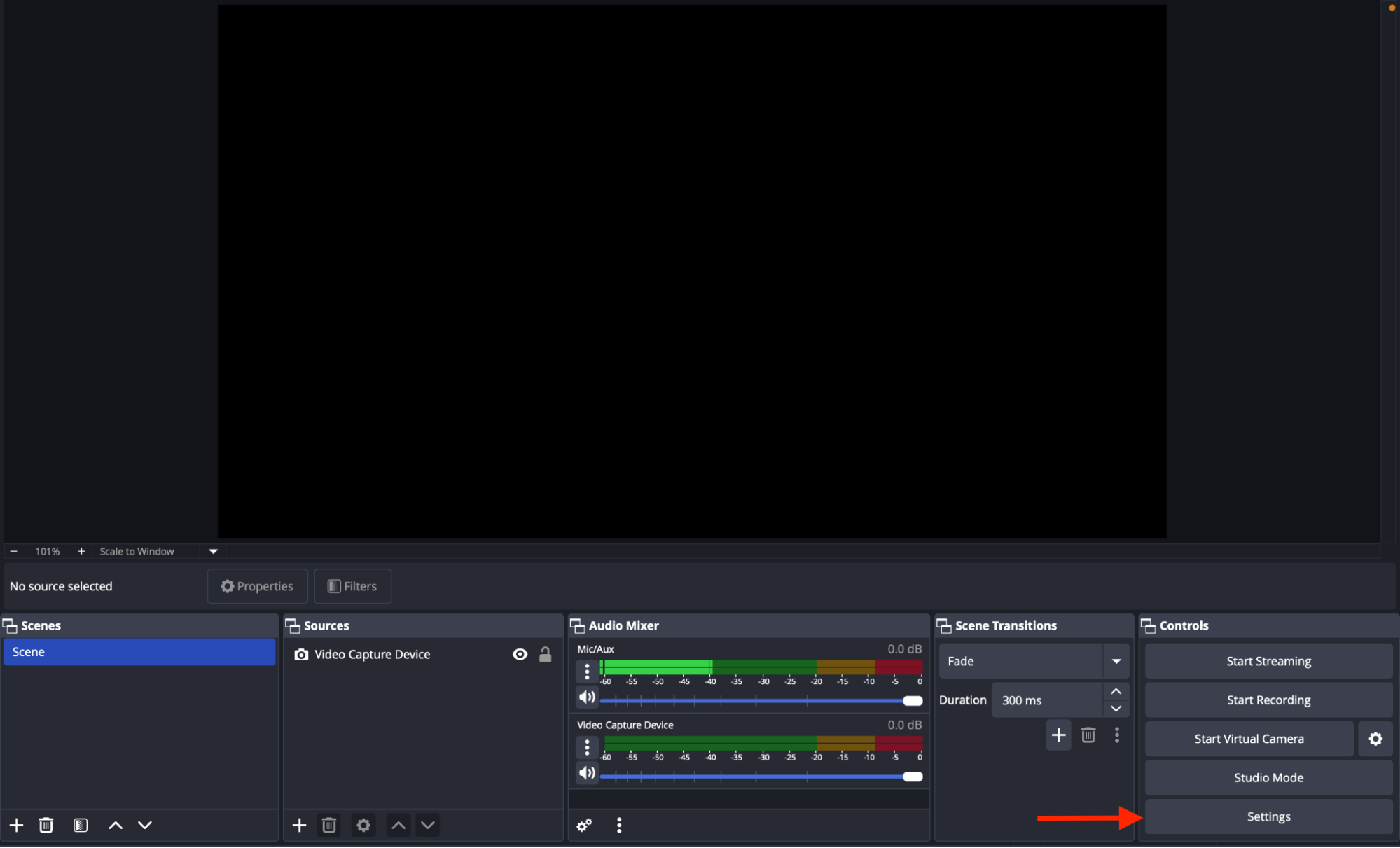
- Service: Custom
- Server: Paste the Stream URL
- Stream Key: Paste the key
Step 3: Configure Output Settings (Advanced Mode)
In OBS, go to Controls → Settings → Output.
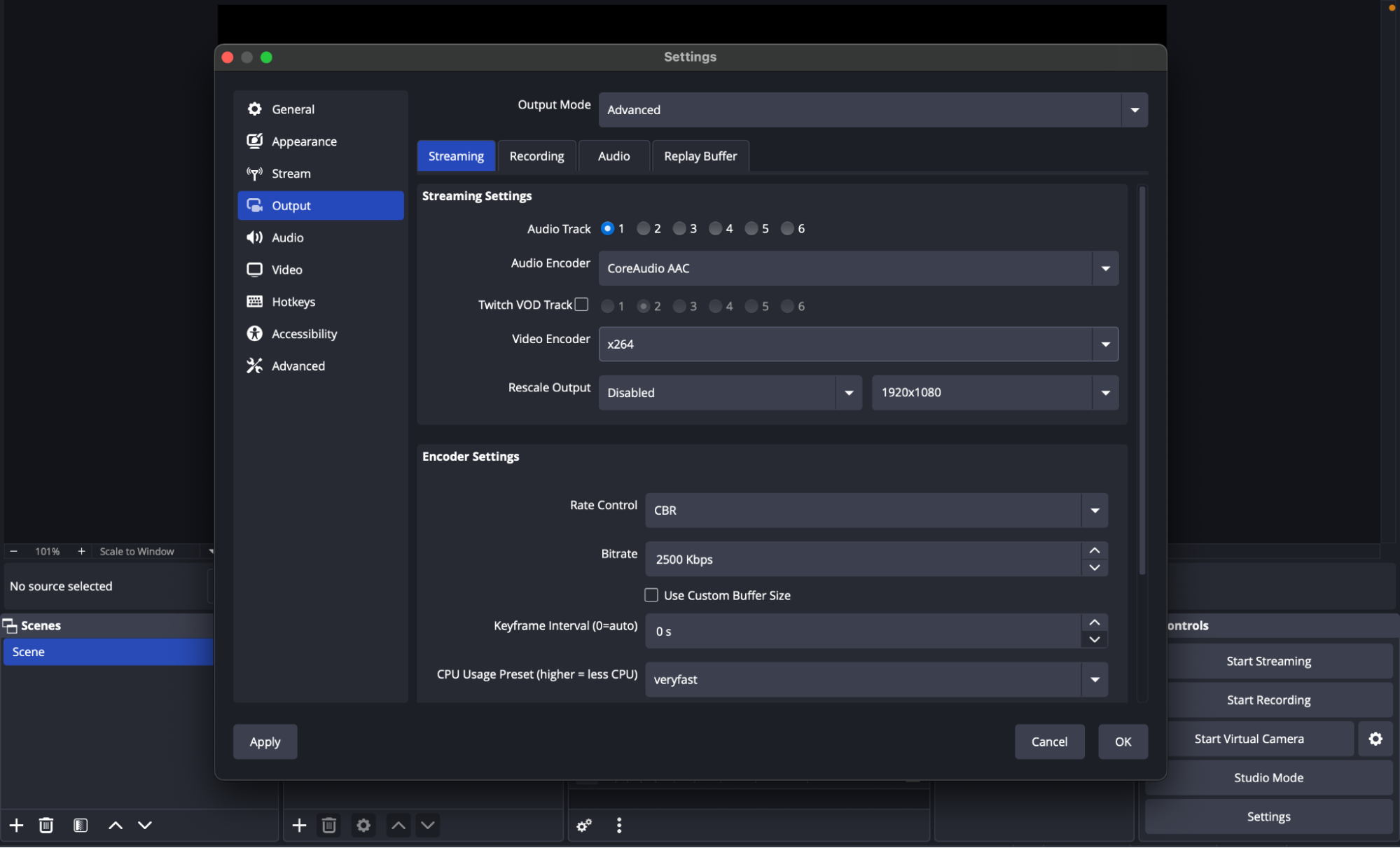
- Change Output Mode to Advanced.
- Under the Streaming tab:
- Video Bitrate: 2500–3000 Kbps (adjust depending on your internet upload speed).
- Audio Bitrate: 160 Kbps.
- Encoder: x264 (software).
- Encoder Preset: veryfast (default – balance between CPU and quality).
- Audio Encoder: AAC (default).
Tip: If you experience lag, lower the bitrate to 2000 Kbps.
Step 4: Configure Audio Settings
- Go to Controls → Settings → Audio.
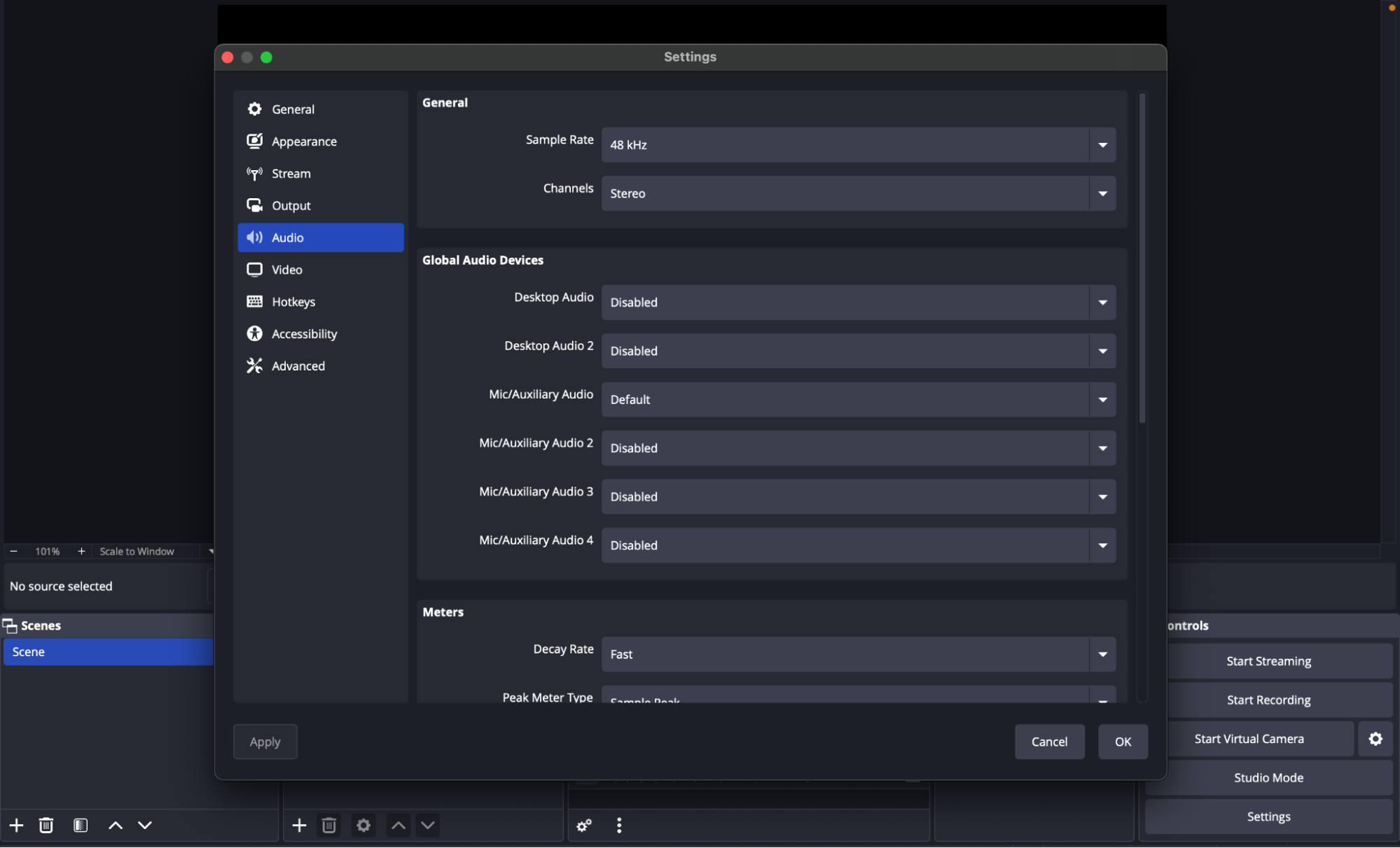
- Set Sample Rate: 48 kHz.
- Set Channels: Stereo.
- Under Global Audio Devices:
- Mic/Auxiliary Audio: Default (your main mic).
- Disable all other audio inputs unless you need them.
Step 5: Configure Video Settings
- Go to Controls → Settings → Video.
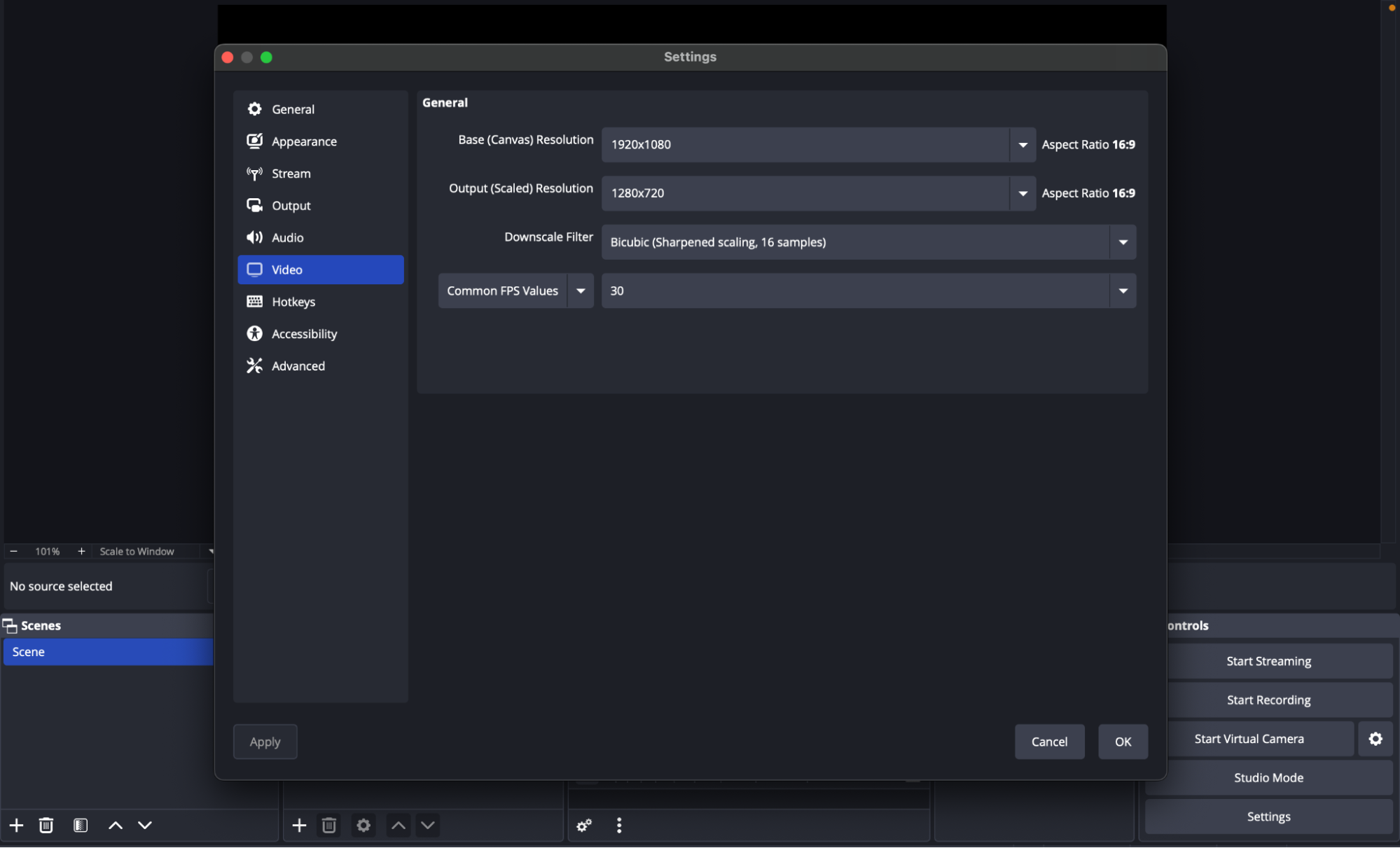
- Base (Canvas) Resolution: Your webcam's native resolution (e.g., 1280×720).
- Output (Scaled) Resolution: 1280×720 (recommended for SinParty).
- Common FPS Values: 30.
Step 6: Start Streaming
- Check that your webcam and mic are visible in the Sources panel.
- Go to Controls → Start Streaming.
- Return to SinParty – your preview will show up.
- When ready, click Go Live on SinParty.
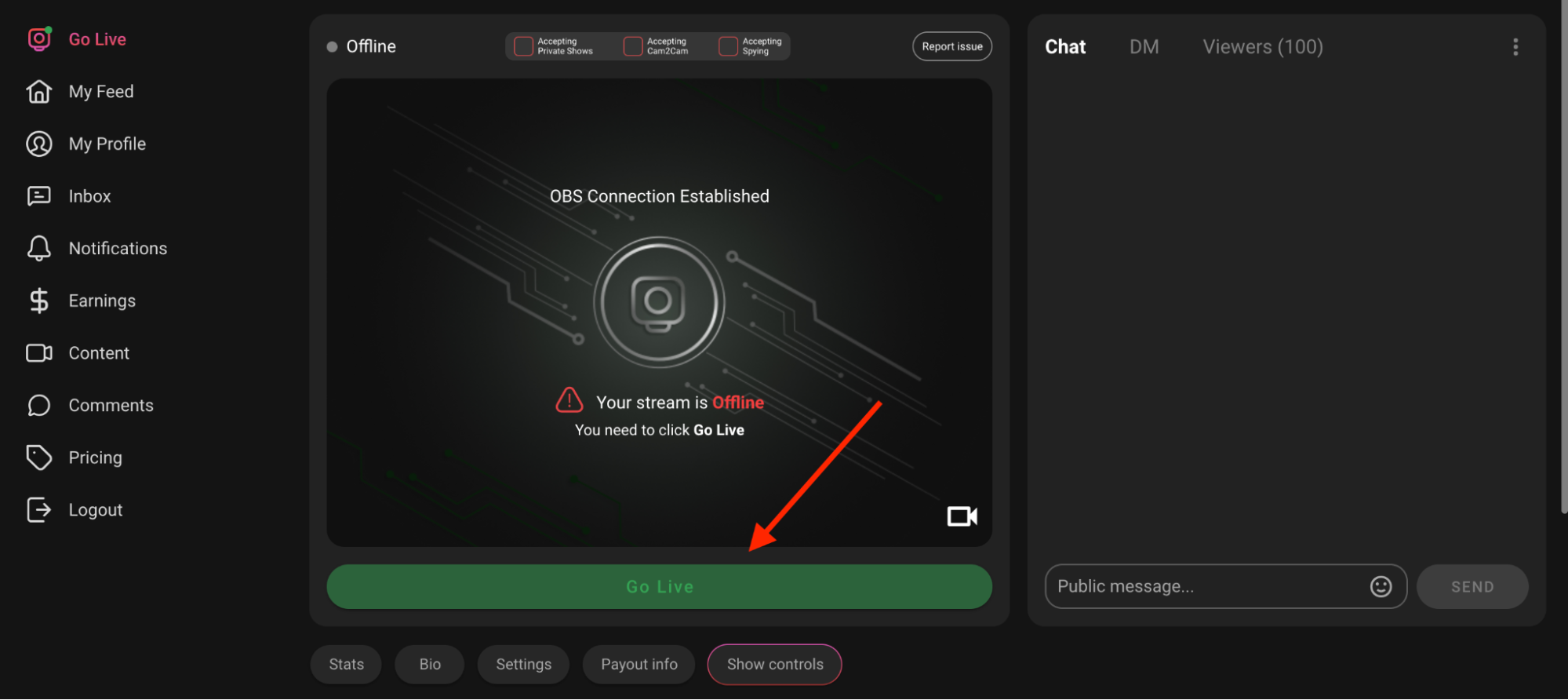
With this form you consent to participate in 18+ content on SinParty.com
To comply with MasterCard's Revised Standards for New Specialty Merchant Registration Requirements for Adult Content Merchants, please download the form.
Download FormMake your profile stand out in just a few minutes:
- Upload a Profile Photo – A square photo that represents you.
- Write a Catchy Bio – Let fans know who you are and what content you offer.
- Add Tags – Choose up to 5 tags that describe your content best.
- Link Your Socials – Add Instagram, X, OnlyFans, Wishlist, and more.
- Set Privacy Settings – Decide if your profile is public or private.
- Done! Your profile is now ready to attract fans and show off your brand.
SinParty is committed to establishing and maintaining a lawfully compliant international pro-creator and professional production brand. We do not hide behind any walls and do not push any boundaries regarding intellectual property, illegal and/or unlawful Content or bad practice. As such, our SinParty Prohibited Use Policy lists conduct which Creators and Users are absolutely prohibited from engaging in and posting on the SinParty Platform.
DEFINITIONS
- “Company” means Orbit Internet LLC, a company duly incorporated in accordance with the laws of the state of Delaware with company number: 93-4395146 and registered address at: 1 E Broward Blvd, Suite 700 Ft. Lauderdale, FL 33301, being the operator of the SinParty Platform;
- “Content” means all material uploaded to the SinParty Platform by any Creator, including photos, videos, audio (for example, dialogue, music and other sounds), livestream material, data, text (such as comments and hashtags), metadata, images, interactive features, emojis, GIFs, memes, and any other uploaded material whatsoever;
- “Creator” also described as a performer or broadcaster means a User who has formally contracted with SinParty to set up their own personal SinParty account as a Creator account to post Content on the SinParty Platform to be viewed by other Users and includes all parties, participants and/or performers in any content whatsoever uploaded onto the SinParty Platform;
- “Participants” means all Creators, performers or broadcasters who, in conjunction with the Creator, participate in any Content uploaded on the SinParty Platform by a Creator and from whom the Creator is lawfully obliged to obtain and hold duly signed consent forms and to provide such duly signed consent forms to SinParty on request;
- “Platform” means the SinParty.com social media platform, website and application service that allows Creators to upload photographs and videos to their profile, setting a monthly subscription fee and therefore earning revenue from paying Users via the Company merchant processing systems;
- “SinParty” means SinParty.com, a social media platform, website and application service wholly owned and operated by the Company which allows Creators to upload photographs and videos to their profile, setting a monthly subscription fee and therefore earning revenue from paying Users via the Company merchant processing systems;
- “Terms and Conditions” means the General Terms and Conditions recorded in the agreement between the Company and any Creator and/or User and/or parties, participants and/or performers and/or broadcasters in any content whatsoever uploaded onto the SinParty Platform;
- “User” means any user of SinParty, whether subscribed or unsubscribed, who views content uploaded to the SinParty Platform, whether a Creator or a User or both;
- “You”, “Your” means Creators and Users of SinParty.
POLICY STATEMENT
The Company is committed to maintaining lawful compliance with all legislation and regulations pertaining to the adult entertainment industry across all jurisdictions in which SinParty operates. This Company commitment extends to promoting, monitoring and ensuring strict and continual compliance with the SinParty Terms and Conditions which apply to Creators, Users, affiliates and any other persons who access the SinParty Platform and services.
REASON AND PURPOSE FOR PROHIBITED USE POLICY
- This Prohibited Use Policy (the “Policy”) applies to your use of all Content uploaded on the SinParty Platform. This Policy sets out all prohibited activity to ensure strict compliance with all applicable legislation and regulations pertaining to the adult entertainment industry globally.
- The Company will periodically review the Policy to consistently amend and adapt the Policy in the event of amendments to applicable legislation and regulations or material changes in the Company’s business to ensure the Company always operates in strict compliance.
- By uploading and/or accessing the SinParty Platform, You agree not to post prohibited content as is more fully described in this Policy. The Company reserves the right to update this Policy and to review and/or reject any Content created and/or posted by You although the Company undertakes no obligation to monitor Content or take any such actions.
ILLEGAL AND UNLAWFUL CONDUCT
- You will only use SinParty for lawful purposes and will not encourage, solicit, incite, entrap or instruct others to violate any legislation.
- By using the SinParty Platform you agree that you will not –
- use the SinParty Platform for any other purpose, except for personal use;
- provide false information to the Company;
- create a false identity or impersonate another person, company or legal entity in any manner;
- without the Company’s express prior written consent, create a new account on SinParty, if the Company has previously disabled, suspended or terminated an account of Yours for any reason whatsoever;
- solicit, or attempt to solicit, personal information from other Creators and/or Users;
- disclose personal information of third parties on the SinParty Platform or retrieve any personal information from the SinParty Platform without the consent of such person, or collect information concerning other Creators or Users;
- sell, rent, transfer, or share your account or any Content obtained from Your use of SinParty to or with any other party;
- harvest or mine Content on the SinParty Platform, or otherwise access or use the SinParty Platform in a manner inconsistent with individual personal usage;
- act in any manner that negatively affects the ability of any other Creator and/or User to use the SinParty Platform;
- engage, upload, post, display or publish Content on the Platform that is illegal, fraudulent, defamatory, hateful, discriminatory, threatening, abusive, harassing, invasive of another’s privacy, or which encourages or promotes violence to people or animals, or which is racially, ethically, or otherwise objectionable, or any other illegal activity;
- post any Content containing falsehoods or misrepresentations that could damage the Company or any third party;
- post any Content containing unsolicited or unauthorised advertising, promotional materials, spam, junk mail, chain letters, pyramid schemes, or any other form of unauthorised solicitation;
- solicit, or attempt to solicit, personal information from other Creators and/or Users;
- use the SinParty Platform to arrange in-person meetings for sexual activity for hire;
- post any Content containing sweepstakes, contests, or lotteries, or otherwise related to gambling;
- use the SinParty Platform to stalk, bully, abuse, harass, threaten or intimidate any other person or entity;
- restrict, discourage or inhibit others from using the SinParty Platform;
- use the SinParty Platform to engage in misleading or deceptive conduct, or conduct that is likely to mislead or deceive any other Creator and/or User;
- post or cause to be posted any Content which is spam, which has the intention or effect of artificially increasing any Creator’s views or interactions, or which is otherwise inauthentic, repetitive, misleading or of low quality;
- use other media or methods (for example the use of codewords or signals) to communicate anything which violates this Policy;
- reproduce, print, distribute, attempt to download, modify, create derivative works of, publicly display, publicly perform, republish, download, store or transmit any Content, except as permitted under the SinParty General Terms and Conditions;
- use Content that shows, promotes, advertises or refers to:
- firearms, weapons, or any goods whose sale, possession or use is subject to prohibitions and/or restrictions;
- underage sexual activity, blackmail, intimidation, snuff, death, violence, incest, racial slurs or hate speech (either orally or written);
- drugs or drug paraphernalia;
- self-harm or suicide;
- bestiality;
- violence, rape, lack of consent, hypnosis, intoxication, sexual assault, torture, sadomasochistic abuse or hardcore bondage, extreme fisting, or genital mutilation;
- necrophilia;
- urine, scatological, or excrement-related material;
- “revenge porn” (being any sexually explicit material featuring any individual who has not given prior, express and fully informed consent to that material (a) being taken, captured, or otherwise memorialized, or (b) being posted and shared on the SinParty Platform);
- escort services, sex trafficking, or prostitution;
- contains unsolicited sexual content or unsolicited language that sexually objectifies another Creator, User or anyone else in a non-consensual way, or contains fake or manipulated sexual content in relation to another Creator, User or anyone else (including “deepfakes”);
- contains, promotes, advertises or refers to hate speech (being Content intended to vilify, humiliate, dehumanize, exclude, attack, threaten, or incite hatred, fear of, or violence against, a group or individual based on race, ethnicity, national origin, immigration status, caste, religion, sex, gender identity or expression, sexual orientation, age, disability, serious disease, veteran status, or any other protected characteristic);
- contains or refers to any personal data or private or confidential information (for example, telephone numbers, location information, including street addresses and GPS coordinates), names, identity documents, email addresses, log-in credentials for SinParty including passwords and security questions, financial information including bank account and credit card details, biometric data, and medical records) without such person’s express prior written consent;
- gives the impression that it comes from or is approved, licensed or endorsed by the Company or any other person or company;
- causes or is calculated to cause inconvenience, or anxiety to any other person or entity or which is likely to upset, embarrass, or cause serious offence to any other person or entity;
- is used or is intended to be used to extract money or another benefit from any other person or entity in exchange for removal of Content;
- involves or promotes third-party commercial activities or sales, such as contests, sweepstakes and other sales promotions, product placements, advertising or job posting or employment ads without the Company express prior written consent;
- either in the case of: Content featuring public nudity, recorded in or broadcast from a country, State or province where public nudity is illegal;
- or Content featuring sexual activities, recorded in or broadcast from a public place where members of the public are reasonably likely to see the activities being performed (this does not include outdoor places where members of the public are not present, for example private property such as a private backyard, or secluded areas in nature where members of the public are not present).
- any individual under the age of 18 (or older in any other jurisdiction in which 18 is not the minimum age of majority);
- any other individual unless You have requisite documentation confirming all individuals shown or included or referred to in Your Content are 18 years of age (or older in any other jurisdiction in which 18 is not the minimum age of majority), and You have prior written consent from each individual regarding their participation in your Content.
For the best streaming and site performance, we recommend using Google Chrome.
Why Chrome?
- Most Compatible: SinParty's features (live streaming, Lovense integration, OBS connection) are optimized for Chrome.
- Frequent Updates: Security and performance patches are released regularly.
- Better Media Handling: Chrome processes webcam, microphone, and video streams more efficiently than other browsers.
Supported Browsers
SinParty works on:
- Google Chrome (Recommended)
- Microsoft Edge (works, but less stable than Chrome)
- Mozilla Firefox (supported, but may cause performance issues with streaming & Lovense)
- Safari (Mac only) (basic support, but may block some media permissions by default)
Browser Checklist
- Always use the latest version of your browser.
- Allow Camera and Microphone access in browser settings.
- Enable Cookies and Pop-ups for sinparty.com.
- Use a stable internet connection (Wi-Fi or wired).
Pro Tip: If you face issues with one browser, switch to Chrome before contacting support.
1. Computer
Minimum:
- CPU: Intel i5 (4th gen or newer) / AMD Ryzen 5
- RAM: 8 GB
- OS: Windows 10+, macOS 10.14+, Linux
Recommended:
- CPU: Intel i7 / AMD Ryzen 7 or higher
- RAM: 16 GB+
- GPU: Dedicated graphics card (NVIDIA GTX 1660 or better)
- SSD storage (for smoother operation and video caching)
Tip: Streaming with OBS requires more power than streaming directly via browser.
2. Internet Connection
- Minimum Upload Speed: 5 Mbps
- Recommended Upload Speed: 10 Mbps+ (wired Ethernet preferred)
- Stability: Use a LAN cable instead of Wi-Fi whenever possible.
Rule of thumb: Your upload speed should be at least double your OBS bitrate.
3. Webcam / Camera
- Basic Option: Logitech C920 / C922 HD Pro (1080p, affordable & reliable).
- Advanced Option: DSLR or mirrorless camera with HDMI capture card (e.g., Elgato Cam Link).
- Key Features: Full HD (1080p), good low-light performance, autofocus.
4. Microphone
- Basic Option: Built-in laptop mic (not recommended long-term).
- Recommended USB Mic: Blue Yeti, HyperX SoloCast, or Rode NT-USB.
- Professional Option: XLR microphone + audio interface (Focusrite Scarlett).
Clear audio = more tips. Viewers tolerate average video, but not bad sound.
5. Lighting
- Basic: Ring light with adjustable brightness and color temperature.
- Better: Two softbox lights (left & right) for even lighting.
- Pro Setup: Three-point lighting (key, fill, and background light).
6. Accessories
- Headphones: To monitor audio without echo.
- Backdrop / Green Screen: For cleaner, professional-looking streams.
- Tripod / Mount: To stabilize your webcam or camera.
- USB Hub / Splitter: Useful for multiple devices (mic, cam, Lovense toy, etc.).
7. Mobile Streaming (if not using PC)
- Minimum: Modern smartphone (iPhone 12+, Samsung Galaxy S20+).
- Accessories: Tripod mount, ring light, strong Wi-Fi or LTE/5G.
Our referral program rewards you for bringing new members to SinParty. Every time someone registers through your unique referral link, you’ll earn 20% of all their purchases across the site — for life. It’s a great way to boost your income simply by promoting your link on social media, your fan pages, or in your streams.
You can even track performance stats in real time and create custom links that direct visitors to the homepage, trending models, or your own profile.
How to Use & Track Your Referral Link:
- Copy your referral link
- Go to your model dashboard.
- At the top, click the Live Page Link button — it will automatically copy your referral URL to your clipboard.
This link will send members directly to your room
- Track your stats
- Next to your link, click the square icon to open your referral dashboard.
- There, click Stats to view:
- Unique clicks
- Signups
- Paying users
- Purchases
- Click on the name of the link to see performance details broken down by day.
- Create a custom referral link (optional)
- Inside the referral dashboard, you can create your own custom links that direct users to:
- The SinParty homepage
- The top 7 live rooms
- Or any specific page you want to promote
Tip: Promote your referral link on your Social Media pages to maximize your earnings!
SinParty does not tolerate: (i) sharing of images, personal data, or confidential information without the consent of its owner or respective data subject(s); or (ii) the sharing of or engaging in any other form of abusive or illegal content. The form below has been created for you to report any content which you believe constitutes: Distribution of your image without your consent(e.g., any content for whose publication you have withdrawn consent, revenge porn, extortion/blackmail, exploitation)
Publication of Personally Identifiable Information without your consent(e.g., home address, email address, IP address, name, telephone number) Abusive and/or illegal content– If you believe any content appears to be otherwise abusive or illegal in any way Limit your use of this form for these enumerated purposes. If there is content which you reasonably believe violates SinParty’s Terms of Use or Prohibited Use Policy but does not appear to be either illegal or non-consensual, please report such content using the “REPORT ROOM” feature next to every streaming broadcast or email support@sinparty.com
If you believe that your copyrighted content is being shared on SinParty without your consent, please complete our DMCA/Remove Content form here. Any complaint of illegal content received by SinParty is immediately taken down and reviewed. if the content is found to be legal and not in violation of SinParty Terms of Use, then it may be reposted. All Reports submitted via this form will be reviewed by our Customer Support team and resolved within 7 business days. SinParty will report to law enforcement: (i) any suspected illegal content; and (ii) any matters it deems appropriate, in its sole discretion. If SinParty reasonably believes that any additional information is required and/or related to the resolution of your report.
Once you’ve reached the minimum balance required for your selected payout method, you can request a payout at any time — there’s no need to wait for a fixed payment cycle. Just make sure your payout info is already set up in your profile.
How to Request a Payout:
- Click on Withdraw, located at the top left of your profile — just under your available balance and next to your profile picture.
- Select your preferred payout method from the list.
- Enter the withdrawal amount, ensuring it meets or exceeds the minimum threshold for that method:
- Paxum: $20
- Cryptocurrency: $50
- ACH Direct Deposit (USA only): $500
- Wire Transfer: $100
- Click Proceed to confirm your request.
Your request will be reviewed and processed shortly after submission.
Direct messages are a great way to build stronger connections with your members, say thank you after a tip, or keep in touch when you're offline. You have a few easy ways to send a DM:
How to Send a DM:
- From the Join Notification: When a member enters your room, you'll see a notification in your free chat. Just click "Send DM" directly from there.
- From a Message in Chat: Click the three dots next to any message they've sent, then choose "DM."
- From Your Chat List: Go to your chat list, click "DM," and select the member you want to message.
Tip: Keep your messages personal and engaging. A quick DM can go a long way in turning casual viewers into loyal fans.
Define what kind of chat experiences you offer to your audience, from free chats to exclusive private sessions.
- Click Go Live from the left menu.
- Under the streaming area click on Settings
- Specify your offerings for:
- Free chat
- Private shows
- Exclusive private shows
- Save your settings.
A faster way to adjust your Private, Exclusive Private, and Spying settings is by clicking the buttons above your streaming area. From there, you can choose whether to accept Private Shows, Cam2Cam, or Spying, and set your desired prices for each.
Setting clear pricing helps your viewers know what to expect and ensures you get paid fairly for your time and content.
- Click Go Live from the left menu.
- Under the streaming area click on Settings
- Set the minimum time and price per minute for:
- Private shows
- Exclusive private shows
- Spy sessions
- Save your settings.
A faster way to adjust your Private, Exclusive Private, and Spying settings is by clicking the buttons above your streaming area. From there, you can choose whether to accept Private Shows, Cam2Cam, or Spying, and set your desired prices for each.
Want to keep your profile hidden from certain countries? Geo-blocking gives you control over who can view your content based on location.
- Open My Profile and scroll to the Geo-Blocking section.
Select the countries you want to restrict from viewing your profile.
Staying updated with real-time notifications helps you never miss important events like new tips, messages, or subscriber activities. Enabling push and email notifications ensures you can respond quickly and keep your fans engaged.
- Go to My Profile from the left-hand menu.
- Click on the Notification Settings section.
- Choose which notifications you want to receive via push or email by toggling each option on or off.
- Save your preferences to start receiving updates tailored to you.
Setting goals during your live shows can motivate your audience to participate and tip, helping you increase your earnings.
- Click Go Live from the left menu.
- Under the streaming area click on Show controls
- Add up to 5 goals with descriptions and target amounts.
- You can also set goals during the initial Go Live pop-up before starting your stream.
Note: Your goals will update automatically as you reach them.
Control who can see your profile by setting it to public or private. If you want to attract fans and be discoverable on SinParty, it's important to keep your profile public. Choosing private will limit visibility
- Go to My Profile from the left-hand menu.
- Select the Overview tab.
- Choose whether you want your profile to be Public or Private.
- Save your changes.
Note: To be visible and grow your audience on SinParty, your profile must be set to public.
Setting a clear room topic helps your viewers know what to expect and can attract the right audience.
- Click Go Live from the left menu.
- Under the streaming area click on Show controls
- Enter your room topic in the designated field.
- Click Save
- You can also set your goal during the initial Go Live pop-up before starting your stream.
Customizing your tip menu allows viewers to see what actions or rewards they can unlock by tipping specific amounts.
- Click Go Live from the left menu.
- Under the streaming area click on Show controls
- Add or edit items and their corresponding prices to create your tip menu.
- Save your changes.
In Studio Management, you can set up your studio’s payout details to receive your earnings smoothly. Available payout methods include:
- Paxum
- ACH (USA only)
- Cryptocurrency (BTC, ETH, USDC)
- Wire Transfer
To set up your payout:
- Enter your payout details for the chosen method.
- Ensure you meet the minimum payout amounts:
- Paxum: $20
- Crypto and ACH: $50
- Wire Transfer: $100
- Select your preferred payout method as default.
- Click Save to confirm.
Automatic payouts: Every Monday at 1:00 AM PST, the system will automatically request a payout for your studio if the minimum payout amount is available and you have set the method as default. Our financial department will then review and approve payments promptly.
To get paid for your content and live shows, you'll need to set up your preferred payout method. SinParty currently offers the following options: Paxum, ACH Direct Deposit (USA only), Cryptocurrency and Wire Transfer. The minimum payout amount depends on the method you select.
Available Payout Methods & Minimums:
- Paxum – Minimum payout: $20
- Cryptocurrency – Minimum payout: $50
- ACH Direct Deposit (USA only) – Minimum payout: $50
- Wire Transfer – Minimum payout: $100
You can request a payout anytime once you reach the minimum for your chosen method.
How to Set It Up:
- Go to My Profile from the left-hand menu.
- Click on the Payout Info section.
- Select your preferred payout method.
- Enter the required details and click Save Changes.
Tip: Double-check your payout info to avoid any delays in receiving your earnings
Within Studio Management, you have easy access to detailed stats and earnings information for your models:
- Stats: View the total earnings of all your models combined, as well as the individual income of each model. You can filter the data by selecting a specific time period. Stats show how much your models streamed during that timeframe, along with breakdowns of earnings from tips, private shows, exclusive shows, spy sessions, fan club subscriptions, content sales, and the overall total.
Note: All times and dates are displayed in Pacific Standard Time (PST).
- Earnings: Check how much your models have earned within a chosen period, see their current account balances, view your studio's available balance, and monitor the total amount earned by your studio.
Please note: Money from each model's account is automatically transferred to the studio account every night at midnight PST, so models will start each new day with a zero balance.
This overview helps you keep track of your studio’s performance and manage your team efficiently.
Standard Agreement between Subscribing User and Creator
If this Agreement is with a Subscribing User resident outside of the European Union any claim under this Agreement must be brought in the courts of Florida, United States, unless the Subscribing User and Creator otherwise agree.
Introduction. This Standard Agreement between Subscribing User and Creator ("this Agreement") sets out the terms which govern each transaction between a Subscribing User and a Creator on SinParty.
Definitions
In this Agreement, defined terms have the following meanings:
“Content” means any material uploaded to SinParty by any User (whether a Creator or a Subscribing User), including any photos, videos, audio (for example music and other sounds), livestream material, data, text (such as comments and hashtags), metadata, images, interactive features, emojis, GIFs, memes, and any other material whatsoever;
“Creator” means a User who has set up their SinParty account as a Creator account to post Content on SinParty to be viewed by other Users;
“Referring User” means a User who participates in the SinParty Referral Program;
“SP Fee” means the fee charged to Creators in accordance with section 3.1 of the SinParty Terms of Use for Creators;
“SinParty” means the website accessed via the URL www.sinparty.com or via any web browser;
“Subscribing User/Creator Transaction” means any transaction between a Subscribing User and a Creator on SinParty by which access is granted to the Creator’s Content, including in any of the following ways, as applicable: (i) a Subscription, (ii) payments made by a Subscribing User to view a Creator’s pay-per-view Content (pay-per-view media and pay-per-view live stream), and (iii) payments made by a Subscribing User to use the Subscribing User interaction function on a Creator’s account;
“Subscribing User” means a User who follows a Creator and is able to view the Creator’s Content;
“Subscribing User Payment” means (i) any and all payments made by a Subscribing User in respect of any Subscribing User/Creator Transaction, and (ii) any and all tips;
“Subscription” means a Subscribing User’s subscription to a Creator’s account;
“Tax” shall include all forms of tax and statutory, governmental, state, federal, provincial, local government or municipal charges, duties, imposts, contributions, levies, withholdings or liabilities wherever chargeable and whether of the United States or any other jurisdiction.
Applicability
Each time a Subscribing User/Creator Transaction is initiated on SinParty, this Standard Agreement between Subscribing User and Creator will apply to the exclusion of any other terms which the Subscribing User or Creator may propose, and this Standard Agreement between Subscribing User and Creator will legally bind the Subscribing User and Creator participating in the Subscribing User/Creator Transaction.
Parties
The only parties to this Agreement are the Subscribing User and Creator participating in the Subscribing User/Creator Transaction. Neither Orbit Internet LLC nor any of its subsidiaries, parent company, or affiliates (the “Company”) is a party to this Agreement and the Company does not grant any rights in respect of, nor participates in, any Subscribing User/Creator Transaction, except that the Company may act as a payment intermediary in accordance with the Creator’s and Subscribing User’s instructions set out in section 5 of this Agreement.
Pricing and payment
By entering into a Subscribing User/Creator Transaction, the Subscribing User agrees to pay the Subscribing User Payment applicable to the relevant Subscribing User/Creator Transaction in accordance with the pricing published in the Creator’s account plus any VAT which is applicable. The Subscribing User and Creator participating in the Subscribing User/Creator Transaction authorize Orbit Internet LLC or any of its subsidiaries or affiliates to act as a payment intermediary and to collect, hold, and process the Subscribing User Payment and any applicable VAT, to deduct the SP Fee, and to pay out the sums due to Creators and (if applicable) Referring Users, as described in the SinParty Terms of Use.
License of Content
Once the Subscribing User has made the Subscribing User Payment for a Subscribing User/Creator Transaction, the Creator grants to the Subscribing User a limited license to access the applicable Content of that Creator to which the Subscribing User/Creator Transaction relates (the “Relevant Content”). This license is non-transferable, non-sublicensable and non-exclusive, and permits the Subscribing User to access and view the Relevant Content on the Subscribing User’s personal device and via a normal web browser (and to make a temporary copy of such Content only to the extent that this is an incidental and technical process forming part of the Subscribing User’s accessing the Content (i.e., caching)), in accordance with the SinParty Prohibited Use Policy.
Ownership of Content
The Subscribing User participating in the Subscribing User/Creator Transaction acknowledges and agrees that the license of the Relevant Content provided in section 6 of this Agreement does not result in the Subscribing User acquiring any rights in or to the Relevant Content, which rights shall be retained by the Creator of the Relevant Content.
Expiry of license
The license granted to a Subscribing User in relation to the Relevant Content will expire automatically without notice in the following circumstances:
- if the Subscribing User Payment related to the Subscribing User/Creator Transaction was unsuccessful, or is charged back or reversed for any reason;
- in respect of pay-per-view Content, once the Subscribing User has completed viewing the Content;
- in respect of Subscriptions, at the end of the subscription period, unless the Subscription is configured to automatically renew as described in section 8(h) of the SinParty Terms of Use for Subscribing Users;
- if the Subscribing User’s User account is suspended or terminated for any reason;
- if the Subscribing User acts in breach of the SinParty Acceptable Use Policy (whether in relation to the Relevant Content or at all);
- if the Content is removed from the Creator’s account;
- if the Subscribing User closes their SinParty User account.
Cancellation and refunds
In respect of every Subscribing User/Creator Transaction:
The Subscribing User acknowledges that the Subscribing User/Creator Transaction will result in a supply of the relevant Content to the Subscribing User before the end of the period of 14 days from the date when the Subscribing User/Creator Transaction is entered into, and the Subscribing User gives his or her express consent to this and confirms to the Creator that he or she is aware that any statutory right to cancel the Subscribing User/Creator Transaction which the Subscribing User has under any applicable law will therefore be lost;
Regarding any Subscriber Payments used to purchase tokens on SinParty, all unused tokens expire within 90 days of purchase.
This Agreement does not affect any statutory right to receive a refund from the Creator which a Subscribing User may have under any other applicable law.
Obligations between Creator and Subscribing User
In respect of every Subscribing User/Creator Transaction:
The Subscribing User and the Creator participating in the Subscribing User/Creator Transaction agree to comply at all times with the SinParty Acceptable Use Policy in relation to the Relevant Content, including when accessing, viewing and interacting with it.
The Subscribing User participating in the Subscribing User/Creator Transaction agrees to make the Subscribing User Payment required to access, view or interact with the Relevant Content, and agrees not to initiate a chargeback other than if the Subscribing User disputes the Subscribing User/Creator Transaction in good faith.
The Creator participating in the Subscribing User/Creator Transaction agrees to make the Relevant Content available to the Subscribing User once the Subscribing User has made the Subscribing User Payment applicable to the Relevant Content.
The Creator warrants (makes a legally enforceable promise) that it possesses all necessary rights in and to the Relevant Content sufficient to license it to the Subscribing User in the territory in which the Subscribing User will be accessing the Relevant Content, and has obtained any and all permissions and consents needed to grant the license in section 6 of this Agreement.
The Creator is solely responsible for creating and uploading the Relevant Content. The Creator provides no guarantees that it will continue to create and upload Relevant Content on an ongoing basis.
Unless there has been negligence or other breach of duty by the Creator, the accessing by the Subscribing User of the Creator’s Content is entirely at the Subscribing User’s own risk.
No guarantees
The Subscribing User participating in the Subscribing User/Creator Transaction acknowledges that Creators may add and remove Content at any time from their Creator account, and that Creators have the discretion to decide what sort of Content to make available on their account. In addition, the Subscribing User participating in the Subscribing User/Creator Transaction acknowledges that there may be circumstances where it is not possible for the Subscribing User to access to Relevant Content to be provided under the Subscribing User/Creator Transaction, including:
- if the Creator’s account is suspended or deleted;
- if the Subscribing User’s account is suspended or deleted;
- if the availability of all or any part of SinParty site is suspended or inaccessible; or
- if the Creator is unable to create or upload Relevant Content in the future.
Law, Venue, and Jurisdiction
This Agreement is governed by the laws of the State of Delaware which will apply to any claim that arises out of or relates to this Agreement. The Subscribing User will also be able those laws not subject to being waived based on the jurisdiction of the Subscribing User.
If this Agreement is with a Subscribing User resident outside of the European Union any claim under this Agreement must be brought in the courts of Florida, United States, unless the Subscribing User and Creator otherwise agree.
It’s not always easy to remember every important detail about your members—especially your most active fans or those with specific preferences. Taking notes helps you build stronger relationships, personalize your shows, and stand out from the crowd.
How to Take Notes About a Member:
- Click the three dots next to the message they sent.
- Write your note—this could include their favorite shows, tip history, name preferences, or anything else that helps you connect better.
- Your notes will be automatically saved and only you can see it!
Tip: Keeping track of small details can make a big difference in turning casual viewers into loyal fans.
My Feed:
- Shows what your members see
- Lets you pin posts to the top of your profile
- Allows you to edit or view post stats
Content:
- Shows everything you've ever posted
- Lets you filter by:
- All Posts
- Public
- Subscribers-only
- Followers-only
- Paid content
- Polls
- Vault
- Displays post performance:
- Likes, comments, and views
Your bio helps fans and potential followers understand who you are. Use it to share a bit about yourself, your content style, and what fans can expect from your shows or posts.
- Navigate to My Profile using the left-hand menu.
- Click the pencil icon next to your bio, located below your nickname and social media links.
Make your edits, then scroll down and click Save to apply the changes.
Keeping your personal details and password up to date helps secure your account and ensures your information is accurate for payouts and communication.
- Go to My Profile from the left-hand menu.
- Click on the Account section.
Update your personal details or password, then click Save to apply the changes.
If videos on your profile are not playing, the issue is usually caused by browser settings, file format, or internet connection. Follow these steps to troubleshoot:
Step 1: Check File Format & Upload
- Only MP4 (H.264 video + AAC audio) is supported.
- If your video was uploaded in a different format (AVI, MKV, MOV), convert it to MP4 before uploading.
- Re-upload the file if it failed during the initial upload.
Step 2: Check Your Internet Connection
- Slow or unstable internet can prevent videos from loading.
- Run a speed test: you need at least 10 Mbps download speed for smooth playback.
- Switch to a wired (Ethernet) connection or stronger Wi-Fi if possible.
Step 3: Browser Troubleshooting
- Use the recommended browser: Chrome (latest version).
- Clear cache and cookies (Settings → Privacy → Clear Browsing Data).
- Disable ad blockers or extensions that may block video content.
- Allow Autoplay Media in your browser settings.
Step 4: Device Settings
- Make sure your device has enough free memory/CPU (close other heavy apps or tabs).
- Restart your device and try again.
Step 5: Platform Issues
- Check if videos play in Incognito Mode → if yes, the issue is caused by browser extensions.
- If multiple users report the same problem, it may be a temporary server issue.
Pro Tip: If you continue experiencing issues, contact SinParty Support with the video title, upload date, and a screenshot of the error.
SinParty is a next-generation adult platform that empowers models and studios to monetize through live streaming and content sales. Whether you’re a solo creator or part of a studio, SinParty gives you the tools to build a loyal fanbase, go live with ease, sell content, and grow your earnings.
Can't find what you're looking for?
Email your query to support@sinparty.com